

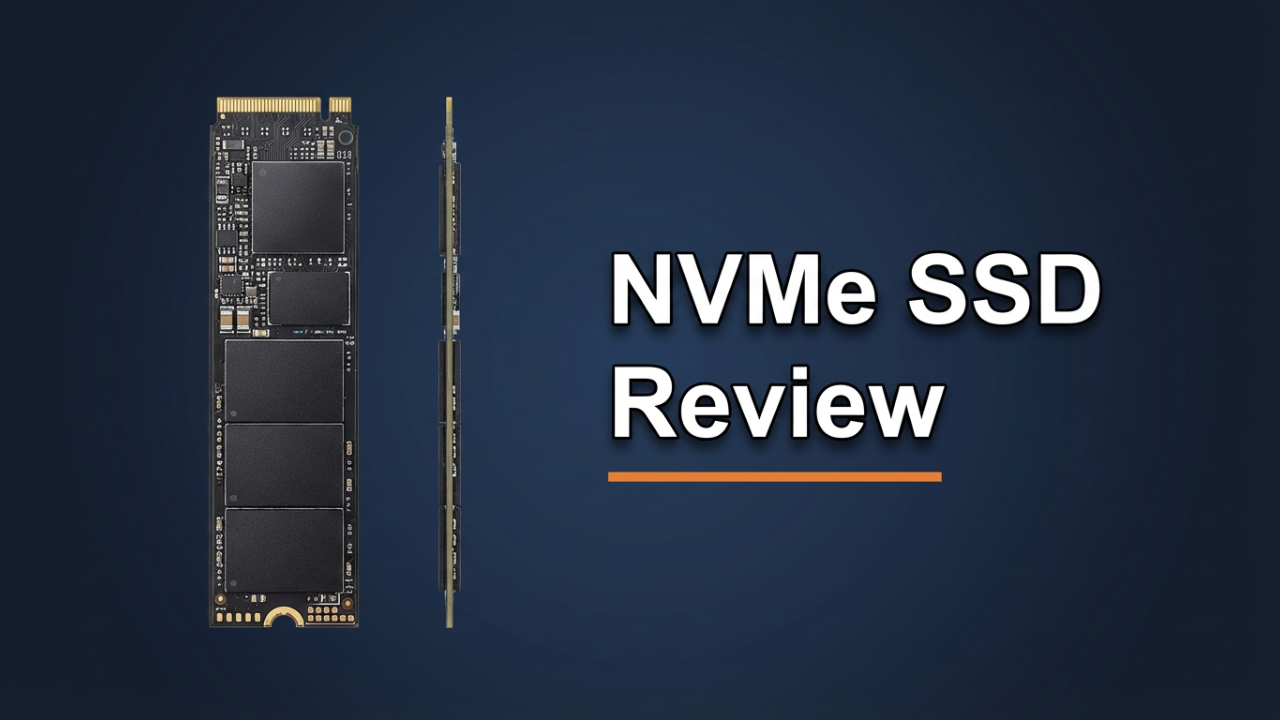
Let’s be honest, your computer should be faster. It’s a simple wish, but it’s what we all want from our machines. If you’re still watching loading bars inch their way across your screen, tapping your fingers while a game loads, or feeling like you could grow a beard waiting for a big file to transfer, you are leaving a shocking amount of performance on the table. You’ve probably heard the term NVMe SSD tossed around, and maybe you’ve even seen one. But the rabbit hole of speed goes deeper than you might think. We’re not talking about a small, noticeable improvement. We’re talking about speeds that are ten, even twenty times faster than the solid-state drives you might have been using just a few years ago.
In the next few minutes, I’m going to be your guide through all of it. I’ll demystify the jargon like NVMe, M.2, PCIe generations, and NAND flash. I’m going to show you exactly how to pick the perfect drive for what you actually do, whether you’re a hardcore gamer, a content creator, or just someone who wants their PC to feel instant. And to top it off, I’ll walk you through a simple, step-by-step installation that anyone can do in minutes. After building hundreds of PCs and testing dozens of these drives myself, I can tell you without a doubt: upgrading to an NVMe SSD is the single biggest, most impactful speed boost you can give your computer. By the end of this article, you’ll know everything you need to unlock that next level of performance.

ILIPUTER- International Computer Manufacturing Co.
Section 1: The Problem – Why Your Old Drive is a Bottleneck
Before we get into the wild world of NVMe, it helps to understand what it’s replacing and why that matters so much. For decades, the heart of your computer’s storage was the Hard Disk Drive, or HDD. Picture a tiny, super-fast record player. Inside that box is a spinning disk, coated in magnetic material. A little arm with a read/write head physically moves across these spinning platters to find your data.
This mechanical design was an engineering marvel, but it was also its biggest weakness. Your storage speed was physically limited by how fast those disks could spin and how quickly the arm could move. We measured it in Revolutions Per Minute, or RPM—usually 5400 or 7200 RPM for consumer drives. That sounds fast, but in computer time, where things happen in nanoseconds, it’s an eternity. Every time you wanted to open a file or launch a program, that little arm had to physically seek out the data. If your data was scattered in different places, the head had to jump all over the platter to collect it. That physical delay is what we feel as lag. It’s why computers used to take minutes to boot and why loading screens became a frustrating part of life. HDDs are also fragile. A single drop could cause the head to smack into the platter, destroying your data forever.
Then came the first revolution: the SATA Solid-State Drive, or SSD. SSDs got rid of the moving parts completely. Instead of a spinning disk, they use the same NAND flash memory that’s in your smartphone or a USB drive. Data is stored in a grid of cells and accessed electronically. The difference was night and day. Boot times dropped from minutes to seconds. Apps opened in a snap. The whole computer just felt more responsive because that physical wait time was gone.
But these first SSDs had a leash holding them back, a bottleneck they inherited from the hard drive era. That leash was the SATA interface. SATA was the data connection designed for slow, mechanical drives. It was like a single-lane country road. When SSDs showed up, they were like supercars forced to drive on that same little bike path.
The third version, SATA III, which most modern SATA SSDs use, tops out at a real-world speed of about 600 megabytes per second. When SSDs first arrived, this felt incredibly fast. But the flash memory itself could do so much more. The SSDs were immediately hitting the speed limit of the SATA interface. It became obvious that to get any faster, storage needed to get off that old country road and onto a brand new, multi-lane superhighway. And that superhighway is called PCI Express.
Section 2: The Solution – What is NVMe and Why is it a Game-Changer?
This is where NVMe enters the picture. NVMe stands for Non-Volatile Memory Express. It sounds technical, but the idea is revolutionary. NVMe isn’t a physical thing; it’s a language, a protocol. It’s a new set of rules for how your computer talks to its storage, designed from the ground up for the insane speed of modern flash memory.
Unlike the old SATA protocol, which was stuck in the past, NVMe was built to use the most direct connection to your computer’s brain: the PCI Express bus.
Think of it like this. The PCI Express bus, or PCIe, is the main data superhighway on your motherboard. It’s what your graphics card uses to deliver incredible visuals in real-time. It’s a massive freeway designed for huge amounts of data. The old SATA interface was like a single-lane side road connected to this highway. A SATA SSD had to exit the freeway, drive down this small road, and get stuck in traffic, limited to 600 megabytes per second.
An NVMe SSD, on the other hand, gets its own private on-ramp directly onto the PCI Express superhighway. It communicates directly with the CPU over multiple lanes, completely bypassing the old SATA controller. This direct link is what unleashes its true speed.
The performance difference is staggering. While a SATA SSD is stuck at that ~600 MB/s limit, an early PCIe Generation 3 NVMe SSD can hit speeds of 3,500 MB/s. That’s almost six times faster. Modern PCIe Generation 4 drives, the current standard, can fly past 7,400 MB/s. And the latest PCIe Generation 5 drives are already pushing beyond 14,000 MB/s. We went from a single-lane road to a 24-lane autobahn with no speed limit.
But it’s not just about raw speed. The NVMe protocol is also way more efficient. The old SATA protocol could handle one queue of 32 commands at a time. NVMe can manage over 65,000 queues, each holding over 65,000 commands. Imagine a librarian who can only fetch one book at a time versus a team of 65,000 librarians who can each grab 65,000 books at once. This amazing parallelism means that in complex situations—like loading a huge open-world game with thousands of files or editing multiple 8K video streams—an NVMe drive juggles all those requests with almost no latency, creating a perfectly smooth and instant experience.
This brings us to one of the most common points of confusion: the difference between M.2 and NVMe. It’s critical to get this right. M.2 is the form factor—the physical shape and size of the drive. It’s that small, thin stick-of-gum shape that plugs right into your motherboard. NVMe is the protocol—the language it uses to talk to the computer.
The confusion happens because most M.2 drives *are* NVMe drives. But they don’t have to be. You can still find M.2 drives that use the old, slow SATA protocol. They use the same physical slot, but they’re still stuck at that 600 MB/s speed limit because they’re speaking the SATA language. You get the nice, cable-free M.2 shape, but none of the speed. When you’re shopping, you have to make sure the drive is listed as an “M.2 **NVMe** SSD” and not an “M.2 **SATA** SSD.” They can look almost identical, but the performance gap is a canyon. Just remember: M.2 is the shape of the plug; NVMe is the speed of the current running through it.
ILIPUTER- International Computer Manufacturing Co.
Section 3: The Key Specs That Matter – A Deep Dive
Okay, you’re on board. You want the speed, you want an NVMe drive. But when you start shopping, you get hit with a wall of specs: PCIe Gen 4, Gen 5, TLC, QLC, DRAM cache, heatsinks. It can be a lot. Let’s break down the four most important things you need to know to make a smart choice. After this, you’ll be able to look at any product page and know exactly what you’re getting.
**First: PCIe Generations – The Highway Analogy Explained**
We already know NVMe drives use the PCIe superhighway. The “Generation” of PCIe just refers to how fast that highway is. Each new generation basically doubles the potential speed.
Let’s stick with our highway analogy.
* **PCIe Gen 3:** This is a fast, four-lane highway. For years, it was the standard, with real-world speeds around 3,500 MB/s. This is still incredibly fast and a huge upgrade from any SATA drive.
* **PCIe Gen 4:** Imagine that highway is instantly doubled to an eight-lane superhighway. That’s PCIe Gen 4. It doubles the bandwidth, with good drives easily hitting over 7,000 MB/s. This is the current sweet spot for performance, price, and compatibility, making it the best choice for most people today.
* **PCIe Gen 5:** This is the bleeding edge. We’ve now gone to a sixteen-lane mega-highway. Gen 5 doubles the bandwidth *again*, with a theoretical top speed approaching 16,000 MB/s. The fastest consumer drives today, like the Crucial T705, are already pushing past 14,000 MB/s in read speeds. Is this overkill? For most people, right now, yes. But it’s the definition of future-proofing. As games start using technologies like Microsoft’s DirectStorage, where the GPU can pull assets directly from the SSD, the massive bandwidth of Gen 5 will become a huge advantage, maybe even eliminating loading screens entirely.
One important thing: PCIe is backward and forward compatible. You can plug a super-fast Gen 5 drive into a Gen 3 motherboard. It’ll work, but it will just run at the slower Gen 3 speeds. To get the full advertised speed, your motherboard’s M.2 slot and your CPU both need to support the same generation as the drive.
**Second: NAND Flash Types – The Trade-off Between Cost, Speed, and Endurance**
The data on your SSD is stored in NAND flash memory cells, but they aren’t all the same. The type of NAND is a huge factor in a drive’s cost, performance, and lifespan. It all comes down to how many bits of data are stored in each cell.
There are four main types you’ll see:
* **SLC (Single-Level Cell):** Stores one bit per cell. It’s the fastest, most durable, and most reliable, rated for up to 100,000 write cycles. It’s also absurdly expensive, so you’ll only find it in enterprise-grade hardware, not consumer drives.
* **MLC (Multi-Level Cell):** Stores two bits per cell. It was popular in older high-end SSDs but has mostly been replaced by TLC in the consumer market.
* **TLC (Triple-Level Cell):** This is the workhorse of the modern SSD market, storing three bits of data per cell. This is more complex and reduces the endurance to around 1,000 to 3,000 write cycles per cell. But thanks to modern technology, today’s TLC drives are incredibly fast and reliable. Most high-performance NVMe drives, like the Samsung 990 Pro and WD Black SN850X, use TLC. For most people, TLC offers the best mix of speed, lifespan, and price.
* **QLC (Quad-Level Cell):** This type stores four bits per cell, which allows for much higher capacities and lower costs. This is why you can find huge 4TB or 8TB drives for reasonable prices. The trade-offs are lower endurance (around 100-1,000 write cycles) and slower sustained write performance. When you write a huge file, a QLC drive uses a small, fast cache. Once that cache is full, write speeds can drop off a cliff. QLC drives are a great choice for things that are mostly read-based, like a game library drive or media storage, but for a boot drive that sees constant writes, TLC is usually the better pick.
A new type, **PLC (Penta-Level Cell)**, is in development, but don’t expect to see it on store shelves anytime soon. It promises even cheaper, larger drives but with more compromises.
**Third: Read/Write Speeds and IOPS – What the Numbers Mean for You**
These are the big numbers on the box, measured in Megabytes per second (MB/s).
* **Sequential Read Speed:** This is how fast the drive can read large, single files, like a movie. This is where you see those flashy numbers like 7,400 MB/s or 14,000 MB/s. It matters for loading huge games and opening big project files.
* **Sequential Write Speed:** The opposite—how quickly the drive can write large files. This is important for saving video edits, installing games, or moving big files onto the drive.
But there’s another metric that’s arguably more important for how “fast” a computer *feels*: IOPS.
* **IOPS (Input/Output Operations Per Second):** This measures how many small, random read and write operations a drive can handle per second. Your operating system is constantly reading and writing thousands of tiny files in the background. When you open a web browser, it’s loading dozens of small files. A drive with high IOPS will feel incredibly snappy because it can handle this storm of small requests effortlessly. This is a huge part of that “instant” feeling.
**Fourth: DRAM Cache and Heatsinks – The Unsung Heroes**
Two final parts play a huge role in a drive’s performance: a DRAM cache and a heatsink.
* **DRAM Cache:** High-end NVMe drives include a small amount of their own dedicated RAM. This acts as an ultra-fast map for your data. When you ask for a file, the drive can look up its location in this fast cache instead of searching the slower NAND memory. This massively speeds up random performance. Cheaper, “DRAM-less” drives borrow a tiny slice of your main computer’s RAM to do this job. This technology, called Host Memory Buffer (HMB), has gotten really good, but for the absolute best sustained performance, a drive with its own DRAM cache is still king.
* **Heatsinks:** NVMe drives, especially fast Gen 4 and Gen 5 models, get hot. When they get too hot, they “thermal throttle”—they deliberately slow down to protect themselves. This can slash your performance right when you need it most. A heatsink is a piece of metal that pulls heat away from the drive’s chips. Many motherboards now have them built-in. If yours doesn’t, or if you’re buying a top-tier Gen 5 drive, getting a version with a good heatsink is highly recommended. For Gen 3, it’s less critical, but for Gen 4 and especially Gen 5, a heatsink is basically a requirement to get the speed you paid for.
Section 4: Practical Application – How to Choose the Right Drive for You
Now that you have the knowledge, let’s make it practical. The “best” SSD doesn’t exist—the best one is the one that’s right for you. I’ve broken it down into three types of users to help you decide.
**Persona 1: The Everyday User & Budget-Conscious Upgrader**
This is for the person who uses their computer for everything: web browsing with a million tabs, Office documents, streaming Netflix, managing photos, and maybe some lighter gaming. Your main problem is just general slowness—slow boot times and frustrating little lags.
You do not need a top-of-the-line Gen 5 drive. Your goal is the biggest jump in responsiveness for the least amount of money.
* **What to look for:**
* **PCIe Generation:** A solid PCIe Gen 3 or an entry-level PCIe Gen 4 drive is perfect. The jump from a hard drive or SATA SSD to even a Gen 3 NVMe will feel like a totally new computer.
* **NAND Type:** QLC drives offer amazing value here. Since you’re mostly reading data (launching apps) and not doing constant, heavy writing, the lower endurance of QLC isn’t a real-world concern.
* **Capacity:** 1TB is the absolute minimum you should consider in 2025. A 512GB drive fills up scarily fast. A 2TB drive often has a better price-per-gigabyte and gives you plenty of room to breathe.
* **DRAM:** DRAM-less drives that use Host Memory Buffer (HMB) are great for this category. They keep costs low but deliver excellent real-world performance for daily tasks.
* **Top Recommendations for 2025:**
* **Best Budget Option:** Look at drives like the **Crucial P3** (Gen3) or the **WD Blue SN580** (Gen4). These deliver speeds that will feel revolutionary compared to an old drive and offer incredible value. For a slight step up, the **Crucial P3 Plus** is a fantastic budget Gen4 option.
* **Why:** These drives give you 80% of the “feel” of a high-end drive for a fraction of the cost. Boot times and app loading will be worlds faster.
**Persona 2: The Gamer and Power User**
You live for PC gaming. You play the latest AAA titles and you hate loading screens. You also might be a power user who streams, does some video editing, or works with big projects. Performance is your priority, but you still want a good value.
* **What to look for:**
* **PCIe Generation:** PCIe Gen 4 is your domain. It’s the mature standard for high-performance gaming and will slash loading times in today’s games.
* **NAND Type:** TLC NAND is the best choice here. Gaming involves lots of reading, but also big writes when you install a 150GB game. The better sustained performance and higher endurance of TLC make it a perfect fit for your main OS and games drive.
* **Capacity:** 2TB is the new sweet spot for gamers. Games like Call of Duty and Baldur’s Gate 3 can easily take up 150GB each. A 1TB drive gets cramped fast.
* **DRAM:** You’ll want a drive with its own DRAM cache. This ensures smooth, consistent performance during long gaming sessions and large installations.
* **Top Recommendations for 2025:**
* **The Gaming Champion:** The **WD Black SN850X** is consistently one of the best gaming SSDs, offering phenomenal speeds and some of the fastest game load times you can get.
* **The All-Around Powerhouse:** The **Samsung 990 Pro** is another top-tier choice that trades blows with the SN850X for the top spot. It’s a workhorse for both gaming and creative work.
* **Best Value Performer:** For a more budget-friendly pick that still flies, look at the **WD Black SN770**. It’s a DRAM-less Gen4 drive that punches way above its weight, getting you very close to flagship performance for a much lower price.
**Persona 3: The Content Creator & Performance Enthusiast**
You’re a professional or a serious hobbyist who pushes your system to the absolute limit. You’re editing 4K or 8K video, working with complex 3D models, or compiling huge amounts of code. For you, time is money, and waiting is not an option. You need the fastest storage money can buy.
* **What to look for:**
* **PCIe Generation:** You are the target market for **PCIe Gen 5**. Your work can actually use all that bandwidth. The ability to scrub through massive, uncompressed video files in real-time at over 12,000 MB/s can literally change your workflow.
* **NAND Type:** Only TLC. You’re doing constant, heavy, sustained writing. You need the endurance and consistent speed that only high-quality TLC NAND provides.
* **Capacity:** Go big. 2TB is the starting line, but 4TB is where you should be looking. Project files are enormous, and you need space for your OS, apps, active projects, and cache files, all on the fastest drive possible.
* **DRAM & Heatsink:** Non-negotiable. You need a DRAM cache for all that data mapping, and a very robust heatsink is mandatory. A Gen 5 drive will thermal throttle and lose its performance advantage almost immediately under your kind of workload without one.
* **Top Recommendations for 2025:**
* **The Speed Kings:** The **Crucial T705** and the **Sabrent Rocket 5** are at the absolute peak of consumer SSD performance. With read speeds approaching 14,500 MB/s, these are for people who move massive datasets in the blink of an eye.
* **The Professional’s Choice:** Other top-tier Gen 5 drives like the **Seagate FireCuda 540** are also excellent choices, known for consistent performance.
* **Comparing the Titans:** When you’re looking at the top Gen 5 drives, the performance differences are often small. Your choice might come down to price, warranty, or the design of the included heatsink.
Section 5: Practical Application – A Quick and Easy Installation Guide
You’ve done the research, picked the perfect drive, and it’s here. Now for the fun part: installation. If you’ve never opened up your PC, this might seem scary, but I promise it’s one of the easiest upgrades you can do.
**Step 1: Preparation is Key**
First, get your tools: your new M.2 NVMe SSD and a small Phillips-head screwdriver. It’s also smart to have your motherboard manual handy, either the paper booklet or a PDF on your phone, to see exactly where your M.2 slots are.
Now for the most important safety step: **unplug your computer.** Shut it down, flip the switch on the back of your power supply to “Off,” and unplug the power cord from the wall. To be extra safe, press and hold the power button on your case for 10 seconds to discharge any leftover power. Finally, ground yourself by touching a large metal part of your unplugged computer case.
**Step 2: Locating the M.2 Slot**
Open your PC’s side panel and look at your motherboard. The M.2 slot is a small, horizontal slot. Common spots are below the CPU, between the CPU and the graphics card, or below the graphics card. Your motherboard manual will show you exactly where they are. Often, the slot will be hidden under a metal heatsink, which you’ll have to unscrew first. You’ll see a tiny screw or a small plastic clip at one end of the slot—that’s what holds the drive in.
**Step 3: Installing the NVMe SSD**
Take your new SSD out of its anti-static bag, holding it by the edges. Notice the small notch in the gold contacts. This “key” lines up with a notch in the M.2 slot, so you can’t plug it in wrong.
Hold the drive at about a 30-degree angle and gently slide it into the slot. Don’t force it. Push it in until the gold contacts are fully seated. The drive will now stick up at that same angle. Now, gently press the other end down towards the motherboard so it lies flat.
**Step 4: Securing the Drive**
Now, just lock it in place.
* **If you have a screw:** While holding the drive down, use your screwdriver to fasten the tiny M.2 screw. Be gentle—it only needs to be finger-tight. Don’t overtighten it.
* **If you have a tool-less clip:** Many new boards have a plastic latch. Just rotate it to lock the SSD down.
If your slot had a heatsink, it’s time to put it back. Look at the underside of the heatsink—there’s a soft thermal pad. You have to peel off the thin, protective plastic film from this pad. This is a super common mistake. If you leave the plastic on, the heatsink won’t work. Once the film is off, place the heatsink back on the drive and screw it down.
That’s it! The physical part is done. Put the side panel back on, plug everything in, and flip the power supply switch back to “On.”
**Step 5: Initializing the Drive in the Operating System**
When you boot up, the new drive won’t just appear. Don’t worry, this is normal. We just have to tell Windows to use it.
Right-click on the Start Menu button and select “Disk Management.” A window should pop up immediately, detecting the new drive and asking you to initialize it. You’ll see two options for the partition style: MBR and GPT. For any modern drive, **always choose GPT**. It’s the newer standard that works with large drives.
After you click OK, you’ll see the new drive in the bottom part of the window, marked as “Unallocated.” Right-click on that black “Unallocated” bar and select “New Simple Volume.” A wizard will pop up. Just click “Next” through the prompts. It will ask you to pick a drive letter, then format the partition. Make sure the file system is set to **NTFS**. You can give the drive a name like “Games” or “Media.” Make sure “Perform a quick format” is checked, click “Next,” and then “Finish.”
In a few seconds, the drive will be formatted and will pop up in File Explorer, ready to go.
If you want to use this new drive as your main Windows boot drive, you’d either need to do a fresh install of Windows onto it or use cloning software to copy your old drive over. That’s a topic for another video, but for adding lightning-fast storage, you’re all done.
Conclusion
And there you have it. From slow, spinning disks to the game-changing speed of PCIe Gen 5, you now have the complete picture. You know what NVMe is, how it works, and what all those specs on the box actually mean. You know that M.2 is the shape and NVMe is the speed. You know Gen 4 TLC drives are the sweet spot for gaming, and Gen 5 is the new frontier for creators. Most importantly, you know how to pick the perfect drive for your budget and how to install it yourself in just a few minutes.
Upgrading to an NVMe SSD is truly the single best performance boost for a modern PC. It makes everything feel instant and removes the biggest bottleneck that held our computers back for years.




