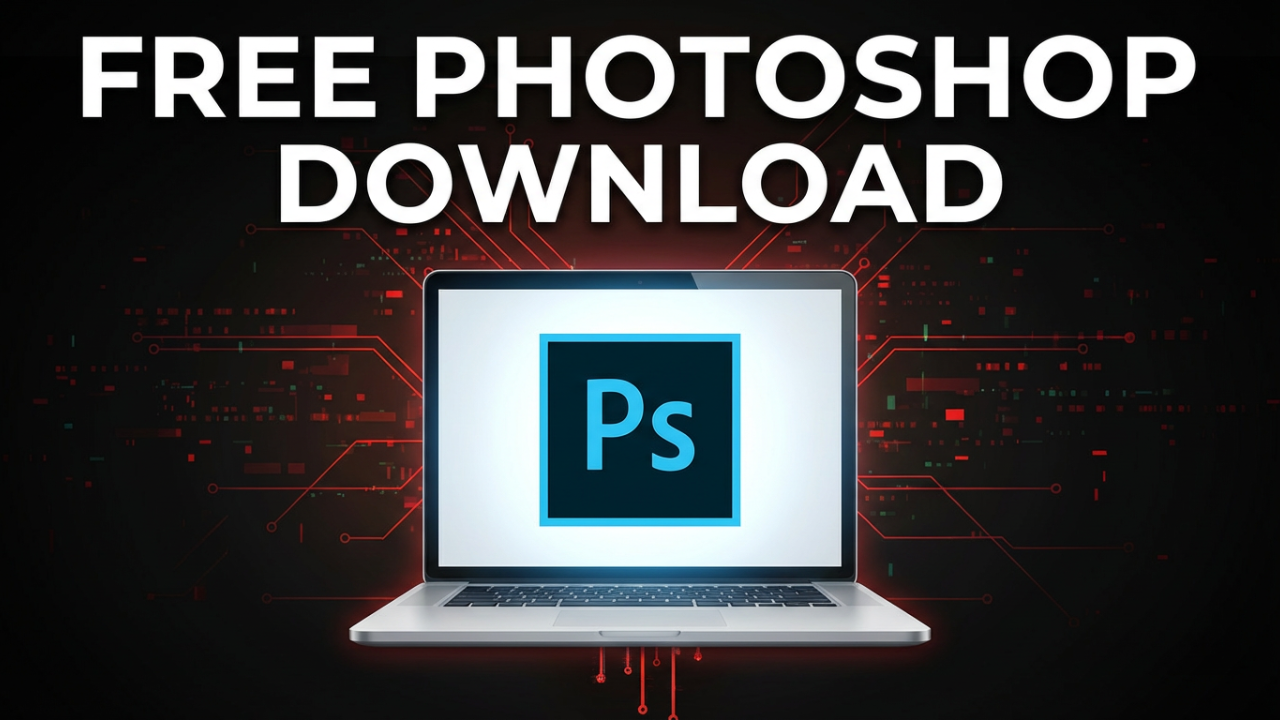
So, you need the world’s best photo editor for your project, but that subscription cost is a total dealbreaker. In this article, I’m going to show you the main 100% legal ways to get Photoshop on your laptop for free, directly from Adobe. We’re not touching any sketchy sites or illegal downloads—just the official methods.
Intro
Let’s be real, Adobe Photoshop is the undisputed champ of photo editing. For decades, it’s been the go-to tool for photographers, designers, and creators of all stripes. Its power is just massive—letting you do anything from quick touch-ups to creating complex digital art that would have seemed like magic a generation ago. The tools are legendary: layers, masks, selection tools, and now, the incredible power of Generative AI features like Generative Fill. It’s the software that can bring your creative ideas to life.
But there’s always been a giant elephant in the room: the price. With the move to a subscription model, you’re looking at a recurring monthly or annual cost. If you’re a student, a hobbyist, or just starting a new project, that fee can be a huge hurdle that stops a great idea dead in its tracks. It’s frustrating—you’ve got the vision, you’ve got the drive, but you’re locked out of the best tool for the job. You’ve probably even been tempted to Google “free Photoshop download,” only to find a bunch of suspicious-looking websites that feel like a one-way ticket to a computer virus. That’s a risky game, and it’s one you don’t have to play.
That’s exactly why I’m making this article. I want to cut through the noise. I’m going to walk you through the primary, legitimate, and safe paths to use Adobe’s powerful editing tools for free, doing it the official way, straight from Adobe itself. The first method gets you the full, unrestricted, professional version of Photoshop for a limited time. The second method introduces you to Adobe’s ecosystem of free apps that are incredibly capable and free to use forever. By the end of this video, you’ll have a clear understanding of your options, know exactly how to access them, and be able to choose the right path for your project without spending a dime or visiting a shady website. Let’s get you set up the right way.

ILIPUTER- International Computer Manufacturing Co.
Section 1: Method 1 – The Official Full-Featured Free Trial
Alright, let’s jump right into the first and most powerful method: the official Adobe Photoshop 7-day free trial. This is hands-down the best way to go if you need the full, uncompromised power of the latest desktop version of Photoshop for a specific project. For one week, you get everything—every tool, every feature, including those mind-blowing AI Generative Fill and Expand tools you’ve seen online. It’s the complete professional suite, identical to what paying subscribers use. This is perfect for a short-term, intense project, like designing a logo, editing a batch of portfolio photos, or creating a key piece of art.
Now, I want to be super clear about how this works, because it does involve a subscription. Adobe offers this trial so you can test the software before committing, and to do that, they ask for your payment information upfront. This is pretty standard for free trials. The most important part, which we’ll cover in detail, is that you will NOT be charged a thing if you cancel before the 7-day trial is over. I’m going to show you how to start the trial and, more importantly, how to cancel it so you can use the software for free with total peace of mind.
Step 1.1: Navigating to the Official Adobe Photoshop Page
First things first: let’s stay safe. We are only going to the official Adobe website. Please, do not search for “Photoshop free trial” and click on some random link from a blog or download site. The only safe way is to go directly to the source. Open your browser and type in `adobe.com`.
Once you’re on the homepage, you’ll see all their products. Photoshop is usually under “Creativity & Design.” Honestly, the quickest way is to just find the Photoshop product page. You’re looking for a page with official branding that showcases all the latest features. Find the button that says “Free Trial” or “Start Free Trial.” That’s your entry point. Go ahead and click it.
Step 1.2: Choosing Your Plan and Creating an Account
After clicking “Start Free Trial,” Adobe will show you a few plans. This can look a little confusing, but don’t worry. You’ll probably see options for “Individuals,” “Students & Teachers,” and “Businesses.” For most of you, the “Individuals” plan is what you want. The “Students & Teachers” plan has a great discount, but it requires verification, so you can look into that later if you decide to subscribe. For now, let’s stick with the free trial under the “Individuals” path.
You’ll see the Photoshop plan, which might be bundled with Lightroom in the “Photography Plan” or offered by itself. Either one will give you the trial. The page will clearly state that it’s a 7-day free trial.
Next, you’ll need to enter an email address to either sign in or create a new Adobe account. It’s really important to use a real email address that you have access to. This is where Adobe will send your confirmation details and, crucially, the cancellation confirmation email. Don’t use a fake email address! If you’re new, create a strong, unique password and move on to the next step.
Step 1.3: The Payment Information Step (Don’t Panic!)
Okay, this is the step where a lot of people get nervous and bail, but let me explain what’s happening. Adobe will ask for your billing information, like a credit card or PayPal. This is standard procedure to start the trial.
Why? Two main reasons. First, it prevents people from abusing the system by signing up for endless trials. Second, it makes for a smooth transition into a paid subscription *if* you decide not to cancel. They’re hoping you’ll love it and want to keep it.
But you are in complete control. The page will tell you explicitly that your trial lasts for 7 days and you won’t be charged until it’s over. They’ll even show you the exact date your payment would start. Take a screenshot or write that date down. That’s your deadline.
So, go ahead and put in your payment details. Double-check everything. You’ll see the price is $0.00 for the first 7 days. Once you confirm, you’ve officially started your free trial and you’ll get an email confirming it.
Step 1.4: Downloading and Installing Creative Cloud and Photoshop
With your trial activated, you’re ready to get the software. You won’t download Photoshop directly. First, you’ll download the Adobe Creative Cloud desktop app. This is a little hub that manages all your Adobe software, updates, fonts, and files.
Follow the prompts on your screen to download the Creative Cloud installer. Once it’s downloaded, run it. The installation is simple. It will ask you to sign in with the Adobe ID you just created. Once you do, the Creative Cloud app will open up.
Inside the Creative Cloud app, you’ll see a list of Adobe applications. Find Photoshop. It should have a button next to it that says “Try” or “Install.” Click it. Creative Cloud will handle the entire download and installation. This can take a bit, as Photoshop is a big application.
Once it’s done, the button will change to “Open.” And that’s it! You can now launch the full, professional version of Adobe Photoshop. You have seven days to use every single feature.
Step 1.5: The Most Important Step – How to Cancel The Trial
I really can’t say this enough: this is the most critical part of making sure you use Photoshop for free. You have to cancel before the 7-day period is up to avoid being charged. I recommend doing this on day 5 or 6, just to be safe. Even better, set a calendar reminder for yourself the moment you start the trial. Set two!
Here’s exactly how to cancel:
1. **Log in to your Adobe Account:** Go back to `adobe.com` in your browser. Sign in with the same Adobe ID you used to start the trial.
2. **Navigate to Your Account:** Click your profile icon and go to “View Account” or a similar option to get to your account management page. Look for a section called “Plans.”
3. **Manage Your Plan:** You’ll see your active Photoshop plan listed as being in a free trial. Click the button that says “Manage plan.”
4. **Cancel Your Plan:** Inside the plan management area, you’ll find the option to “Cancel plan.” Click it.
5. **Follow the Prompts:** Adobe will probably ask why you’re canceling. This is just for their market research, so you can pick any reason. It might then show you some other offers to try and get you to stay. Just politely decline and keep clicking through until you reach the final confirmation screen.
6. **Get Confirmation:** Once it’s successfully canceled, you’ll see a confirmation message, and more importantly, you’ll get a confirmation email from Adobe. Do not consider the job done until that email is in your inbox. Save it.
Here’s the best part: even after you cancel, you can keep using Photoshop for the rest of your 7-day trial. Canceling just turns off the automatic renewal; it doesn’t shut off your access. So, you can start the trial, cancel it ten minutes later, and still enjoy the full seven days without any stress.
There you have it. That’s the complete, official process for getting the full version of Photoshop for free for a week. It’s safe, legal, and gives you access to the most powerful image editor out there.
Now, the 7-day trial is fantastic for short-term, heavy-duty projects. But what if that’s not what you need? What if you don’t require all the power of the desktop app, and you just want a reliable photo editor for ongoing, simpler tasks that’s free *forever*? For that, we turn to our second method.

ILIPUTER- International Computer Manufacturing Co.
Section 2: Method 2 – The Permanently Free Adobe Editors
Welcome to part two, where we dive into Adobe’s world of officially free photo editing tools. These aren’t time-limited trials. These are apps and services you can use indefinitely without a subscription. This is the perfect solution for anyone who needs a go-to tool for quick edits, social media posts, and basic photo touch-ups. While they don’t have every single feature of the full desktop Photoshop, you’ll be surprised at how powerful they are.
We’re going to look at two main tools here: **Adobe Photoshop Express** and **Adobe Express**. The names are similar, which can be confusing, but they do slightly different things.
Step 2.1: Understanding Adobe Photoshop Express
First up is Adobe Photoshop Express. Think of this as the lightweight cousin of desktop Photoshop. It’s a free app available for your phone, but it’s also often available as an app for Windows through the Microsoft Store. Its main job is to make your photos look great quickly and easily before you share them.
**Who is it for?**
It’s great for anyone who takes a lot of photos on their phone or needs to make fast, quality adjustments on their laptop without getting lost in complicated menus.
**What can you do with it?**
You get a surprising number of core editing tools:
* **Cropping and Resizing:** It has presets for social media platforms to size your images perfectly.
* **Adjustments:** You get sliders for Exposure, Contrast, Highlights, Shadows, and more. It even has tools like Clarity and Dehaze to make your images pop.
* **Retouching:** There’s a simple spot healing tool to remove small blemishes.
* **Filters:** It has a huge library of one-click filters, called “Looks,” to instantly change the vibe of your photo.
* **Collages and Text:** You can easily create photo collages and add text.
**How to Get It on Your Laptop:**
If you’re on a Windows laptop, it’s usually very simple.
1. Open the Microsoft Store app.
2. Search for “Adobe Photoshop Express.”
3. You’ll see the official app from Adobe. Click “Get” or “Install.”
4. To use it, just sign in with a free Adobe ID. No payment info is needed.
**Limitations:**
Photoshop Express is a “freemium” app. The core app is free, but some advanced features or filter packs are marked with a crown and require a premium subscription. Honestly, the free version is more than enough for most people’s daily edits. It doesn’t support advanced features like layers, so it’s not for complex design work.
Step 2.2: Understanding Adobe Express (The All-in-One Editor)
Next, we have Adobe Express. This is a much bigger, all-in-one design tool. While Photoshop Express is for photo editing, Adobe Express is more like Adobe’s answer to Canva, but powered by their pro-grade tech, including the Firefly generative AI. It’s mostly web-based, so you can use it on any laptop.
**Who is it for?**
Adobe Express is for anyone who needs to create great-looking content quickly—social media posts, flyers, simple videos, you name it. It’s built around a massive library of templates, so it’s incredibly easy to start even with zero design experience.
**What can you do with the free version?**
The free plan is incredibly generous. You get:
* **Template Library:** Access to a huge library of thousands of templates for almost any project.
* **Photo Editing:** A complete set of editing tools, including an amazing one-click “Remove Background” tool.
* **Adobe Stock & Fonts:** The free plan includes access to a large collection of royalty-free photos and videos from Adobe Stock, plus thousands of professional Adobe Fonts.
* **Generative AI:** The free plan gives you a monthly allowance of “generative credits” to use with the Adobe Firefly AI, letting you create images from just a text description.
* **Quick Actions:** A bunch of one-click tools to do things like resize images, convert videos, and more.
**How to Get Adobe Express:**
Getting started is super easy.
1. Open your web browser and go to `express.adobe.com`.
2. Click “Sign up” to create a free Adobe account. Again, no credit card is needed for the free plan.
3. That’s it. You’re in. You can start creating right away.
**Limitations:**
Like Photoshop Express, this is a freemium model. The free plan is powerful, but a Premium plan unlocks more. On the free plan, you’ll have a limited number of monthly AI credits, and some templates and stock photos will be marked as “Premium.” But for most people, the free plan provides a shocking amount of value.
Step 2.3: A Quick Look at Other Options
It’s worth mentioning two other related tools. First, **Photoshop on the web**. This is a streamlined version of Photoshop that runs in your browser. It’s more powerful than Express and even supports layers. Access is included with a paid Photoshop subscription and the 7-day trial we already covered. Adobe does sometimes run special promotions, so it’s worth keeping an eye out.
Second, **Adobe Photoshop Elements**. This is a different product you buy with a one-time purchase—no subscription. While it’s not free forever, Adobe typically offers a full-featured 30-day free trial, and you often don’t need to enter credit card info to get it. This makes it a great, risk-free way to try a very capable editor for a whole month.
Section 3: Comparison – Which Free Method Is Right For You?
Okay, so we’ve covered the short-term, full-power **Free Trial** and the forever-free world of **Adobe Express** and **Photoshop Express**. The big question is: which one should you use? It all comes down to your project. Let’s run through a few scenarios.
**Scenario 1: The Aspiring Pro Photographer**
You just wrapped a big photoshoot and have 50 high-res RAW photos that need serious editing—complex retouching, color grading, and prepping for print.
* **Your Best Choice:** **Method 1: The 7-Day Free Trial.**
* **Why:** No contest. You need the most powerful and precise tools. Only the full desktop version of Photoshop gives you that level of professional control for high-end work. Your project is intense but short, which is a perfect fit for the 7-day trial window.
**Scenario 2: The Small Business Owner**
You run a local bakery and are constantly making content for social media. You post daily specials, create flyers, and touch up photos of your cakes.
* **Your Best Choice:** **Method 2: Adobe Express.**
* **Why:** Your work is ongoing, and you need speed and consistency. Adobe Express is built for this. You can use a template to whip up a “Daily Special” post in minutes. The “Remove Background” tool is perfect for putting a cake on a branded background. You need speed and ease of use, not the complexity of desktop Photoshop.
**Scenario 3: The University Student**
You’re juggling different projects. One week it’s a major art assignment requiring detailed digital painting. The next, you just need simple graphics for a presentation. Your budget is zero.
* **Your Best Choice:** **A Mix of Both Methods.**
* **Why:** Be strategic! For that big art project, activate the **7-Day Free Trial (Method 1)**. Use the full power of Photoshop to ace your assignment—just remember to cancel so you don’t get charged. For all your other, day-to-day tasks like diagrams or quick photo edits, use **Adobe Express (Method 2)**. It’s free forever and perfect for those simpler needs.
**Scenario 4: The Casual Hobbyist**
You love taking photos of your family and vacations on your phone. You just want to make them look a little better—brighten a shot, remove a random person, or make a fun collage.
* **Your Best Choice:** **Method 2: Photoshop Express.**
* **Why:** You need quick, simple, and effective results. Photoshop Express is designed for exactly this. You can open a photo, apply a one-click “Look,” use the healing tool to remove a tourist from your beach photo, and be done in minutes. It’s intuitive and gives you great results fast.
By figuring out what you actually need to do, you can see which of these official, free methods from Adobe is the perfect fit.
### Section 4: A Crucial Warning About Illegal Downloads
Before we wrap up, I have to talk about something really important. When you search for free software, you’ll find websites and videos promising a full, “cracked” version of Photoshop for free, forever. They offer “key generators” or patched files.
I’m telling you right now: **DO NOT DOWNLOAD THEM.**
Going down that path comes with three massive risks, and none of them are worth it.
1. **Malware and Viruses:** Cracked software is the #1 way hackers spread malicious code. They hide viruses, ransomware, or spyware in the files. You think you’re getting free Photoshop, but you’re actually installing a program that can steal your bank info, your passwords, or your personal files. The cost of fixing a compromised computer and a stolen identity is way higher than a Photoshop subscription.
2. **It’s Illegal:** Using pirated software is copyright infringement. It’s against the law. More than that, it’s just wrong. Real people work hard to create this software, and piracy hurts their ability to keep making it better.
3. **It Won’t Work Right:** Cracked versions are famously unstable. They crash all the time, they have bugs that will never get fixed, and you can never update them. You’ll be stuck with an old, broken version, missing out on all the amazing new features and security patches Adobe releases, including the new AI tools.
When Adobe gives you great, safe, and legal ways to use their software for free, there is zero reason to risk your computer’s security and your personal data for a pirated copy. Stick to the official methods.
Conclusion
So, let’s recap. You don’t have to be locked out of the world’s best photo editor just because of the cost. You have two main, 100% legal and official paths to get amazing Adobe tools for free.
**Method 1: The 7-Day Free Trial.** This gives you temporary but total access to the full professional desktop version of Adobe Photoshop. It’s perfect for short, intense projects where you need all the power you can get. Just remember to cancel before the trial ends!
**Method 2: The Forever-Free Adobe Tools.** This path includes Adobe Photoshop Express for quick and easy photo enhancements and Adobe Express, the all-in-one design tool for creating incredible content for social media, flyers, and more. These are your go-to solutions for everyday creative work.
The choice is yours, and it’s all about your needs. Do you need full power for a week, or a capable, permanent tool for simpler tasks? You’re now equipped to make that decision safely and confidently, without spending a dime or visiting a sketchy website.