

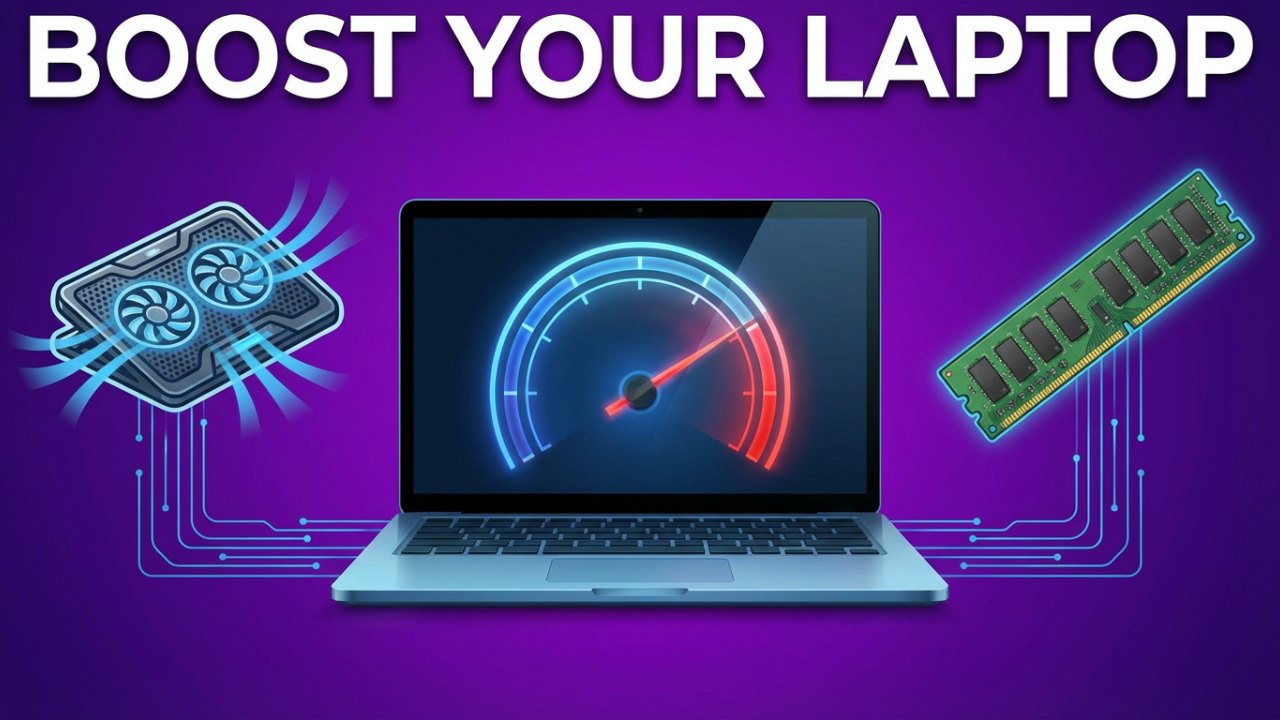
We’ve all been there. That feeling when your once-speedy laptop grinds to a halt. Every click feels like a prayer. Every program launch is a test of your patience. You remember how it flew through tasks when it was new, but now it feels like it’s wading through digital quicksand. You start wondering if it’s time for a pricey upgrade or if you’re just stuck in this slow-motion digital nightmare.
But hold on. Before you spend a single dollar, you need to understand something. In many cases, that original speed is still hiding inside your machine, buried under months or years of digital clutter, inefficient settings, and background tasks you never knew were running. What if I told you that you could reclaim a huge chunk of that performance, using nothing but the tools already built into your laptop? No downloads, no credit cards, just a series of powerful, free, and easy software tweaks. I’m going to walk you through a complete system tune-up, from simple beginner tricks to the advanced settings pros use. By the end, your laptop is going to feel closer to new than it has in years. So, let’s get started and take back your laptop’s speed—for free.
Section 1: The Essential First Step – Diagnosing the Slowdown
Before we start flipping switches, we need to play detective. We can’t fix the problem if we don’t know what’s causing it. Is your laptop out of memory? Is the processor constantly pinned? Or is your hard drive just not keeping up? The best diagnostic tool you have is already on your computer: the Task Manager.
The quickest way to open it is by pressing three keys at once: Control, Shift, and Escape. That’s Ctrl + Shift + Esc. Go ahead and do that now.
This window is the command center for your laptop’s resources, showing you exactly what’s happening in real-time. You’ll see a few tabs, but we only need to focus on two for now: “Processes” and “Performance.”
First, click the “Processes” tab. This is a list of every single thing running on your machine. Look at the columns at the top: CPU, Memory, and Disk. Click the “CPU” column header to sort everything by how much processing power it’s using.
See a program at the top that’s consistently using a high percentage, like 50% or more, even when you’re not doing anything with it? If it’s your web browser with a million tabs open or a video editor that’s rendering, that’s normal. But if you see a strange process name that you don’t recognize hogging your CPU, that’s a red flag. It could be a buggy app or even malware.
Now, click the “Memory” column header. This shows how much RAM (Random Access Memory) each process is using. Think of RAM as your computer’s short-term memory for active tasks. If this column is full of programs using hundreds or thousands of megabytes, and your total memory usage is hovering near 100%, your computer is running out of RAM. As memory pressure rises, Windows starts using your hard drive as a slow, temporary form of RAM. This is called “paging,” and it’s a huge cause of sluggishness.
Finally, click the “Disk” column header. This shows how much your storage drive is being used. If this column is stuck at or near 100%, your drive is the bottleneck. This is super common on older laptops with mechanical Hard Disk Drives (HDDs). Modern Solid State Drives (SSDs) are much faster and usually don’t have this issue unless they’re dealing with a heavy background task like indexing or an antivirus scan.
Just take a minute and observe. What’s the main culprit? High CPU, maxed-out Memory, or 100% Disk? This simple two-minute check gives you a powerful clue about what to target first. You’ve gone from a frustrated user to an informed one, ready to take action.

Section 2: The Beginner-Friendly Cleanup – Instant Performance Gains
Now that we have an idea of what’s slowing you down, let’s start with the easiest and highest-impact fixes. These are the digital equivalent of decluttering your room, require no technical skill, and you’ll feel the results right away.
Tip 1: The Great Uninstall – Purging Bloatware and Unused Software
Every program on your computer takes up space, and many run background processes that eat up CPU and memory. This is especially true for new laptops, which often come stuffed with “bloatware”—promotional software and trial versions you’ll never touch.
Let’s get rid of it. Go to your Start Menu and type “Add or remove programs.” Click on it when it appears.
This opens a list of every app on your computer. Scroll through this list and ask yourself one simple question for each program: “When was the last time I used this?” If you can’t remember, or if it’s been months, you should probably uninstall it.
Be ruthless. That old game you beat last year? Uninstall it. That weird “PC cleaner” app you don’t remember installing? Definitely uninstall it. To remove an app, just click the three dots next to its name and select “Uninstall.”
Don’t worry about removing something essential; critical system files won’t be listed here. If you’re unsure about a program, a quick Google search of its name will tell you what it is. The goal is to free up disk space and kill unnecessary background processes. A cleaner system is a faster system.
Tip 2: Taming the Startup Stampede – Taking Control of Your Boot Time
This is one of the most effective things you can do. When your computer starts, a bunch of programs launch automatically. While convenient for a few apps, most are just sitting there wasting RAM and CPU cycles from the moment you boot up. This is a major reason laptops can feel slow for the first few minutes.
Let’s fix that. Head back to the Task Manager (Ctrl + Shift + Esc). This time, click on the “Startup apps” tab (it might just be called “Startup” on Windows 10).
You’ll see a list of every program that launches at boot, along with its “Startup impact”—High, Medium, or Low.
Your mission is simple: Disable anything you don’t need the second your computer turns on. Start with the “High” impact items. Do you really need Spotify, Steam, or Microsoft Teams to launch automatically? Probably not. You can just open them yourself when you need them.
To disable one, right-click on it and select “Disable.” That’s it. You haven’t uninstalled the program, you’ve just stopped it from starting automatically. Be a little careful here—it’s best to leave things related to your audio or graphics drivers enabled (like Realtek, NVIDIA, or AMD). But for most other software, you can safely disable it. This can dramatically cut your boot time and free up a ton of RAM.
Tip 3: The Digital Dustbunny Hunt – Cleaning Out Junk Files
Just like a house, your computer collects junk: temporary internet files, old installers, and Windows update leftovers. This can add up to tens of gigabytes. When your main drive gets too full, its performance can suffer. A good rule of thumb is to try and keep at least 15-20% of your drive space free.
Windows has a great built-in tool for this. Go to your Start Menu and type “Disk Cleanup.” Your main drive is almost always “(C:)”. Select it and click OK. The tool will scan for junk you can safely delete. A window will pop up with a list—check all the boxes, like “Temporary Internet Files” and “Recycle Bin.”
But wait, there’s more. In that same window, look for a button that says “Clean up system files.” Click it, and select the C: drive again. The scan will take longer this time, but it often finds huge files left over from old Windows updates. Once it’s done, check all the boxes again, click OK, and then “Delete Files.” This alone can free up a massive amount of space.
For a more modern, hands-off approach, look for a feature called Storage Sense. Go to Settings > System > Storage. Turn on Storage Sense, and it will act like an automatic janitor, clearing out temporary files and your recycle bin on a schedule. It’s a set-it-and-forget-it feature I highly recommend.
Tip 4: The Simple Power of a Restart
This sounds almost too basic, but it’s incredibly effective. Do you just close your laptop lid at the end of the day? That only puts it to sleep. Over days or weeks, small background processes can crash and memory leaks from buggy apps can build up, cluttering your RAM.
A full restart cleans the slate. It flushes the memory and terminates all processes, including the broken ones. Here’s a key tip: don’t just shut down and turn it back on. Modern Windows has a “Fast Startup” feature where shutting down actually saves parts of the system state to boot up faster later. Choosing “Restart” forces a complete and total refresh. Make it a habit to restart your computer every couple of days to prevent performance issues before they even start.

Tip 5: The Browser Detox – Taming Your Window to the Web
For most of us, the web browser is our most-used app—and often the biggest resource hog. Every tab and every extension uses up memory and CPU.
First, let’s tackle extensions. In your browser, go to the extensions menu. In Chrome, for example, click the three dots, go to “Extensions,” and then “Manage Extensions.” Take a hard look at this list. Every single enabled extension is running in the background. Still using that coupon finder from two years ago? Remove it. That PDF converter you only needed once? Remove it. Fewer extensions mean a leaner, faster browser.
Next, clear your cache. Your browser stores a huge amount of data from websites to help them load faster next time. But this cache can get bloated and corrupted, ironically slowing things down. Find the “Clear browsing data” option in your browser’s settings. You can usually choose to clear history, cookies, and cached files. While you might want to keep cookies for saved logins, clearing the cache (for “all time”) can often fix weird performance hitches.
Finally, mind your tabs. Each open tab is an active process. If you have 8GB of RAM or less and you’re rocking 30+ tabs, you are almost certainly slowing your entire system down. Try to be more disciplined about closing tabs you aren’t using. Use bookmarks for things you want to read later. This single habit change can have a massive impact.
Section 3: Intermediate Tweaks – Unlocking Hidden Windows Settings
Alright, you’ve done the basic cleanup. Now it’s time to dive into some Windows settings that trade a little visual flair for raw performance. These are all completely safe and reversible.
Tip 6: Unleash the Power Plan – From Balanced to Best Performance
By default, Windows tries to balance performance and power saving. This is fine for battery life, but when you’re plugged in and need speed, it’s holding you back.
Go to your Start Menu and type “Power plan.” Click on “Choose a power plan.” You’ll probably see “Balanced” selected. Look for a link that says “Show additional plans” and click it. This should reveal a “High performance” option. Select it.
On newer Windows 11 machines, this has moved. Go to Settings > System > Power & battery. Under “Power mode,” change it from “Balanced” to “Best performance.”
This tells your CPU to stop slowing down to save energy and instead run at its maximum speed more often. The tradeoff is more electricity use, but when you need performance, this is an instant speed boost.
Tip 7: The Visual Diet – Trading Animations for Snappiness
Windows uses a lot of pretty animations—windows fading, menu sliding, shadows under your cursor. Each one uses a tiny bit of processing power. Added together, they can make the system feel a little sluggish. Disabling them can make the interface feel incredibly responsive.
Go to the Start Menu, type “sysdm.cpl,” and hit Enter. This opens the advanced System Properties window. Go to the “Advanced” tab and, under “Performance,” click the “Settings…” button.
A new window will pop up with a long list of visual effects. The quickest option is to select “Adjust for best performance.” This unchecks all the boxes. Your system will look a bit more basic, but it will feel lightning-fast.
A more balanced approach is to choose “Custom” and uncheck just the biggest offenders, like:
* Animate windows when minimizing and maximizing
* Animations in the taskbar
* Fade or slide menus into view
I recommend leaving “Show thumbnails instead of icons” and “Smooth edges of screen fonts” checked, as turning those off can make things look much worse for very little performance gain.
Tip 8: Disk Optimization – The Right Care for Your Drive
Your storage drive needs maintenance, but the right kind depends on what you have. Go back to Task Manager (Ctrl+Shift+Esc), click the “Performance” tab, and select your main disk. On the right, it will say the “Type”: SSD or HDD.
If you have an HDD (Hard Disk Drive): This is a mechanical drive with spinning platters. Over time, parts of a single file can get scattered all over, which is called fragmentation. This makes the drive work much harder and slower. The fix is defragmentation. Go to the Start Menu, type “Defragment,” and click “Defragment and Optimize Drives.” Select your C: drive and click “Optimize.” This reorganizes the files for faster access.
If you have an SSD (Solid State Drive): **Do not defragment an SSD**. It’s unnecessary and can reduce its lifespan. For an SSD, clicking “Optimize” runs a process called TRIM, which is a crucial maintenance task that helps maintain write performance. Windows is smart enough to know the difference; it will TRIM an SSD and defragment an HDD. Just make sure that in the “Optimize Drives” tool, optimization is scheduled to run weekly.
Tip 9: Silencing the Noise – Taming Background Apps & Notifications
Besides startup apps, many apps from the Microsoft Store can run in the background to send notifications or update live tiles. This is mostly a waste of resources.
On Windows 10, go to Settings > Privacy > Background apps. You can either use the master switch to turn them all off or go through the list one by one.
On Windows 11, the process is more tedious. Go to Settings > Apps > Installed apps. For each app you want to limit, click the three dots, select “Advanced options,” and under “Background apps permissions,” change the setting to “Never.”
While you’re at it, tame your notifications. Go to Settings > System > Notifications. Constant pop-ups are distracting, and each one is a small interruption for your system. Turn off notifications for any app you don’t care about.
Tip 10: The Security Sweep – Ensuring You’re Not Weighed Down by Malware
If your laptop suddenly became slow for no reason, you might have a malware infection. Malicious software is famous for hogging system resources.
You don’t need to buy fancy antivirus software; the built-in Windows Security (or Windows Defender) is excellent. Go to your Start Menu, type “Windows Security,” and open it. Click on “Virus & threat protection.” First, under “Virus & threat protection updates,” check for updates to make sure you’re protected against the latest threats.
Next, click on “Scan options” and choose “Full scan.” This will check every file on your system. It can take an hour or more, so start it when you don’t need your laptop for a while. If it finds anything, let Windows Security handle it.
Section 4: Advanced Maneuvers – For the Confident User
We’re now moving into territory that needs more care. These tweaks can offer more performance, but changing the wrong thing can cause problems. I recommend setting a System Restore point before you start this section, just in case.
Tip 11: Service Management – Disabling Non-Essential Helpers
Windows runs dozens of background “services.” Most are essential, but a few are for scenarios you may never encounter, and disabling them can free up a tiny bit of memory and CPU.
**A word of caution:** Disabling the wrong service can break things. The performance gains are usually small, so don’t go overboard.
Press the Windows key + R, type `services.msc`, and hit Enter. This opens the Services list. For each of the following, find it in the list, double-click it, change the “Startup type” to “Disabled,” and click “Stop.”
1. **Connected User Experiences and Telemetry**: Sends usage data to Microsoft. Disabling it can slightly improve privacy and free up resources.
2. **Fax**: If you don’t have a fax modem from 1998 attached to your laptop, you don’t need this.
3. **Windows Insider Service**: If you aren’t in the Windows Insider program to test beta versions of Windows, this service does nothing.
Sticking to just these few is a safe, small boost. Don’t fall for online lists that tell you to disable dozens of services; it’s risky and often not worth it.
Tip 12: The Virtual Memory Deep Dive – Tuning the Page File
We mentioned that when you run out of RAM, Windows uses a “page file” on your hard drive. Windows manages its size automatically, and for 99% of users, this is the best option. However, on older systems with slow HDDs, some people find that setting a fixed size can help in specific situations.
Go back to “sysdm.cpl.” Go to Advanced > Performance Settings > Advanced. Under “Virtual memory,” click “Change.”
Uncheck “Automatically manage paging file size.” Select your C: drive and click “Custom size.” The old-school rule of thumb was to set the initial size to 1.5 times your RAM and the maximum to 3 times your RAM. After entering the values, you **must** click “Set,” then OK, and restart your computer.
**Important Note:** On a modern system, especially with an SSD, it is almost always better to let Windows manage this automatically. This tweak is a holdover from older eras and should only be considered if you have a specific performance problem on an old machine.
Tip 13: Gaming and Graphics Performance Boosts
If you use your laptop for gaming or creative work, there are two modern Windows settings you should check out.
First, **Hardware-Accelerated GPU Scheduling (HAGS)**. This feature offloads some scheduling work from the CPU directly to the GPU, which can reduce latency and smooth out frame rates in games and other graphics-heavy apps. To enable it, go to Settings > System > Display > Graphics. At the top, click “Change default graphics settings.” If you see the option, toggle it on and restart. Performance gains vary by hardware and application, but it’s often worth trying.
Second, **Game Mode**. This is a simple one. Go to Settings > Gaming > Game Mode and make sure it’s on. When you’re playing a game, this tells Windows to prioritize resources for it and hold back background tasks like Windows Update.
Section 5: The “Free” Hardware Fix & Future-Proofing
So far, it’s all been software. But there’s one physical thing you can do for free that can have a massive impact, especially if your laptop is over a year old: cleaning its fans.
Tip 14: The Thermal Throttling Fix – A Breath of Fresh Air
Your laptop’s CPU and GPU generate a lot of heat. Fans and heatsinks pull cool air in and push hot air out. Over time, dust and hair get sucked in and clog the cooling system.
When this happens, the components get too hot and protect themselves by “thermal throttling”—they deliberately slow down to produce less heat. Your laptop might feel fast for a few minutes, but as soon as you do anything demanding, it heats up and grinds to a halt.
The solution is to clean it out. The safest way is with a can of compressed air. First, **shut down your laptop completely and unplug it.** Find the exhaust vents, usually on the back or sides. Hold the can of compressed air upright and use short, controlled bursts of air to blow *into* the vents. This will dislodge the dust. You might see a cloud of it shoot out of the intake vents (often on the bottom). A simple five-minute cleaning can dramatically improve cooling and restore your laptop’s peak performance.
Tip 15 (Bonus): The Path to Future Speed – When Free Isn’t Enough
We’ve now done everything possible with free software tweaks and basic maintenance. Your laptop is running as fast as its current hardware will allow. But what if it’s still not fast enough? If Task Manager still shows 100% Disk usage or you’re always running out of RAM, you’ve hit a hardware bottleneck.
While this guide is about free fixes, the single most effective *paid* upgrade is replacing a mechanical Hard Drive (HDD) with a Solid State Drive (SSD). It’s not free, but it’s the best bang-for-your-buck upgrade there is. An SSD can make an old laptop feel brand new, improving boot times and responsiveness by 5 or even 10 times.
The second most effective upgrade is adding more RAM. If you’re constantly near 100% memory usage, upgrading from 4GB to 8GB, or 8GB to 16GB, will make a world of difference. These upgrades are far cheaper than a new laptop and can give your current machine years of extra life.
Conclusion
We’ve gone on quite a journey. We diagnosed the bottlenecks in Task Manager. We did the essential cleanup: uninstalling bloatware, taming startup apps, and clearing junk. We dove into hidden Windows settings, tweaked the power plan, and put our system on a visual diet. We even covered advanced maneuvers and performed physical maintenance by cleaning the cooling system.
Your laptop is now a leaner, cleaner, and more optimized machine, all done for free using the tools Windows already provides. You’ve taken control of your computer’s performance, turning it from a source of frustration into a fast, responsive tool. Remember to do a cleanup every few months to keep it running at its best.




