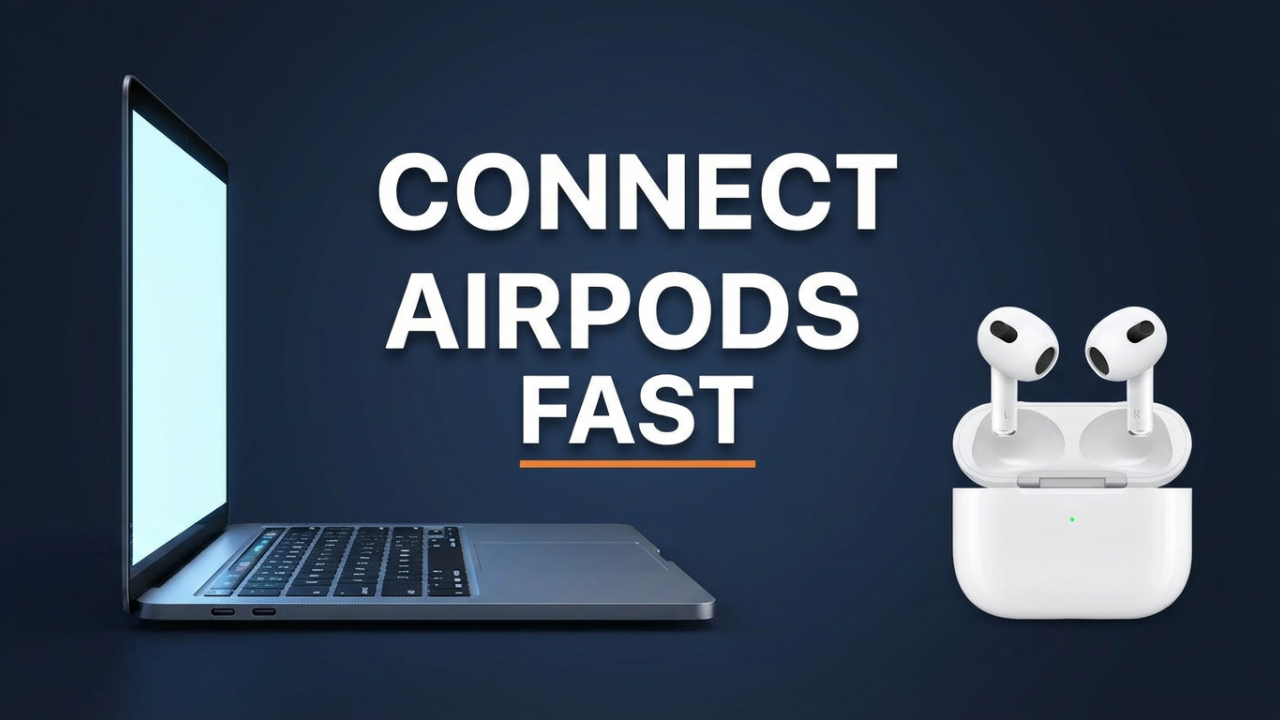
So you’ve got the thousand-dollar laptop and the two-hundred-dollar AirPods… but getting them to play nice feels like some dark, secret ritual you were never invited to. You’ve clicked everywhere, held down every button on that little white case, and… zip. Nada. It’s magic with your phone, but the second a laptop gets involved, it’s a frustrating mess of menus, failed connections, and that sinking feeling you wasted a lot of money on tech that just won’t cooperate. You see people do it effortlessly, and you’re left wondering what they know that you don’t. Well, that feeling of tech-induced rage ends today. Right now.
Here’s the truth: connecting your AirPods to any laptop—whether it’s a new Windows 11 PC, an old Windows 10 workhorse, or any MacBook—isn’t complicated. In fact, it’s shockingly simple once you get the one universal rule that governs this whole process. Forget the random forum posts and conflicting advice. This guide will break down the one method to connect any AirPods to any laptop, not just fast, but in seconds. By the end of this, you’ll be the person who connects their AirPods with the casual cool of an IT pro. You’ll get the “how” and the “why,” so you can troubleshoot any issue that comes your way. The confusion is over. Let’s do this.
Section 1: The Universal Truth They Don’t Tell You
Before we touch a single button, let’s get one thing straight, because it demystifies the entire process. To your laptop, your fancy Apple AirPods are just another pair of Bluetooth headphones. That’s it. In this context, they aren’t special; they’re just high-quality earbuds that speak the universal language of Bluetooth.
This is the key. On an iPhone or a Mac using the same Apple ID, your AirPods do all sorts of “magic”—instant connection, seamless switching, deep Siri integration. But on a Windows PC, or even a Mac you’re connecting to for the first time, they act like a normal Bluetooth device. They follow the same rules as any ten-dollar earbuds from Amazon. All the frustration comes from not realizing this one simple fact.
So, what are those rules? The entire process boils down to two simple states:
1. The “I’m Available” State: Your AirPods must be put into a special “pairing mode.” In this mode, they’re basically shouting, “Hey, I’m here and ready to connect to something new!” For every AirPods model, this mode is signaled by one, unmistakable cue we’ll cover in a minute.
2. The “I’m Looking” State: Your laptop must be actively searching for new devices. You do this in your laptop’s Bluetooth settings, where it scans the airwaves for anything broadcasting that “I’m Available” signal.
When your “looking” laptop hears your “available” AirPods, they’ll pop up in a list. You click them, and you’re done. Every single step from here on out is just about getting those two states to happen at the same time.
Now, it’s good to manage expectations, especially on a Windows PC. Because they’re acting as standard Bluetooth headphones, you’ll lose some of the Apple-exclusive magic. “Hey Siri” won’t work, and they won’t automatically switch between your phone and Windows laptop. But you’ll still get fantastic audio, you can use them for calls, and features like Active Noise Cancellation and Transparency Mode will still work on the models that have them. You get the core functions; you just have to connect them manually. And you’re about to learn exactly how.

International Computer Manufacturing Company
Section 2: Know Your Weapon – Identifying Your AirPods Model
This is the most important prep step. The *only real difference* in pairing across the entire AirPods family is the physical action you take to start pairing mode. Getting this wrong is the #1 reason for failure. Your laptop will never find your AirPods if they aren’t in pairing mode first.
The goal for every model is the same: make the status light **flash white**. That flashing white light is your golden ticket. It’s the universal signal that your AirPods are in pairing mode and ready to be found.
AirPods (1st, 2nd, & 3rd Gen) & AirPods Pro (1st & 2nd Gen)
This group covers most AirPods out there, and they all use the same method.
* **How to Identify:**
* **1st & 2nd Gen:** The classics with the long stems.
* **3rd Gen:** Look like the Pros but without silicone tips.
* **Pro (1st & 2nd Gen):** Have short stems and flexible silicone ear tips.
* **The Pairing Gesture:** For all of these, the process is identical.
1. Place both AirPods in their charging case.
2. Close the lid for about ten seconds.
3. Open the lid, but keep the AirPods inside.
4. Find the small, circular setup button on the back of the case.
5. Press and **hold** this button for 5 to 15 seconds. The status light will eventually start **flashing white**. When you see that flashing white light, you can let go. They are now in pairing mode.
**AirPods Max**
These are Apple’s premium, over-ear headphones, so the process is a bit different since there’s no case.
How to Identify: They’re the big, over-ear headphones with aluminum ear cups.
The Pairing Gesture:
1. On the top of the right ear cup are a Digital Crown and a longer, pill-shaped button. That pill-shaped button is the **noise control button**.
2. Press and **hold** the noise control button for about 5 seconds.
3. The small status light near the charging port will start to **flash white**. Let go. They are now in pairing mode.
The Newest Models: AirPods (4th Generation)
Apple announced the AirPods 4 in September 2024, and they introduced a new way to pair.
How to Identify: These have an updated design and a USB-C charging case that no longer has a physical button on the back.
The Pairing Gesture:
1. Place both AirPods in the case and open the lid.
2. Instead of a button, you now simply **double-tap the front of the case**, just below the status light.
3. The status light will begin to **flash white**. That’s it! It’s a bit strange since there’s no button to feel, but that double-tap is the new key. This method is also expected for future models like the AirPods Pro 3.
To sum it up: no matter your model, your mission is to get that status light flashing white. Only then should you turn your attention to your laptop.
ILIPUTER Computer Products
Section 3: The Windows Gauntlet – Conquering Connection on a PC
This is where people get tripped up, but it’s about to become simple. Remember our goal: we’re just getting the laptop into its “I’m Looking” state. The process is almost the same for both Windows 10 and 11.
Part 3.1: The Unchanging First Step – Get Your AirPods Ready
Do not skip this.
1. Place both AirPods in their case and make sure they have some battery.
2. Close the lid for a moment, then open it, keeping the AirPods inside.
3. Perform the pairing gesture for your model. For most, that’s holding the button on the back until the light flashes white. For the newest AirPods 4, it’s double-tapping the front of the case until the light flashes white. For AirPods Max, hold the noise control button.
4. Keep the case lid open with the white light flashing and place it near your laptop. Now, you can finally touch your PC.
Part 3.2: Navigating Windows 11
Windows 11 streamlined the settings menu. Here’s exactly what you do.
1. Open the **Settings** app. (The fastest way is to right-click the Start Menu icon and choose **Settings**).
2. On the left, click **”Bluetooth & devices.”**
3. Make sure the Bluetooth toggle at the top is **”On.”**
4. Click the big **”+ Add device”** button.
5. A new window pops up. You MUST choose the first option: **”Bluetooth.”**
6. Your laptop is now officially looking. Because your AirPods are already in pairing mode, they should appear in the list in a few seconds.
7. Click on your AirPods’ name in the list. It will say “Connecting…” and then “Your device is ready to go!” Click **”Done.”**
That’s it. You’ve connected your AirPods to a Windows 11 laptop.
Part 3.3: The Windows 10 Path
If you’re on Windows 10, the steps are basically the same, just with slightly different names.
1. Open the **Settings** app (Start Menu > gear icon).
2. Click on **”Devices.”**
3. On the **”Bluetooth & other devices”** page, make sure the Bluetooth toggle is **”On.”**
4. Click **”Add Bluetooth or other device.”**
5. Again, click the first option, **”Bluetooth.”**
6. Your PC is now searching. Look for your AirPods in the list.
7. Click their name to connect. When you get the confirmation, click **”Done.”**
You’ve now mastered connecting to Windows. But what if you can’t hear anything?
Part 3.4: The Most Common Windows Problem – Sound Output
You see “Connected,” you play a video…and the sound blasts from your laptop speakers. Don’t panic. This is the #1 problem people face, and it’s a super easy fix. You just need to tell Windows where to send the sound.
* **The Quick Way:** Click the **speaker icon** on your taskbar (bottom right). A volume slider will pop up. To the right of that slider is a little arrow **(>)**. Click it. A list of all your audio devices will appear. Just click on **”Headphones (AirPods…)”** to select them. The sound should immediately switch.
* **The Long Way (Through Settings):** If the quick way doesn’t work for some reason:
* **Windows 11:** Go to **Settings > System > Sound**. Under the **”Output”** section, choose your AirPods.
* **Windows 10:** Go to **Settings > System > Sound**. Under the **”Choose your output device”** dropdown, select your AirPods.
Once you’ve done this, Windows should remember and connect automatically next time.
Section 4: The MacBook Method – Simplicity in the Apple Ecosystem
Connecting AirPods to a MacBook is usually a smoother ride. If you use your AirPods with an iPhone signed into the same Apple ID as your Mac, they might already be there waiting for you. But for this guide, we’ll cover the manual method, which is foolproof for connecting to any Mac for the first time.
Part 4.1: Pairing Mode (Yes, Again)
You know the drill. The first step, always, is to put your AirPods into pairing mode.
1. Place the AirPods in their case and open the lid.
2. Press and hold the setup button (or double-tap the front for AirPods 4) until the light flashes white.
3. For AirPods Max, press and hold the noise control button until the light flashes white.
4. Keep them near your MacBook.
Part 4.2: The macOS Connection
macOS keeps things clean.
1. Click the **Apple logo** in the top-left corner of your screen.
2. Select **”System Settings…”** (on modern macOS) or **”System Preferences…”** (on older versions).
3. Find and click on **”Bluetooth.”**
4. Make sure Bluetooth is toggled **On**. Your Mac is already scanning.
5. Your AirPods will appear in the “Nearby Devices” list.
6. Click the **”Connect”** button next to their name.
7. After a moment, the status will change to “Connected.”
Part 4.3: Mac Sound Output
If the audio doesn’t switch automatically, it’s an easy fix.
* **Via the Control Center:** Click the **Control Center** icon in your menu bar (the two sliders). Click the **Sound** section, and then select your AirPods from the list.
* **Via System Settings:** Go back to **Apple Menu > System Settings > Sound**. In the **”Output”** tab, select your AirPods.
And that’s all it takes for a Mac. The process is fundamentally the same as Windows: pairing mode first, then find them in Bluetooth settings.
Section 5: The Deep Dive – Fixing Bad Audio Quality & Mic Issues
You’re connected, but you notice something weird, especially on Windows. Music sounds amazing. Then you join a Zoom call, and the audio quality tanks. Everything sounds thin and muffled, like an old landline phone. This isn’t a bug; it’s a weird quirk of how Windows handles Bluetooth, and understanding it is the key to mastering your AirPods.
The Two Faces of AirPods on Windows: Stereo vs. Hands-Free
When AirPods connect to a Windows PC, they show up as two different devices. Think of it as “Movie Mode” and “Phone Call Mode.”
1. Headphones (AirPods Stereo): This is your high-quality, listen-only profile. It delivers crisp, rich stereo sound for music, movies, and games. When this profile is active, Windows disables the AirPods’ microphone.
2. Headset (AirPods Hands-Free AG Audio): This is the two-way communication profile. It’s needed anytime you use both the headphones and the microphone at the same time. To squeeze both input and output into the limited Bluetooth bandwidth, Windows has to massively compress the audio. That’s what causes that sudden drop to “telephone quality.”
Macs and iPhones handle this switch much more gracefully, which is why you don’t notice the same jarring change.
How to Manually Control These Profiles on Windows
For High-Quality Listening: If you’re just listening to something and not using the mic, make sure the **Stereo** profile is active. Click the speaker icon > arrow, and choose **”Headphones (AirPods Stereo).”
For Voice Calls: The moment you join a Zoom or Teams call, Windows tries to switch to the **Hands-Free** profile to turn on your mic. If people can’t hear you, you might need to force the setting:
* Go to **Settings > System > Sound**.
* Set your **Output** to **”Headset (AirPods Hands-Free AG Audio).”**
* Crucially, set your **Input** to **”Headset (AirPods Hands-Free AG Audio)”** as well. Both must be set to the Headset profile for it to work.
Pro Tip: For the best of both worlds, many people use a workaround. In your Sound settings, set your Output to the high-quality **”Headphones (AirPods Stereo)”** but set your Input to your **laptop’s built-in microphone**. This gives you crystal-clear audio in your ears while your voice is picked up by the laptop mic.
Section 6: The Ultimate Troubleshooting Playbook
If you’re running into trouble, don’t get frustrated. Run through this checklist.
Problem: My AirPods won’t show up in the Bluetooth list!
Solution: This is almost always a pairing mode issue. Is the case lid open? Is the status light **actively flashing white**? Not solid white, not amber, but flashing. If not, try the pairing gesture again. Make sure your laptop is actively searching at the same time.
Problem: They’re connected, but the sound is choppy or cutting out.
Solution: This is usually Bluetooth interference. Move away from your Wi-Fi router or other Bluetooth devices. Better yet, “Forget” the device in your laptop’s Bluetooth settings and re-pair it from scratch. This often clears up a bad connection.
Problem: Nothing is working. I’m about to throw them out the window.
Solution: The Factory Reset. This is the nuclear option, but it’s incredibly effective. It wipes the AirPods’ memory and fixes the weirdest glitches.
1. Put both AirPods in the case and close the lid. Wait 30 seconds.
2. Open the lid. Now, press and hold the setup button on the back.
3. **Keep holding it.** Don’t let go when it flashes white. Hold the button for about **15 seconds**.
4. The light will flash white, then flash **amber** a few times, and then go back to flashing white. The amber flash means the reset is done. You can let go.
5. For **AirPods Max**, press and hold the **noise control button and the Digital Crown** together for about 15 seconds until the light flashes amber, then white.
6. Your AirPods are now completely reset. Start the connection process from the very beginning.
Conclusion
So, there you have it. The grand “secret” to connecting AirPods to any laptop isn’t a secret at all. It’s a simple, two-step dance.
Step one: Put your AirPods into pairing mode until you see that critical **flashing white light**. That light is everything. Step two: Open your laptop’s Bluetooth settings and tell it to look for a new device.
That’s the core of the entire process. Everything else, from annoying audio quality drops to a stubborn connection, is just about knowing where to click in the sound settings or when to do a quick factory reset. You’re no longer at the mercy of confusing menus. You’re now equipped to walk up to any PC or Mac and get any AirPods connected in seconds. You’ve mastered it.