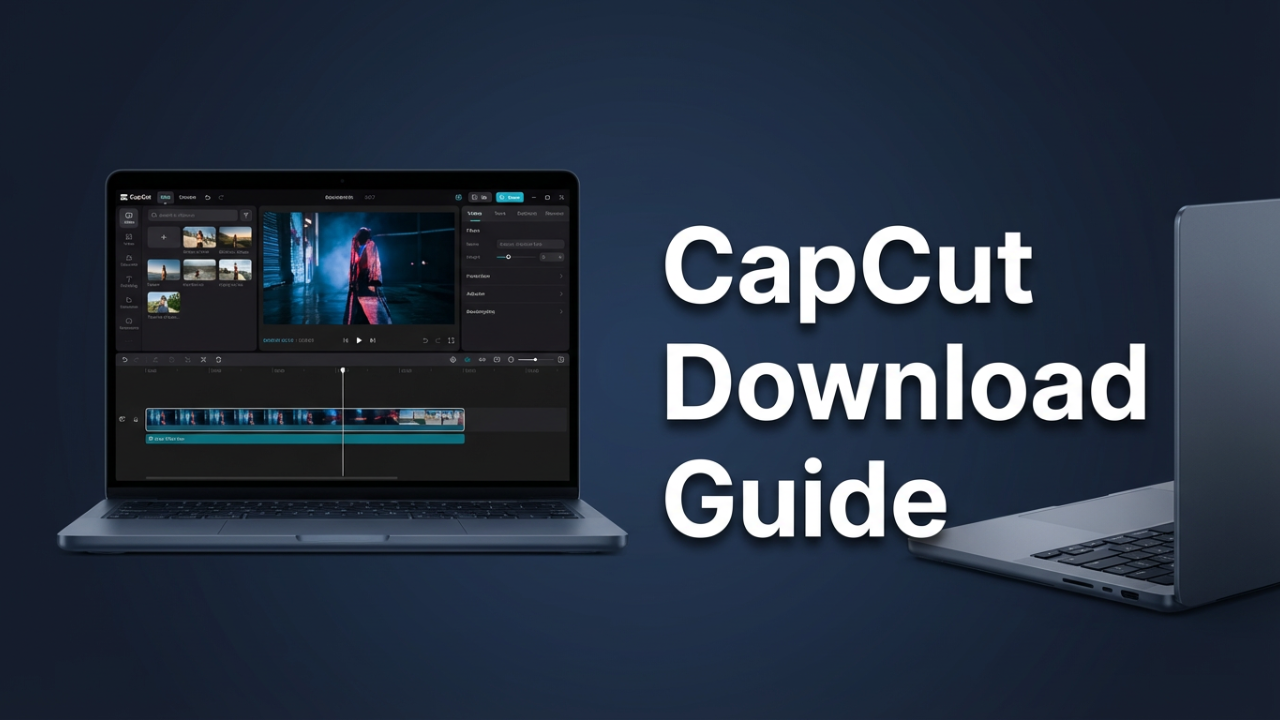
You’re leaning over your phone, trying to split a video clip with precision, but your thumbs just aren’t cooperating. You know CapCut is a powerhouse, but editing on a tiny screen feels like trying to paint a masterpiece through a keyhole. You’ve heard whispers of a desktop version, a way to edit on the wide-open space of a laptop screen, but you hesitate.
The internet can feel like a minefield of risky downloads. One wrong click on a shady, look-alike website, and you could be dealing with malware or compromised data. It’s a frustrating spot to be in—stuck between the desire to improve your edits and the fear of a bad download.
But what if I told you there’s a 100% official, safe, and free way to get the real CapCut on your Windows or Mac laptop, directly from the source? Forget the sketchy third-party sites. In this guide, we are going to walk through the official process, step-by-step. By the end, you’ll be editing on a bigger screen with more precision and complete peace of mind.
Section 1: Escaping the Small Screen – Why Desktop Editing Is a Game-Changer
Before we get to the how, let’s talk about the *why*. Moving from mobile to desktop editing is more than just a bigger view; it fundamentally transforms your creative process. It’s the difference between casual editing and working like a pro.
On your phone, every edit is a battle for screen real estate. The timeline is a compressed sliver, making frame-perfect cuts a test of dexterity. You can’t easily see your video preview and a complex, multi-layered timeline at the same time. The “fat finger” problem is real, and you’re constantly navigating menus, your thumb blocking the very clip you’re trying to see. It’s a workflow defined by compromise.
Now, picture yourself in front of your laptop. The CapCut interface is spread out, no longer confined to a six-inch display. Your timeline is a sprawling highway where you can see every clip, audio track, and effect with perfect clarity. Instead of a thumb, you have a mouse, allowing you to make frame-perfect cuts with a simple click and drag.
This precision is just the start. Think about keyboard shortcuts. On a desktop, you can slice a clip, add a marker, or undo a mistake with a single key press, turning repetitive actions into muscle memory. Those saved seconds add up to minutes, and those minutes add up to hours—time you can pour back into the creative side of your project, like color grading or finding the perfect music.
A laptop also masters multitasking. You can have CapCut open next to a folder of assets, a script, or a web browser. This integrated workflow is how professional editors operate, and the official desktop version of CapCut brings that power to you for free. As we start the download, keep this vision in mind. We’re not just installing software; we’re unlocking a new level of creative freedom.

Section 2: The Pre-Flight Check – Understanding System Requirements
Before we install, we need to make sure your laptop is ready. Let’s talk about system requirements. Think of it like a recipe: if you don’t have the right ingredients, the final result might not be what you hoped for. If your computer doesn’t meet certain specs, CapCut might run slowly, lag, or not install at all. A few minutes checking now will save you hours of frustration later.
Here are the key components:
* **Operating System (OS):** The main software running your computer (Windows or macOS).
* **Processor (CPU):** The “brain” of your computer. A faster CPU means smoother editing.
* **RAM (Memory):** Your computer’s short-term workspace. Video editing loves RAM.
* **Graphics (GPU):** The component that handles visuals and smooth video playback.
* **Storage:** Where your files and programs are kept. You need free space for CapCut and your projects.
Let’s look at the specifics for each system.
For Windows Users (Windows 10 & 11)
These are the specs you’ll need for a good experience on Windows.
* **OS:** Windows 10 (64-bit) or later. Your system must be a 64-bit version.
* **Processor:**
* **Minimum:** Intel Core i3 or an equivalent AMD processor will handle basic edits.
* **Recommended:** Intel Core i5, AMD Ryzen 5, or better for smoother playback and faster exports.
* **RAM:**
* **Minimum:** 4GB. You can edit with 4GB, but expect some lag with complex projects.
* **Recommended:** 8GB to 16GB. 8GB is the sweet spot for most users, while 16GB is ideal for 4K footage and heavy effects.
* **Graphics:**
* **Minimum:** An integrated GPU like Intel HD Graphics 4000.
* **Recommended:** A dedicated graphics card (from NVIDIA or AMD) with at least 4GB of VRAM for a much better preview experience.
* **Storage:**
* **Minimum:** 2GB to 10GB of free space just for the app.
* **Recommended:** A Solid State Drive (SSD) with plenty of free space. An SSD will make the app and your files load much faster.
How to Check Your Windows Specs:
1. Right-click the **Start button** on your taskbar.
2. Click on **System**.
3. A window will open. Under “Device specifications,” you’ll see your **Processor** and **Installed RAM**.
4. Further down, under “Windows specifications,” ensure your “System type” says **64-bit operating system**.
For Mac Users (macOS)
The requirements for Mac are just as straightforward.
* **OS:** macOS 10.15 (Catalina) or later. Some sources mention macOS 10.14 or later. The Mac App Store will confirm compatibility for your specific machine.
* **Processor:**
* **Minimum:** A dual-core Intel processor.
* **Recommended:** An Intel Core i5, or ideally, one of Apple’s M-series chips (M1, M2, M3), which are highly efficient for video editing.
* **RAM:**
* **Minimum:** 4GB. Like with Windows, this is the absolute minimum and may feel slow.
* **Recommended:** 8GB or more. 8GB is a great baseline, especially on Macs with Apple’s M-series chips.
* **Storage:**
* **Minimum:** 2GB of free space for the application.
* **Recommended:** An SSD with as much free space as you can afford.
How to Check Your Mac Specs:
1. Click the **Apple logo** in the top-left corner of your screen.
2. Select **About This Mac**.
3. The “Overview” tab shows you everything: your macOS version, Processor, Memory (RAM), and Graphics.
4. Click the **Storage** tab in the same window to see your available space.
**What If My Laptop Doesn’t Meet the Specs?**
If your computer is below the minimum requirements, don’t worry. CapCut also offers the **CapCut Online Video Editor**, which runs entirely in your web browser. It’s a powerful alternative that doesn’t require any installation and works well on lower-spec machines.
Now that you’ve completed this check, you can proceed with confidence, knowing the software will work as intended.
Section 3: The Official Windows Download – Your Step-by-Step Guide
Alright, Windows users, it’s time to get CapCut installed safely. There are two official methods, but I highly recommend the first: downloading directly from the official website. This ensures you always get the latest version straight from the developers.
Method 1: The Official Website (Recommended)
Let’s walk through this carefully.
**Step 1: Go to the Official CapCut Website**
Open your web browser. This next part is critical: to ensure your safety, do not search “CapCut download” on a search engine. Instead, manually type this into your browser’s address bar: `capcut.com`. Press Enter.
You are now on the official homepage. You should see a small padlock icon next to the URL, signifying a secure connection. The site is clean and professional.
**Step 2: Find the Correct Download Button**
The website should automatically detect you’re on a Windows computer and show you a prominent button that says **”Download for Windows.”** This is the one you want. Ignore any other ads or pop-ups and click that official button.
**Step 3: Download the Installer**
Your browser will start downloading the installation file, which will be named something like `CapCut_Setup.exe`. You can watch its progress in your browser’s download manager.
**Step 4: Run the Installation Wizard**
Once the download is finished, go to your “Downloads” folder and double-click the `CapCut_Setup.exe` file.
Windows will likely show a User Account Control window asking, “Do you want to allow this app to make changes to your device?” It should list the verified publisher as **”ByteDance Pte. Ltd.”** This is your confirmation that the file is legitimate. Click **”Yes.”**
The CapCut installer will now appear.
1. **Agreement Screen:** You’ll need to check the box to agree to the User License Agreement & Privacy Policy.
2. **Installation Path (Optional):** You may see a “More options” link. The default installation location is fine for most people. I recommend keeping the “Create a desktop shortcut” option checked for easy access.
3. **Installation:** Click the **”Install now”** button. A progress bar will appear as the files are copied to your computer.
4. **Completion:** Once it’s done, you’ll see an “Installation complete” screen with a **”Start now”** button.
**Step 5: First Launch**
Click “Start now.” CapCut will launch for the first time, possibly running a quick “testing environment” check on your hardware. That’s it! You have safely installed CapCut on your Windows laptop.
Method 2: The Microsoft Store (A Simple Alternative)
If you prefer an app store experience, the Microsoft Store is an equally official and safe option.
1. **Open the Microsoft Store:** Click your Start button, type “Microsoft Store,” and open it.
2. **Search for CapCut:** Use the search bar at the top to find “CapCut.”
3. **Identify the App:** The official app will be named “CapCut” and published by **”ByteDance Pte. Ltd.”**
4. **Install:** Click the “Get” or “Install” button. The store will handle the download and installation automatically.
5. **Launch:** Once finished, the button will change to “Open.” You can also find CapCut in your Start Menu.
Both methods get you the same official software. You’re now ready to create.
Section 4: The Official Mac Download – A Detailed Walkthrough
Mac users, your path is just as secure and even more streamlined. The best way to get CapCut on macOS is through the Mac App Store.
Method 1: The Mac App Store (Easiest and Recommended)
Apple’s App Store is curated and safe, making it the most straightforward way to install software.
1. **Open the Mac App Store:** Find it in your Dock (the ‘A’ icon) or your “Applications” folder.
2. **Search for CapCut:** Use the search bar in the top-left corner to type “CapCut” and press Return.
3. **Select the App:** The official app will be named “CapCut.” Click on it and check that the developer is **”ByteDance Pte. Ltd.”** to confirm its authenticity.
4. **Get and Install:** Click the “Get” button, which will turn into a green “Install” button. Click it again.
5. **Authenticate:** You may need to enter your Apple ID password or use Touch ID to approve the installation.
6. **Launch:** Once the automatic installation is complete, the button will change to “Open.” You can also find CapCut in your “Applications” folder and Launchpad.
Method 2: The Official Website (Manual Approach)
If you can’t use the App Store or prefer a manual install, the official website is a great alternative.
**Step 1: Go to the Official Website**
Open your browser and manually type `capcut.com` into the address bar, then press Return. Look for the padlock icon to confirm the site is secure.
**Step 2: Download the Mac Version**
The website will detect you’re on a Mac and show a button that says **”Download for Mac.”** Click it.
**Step 3: Open the DMG File**
Your browser will download a file ending in `.dmg`. This is a disk image, which acts like a virtual installer. Find this file in your “Downloads” folder and double-click it.
**Step 4: Install the Application**
A new window will pop up showing the CapCut icon and a shortcut to your “Applications” folder. Simply drag the **CapCut icon** and drop it onto the **”Applications” folder icon**. Your Mac will copy the app to the right place.
**Step 5: Clean Up**
You can now close the installer window. On your desktop, you’ll see an icon for the mounted disk image. Drag this icon to the Trash to eject it, then you can delete the original `.dmg` file from your Downloads.
**Step 6: First Launch and Security Approval**
Go to your “Applications” folder and double-click CapCut to open it. Because you downloaded it from the internet, macOS will show a pop-up asking, “Are you sure you want to open it?” Since we got it from the official site, you can confidently click **”Open.”**
You now have the genuine version of CapCut installed on your Mac.
Section 5: First Launch and Common Fixes
Congratulations! You’ve installed CapCut. Let’s walk through the first launch and cover a few common issues you might encounter.
**Your First Launch Experience**
1. **Environment Check:** The app will quickly scan your computer’s hardware (“Testing environment…”) to optimize itself.
2. **Sign-In Screen:** You’ll see options to sign in with TikTok, Google, or Facebook. Signing in is not required to edit or export videos without a watermark for most standard features. The main benefit of an account is access to CapCut’s cloud storage for syncing projects across devices. If you don’t need that, you can simply close the window and proceed.
3. **The Main Dashboard:** You’re now at the main dashboard. Click the big blue **”+ New Project”** button to enter the full editing interface and start your first project.
**Troubleshooting Common Issues**
**Problem 1: “My installation failed!”**
* **Re-check System Specs:** Go back to Section 2 and double-check your specs. An unsupported OS (like 32-bit Windows) or not enough storage space is a common cause.
* **Re-Download the File:** Your download might have been corrupted. Delete the installer, clear your browser cache, and download it again from `capcut.com`.
* **Temporarily Disable Antivirus:** Overly cautious antivirus software can sometimes block the installer. Try *temporarily* disabling it, running the installation, and then *immediately* re-enabling it afterward.
**Problem 2: “CapCut is running slow and lagging!”**
* **Close Background Apps:** Video editing is demanding. Close web browsers with many tabs, other apps, and anything else running in the background.
* **Update Your Graphics Drivers:** Out-of-date graphics drivers are a huge cause of poor performance. Go to the NVIDIA, AMD, or Intel website to download and install the latest drivers for your specific graphics card.
* **Lower Preview Quality:** Inside CapCut’s preview window, look for an option to lower the playback quality (e.g., from “Original” to “1/2”). This won’t affect your final exported video quality but will make editing much smoother.
**Problem 3: “How do I keep CapCut updated?”**
* **In-App Updates:** CapCut will usually notify you when a new version is available.
* **Store Updates:** If you installed from the Microsoft or Mac App Store, updates are typically handled automatically.
* **Manual Update:** You can always visit `capcut.com` and download the latest installer. Running it will safely update your current version.
By understanding these steps, you are ready to solve problems and get to the fun part: creating.
Conclusion
You started this journey looking at a small screen, feeling limited and maybe a bit nervous about downloading new software. Now, you’ve navigated the process with care, bypassed the risky parts of the internet, and installed a powerful, safe, and official version of CapCut on your laptop.
The days of frustrating thumb-edits and malware fears are over. What lies ahead is a world of creative possibility—an expansive timeline, the precision of a mouse, and the speed of keyboard shortcuts are all yours. You have successfully brought the magic of CapCut to your computer.
Thank you for trusting me to guide you. Now go launch that new project. Your next great video is waiting.