**Title: How to Connect Laptop to TV The Ultimate Guide**
—
### Hook
Tired of watching movies on a tiny laptop screen? Hunching over a small display for a big presentation? In this video, I’m going to show you every way you can connect *any* laptop to *any* TV, turning this little screen… into a massive home theater and presentation powerhouse. Let’s get started.
### Introduction
Your laptop is the center of your universe—it’s for entertainment, work, and everything in between. But its biggest weakness has always been the screen size. Whether you’re trying to host a movie night, share a family slideshow, or just get a better gaming experience, squinting at a 13-inch screen just doesn’t cut it. The good news is, the solution is probably already in your living room: your big-screen TV.
Now, getting your laptop’s picture onto your TV can seem intimidating. You’ve got different cables, mysterious ports, and confusing settings. But what if I told you it’s actually incredibly simple?
That’s what this video is for. This is your complete, step-by-step guide to connecting your laptop to your TV. We’ll start with the most reliable and highest-quality method—a simple wired connection—and I’ll walk you through exactly which cables and adapters you might need. Then, we’ll get into the magic of wireless connections, showing you how to cut the cord and stream your screen with just a few clicks.
And this guide is for everyone. It doesn’t matter if you have a brand-new MacBook with only USB-C ports or an older Windows laptop with connections you don’t even recognize. It doesn’t matter if you have a shiny new 4K Smart TV or a model from ten years ago. We’ve got a solution for all of them.
We’ll also tackle the most common frustrations head-on in a dedicated troubleshooting section. We’ll solve problems like the dreaded “No Signal” message, audio that refuses to play through the TV, and laggy wireless streams. By the end of this video, you won’t just know how to do it; you’ll be the expert everyone calls for help. Your tiny screen problems are officially over.
### Section 1: Why This Guide Matters – Understanding Your Setup
Before we plug anything in, let’s quickly survey the landscape. The reason there’s no single, simple answer to this question is because of the sheer variety of laptops and TVs out there. You’ve got laptops from Dell, HP, Apple, and others, each with different ports depending on its age. A new ultrabook might only have a couple of USB-C ports, while an older laptop might have a chunky blue port you haven’t seen in years. Same thing for TVs—they all have their own mix of inputs and features.
This is exactly why a complete guide is so important. We need to bridge the gap between all these different devices. At the end of the day, all connection methods fall into two main categories: Wired and Wireless.
First, you have **Wired** connections. This is a physical cable running from your laptop to your TV, and it’s the gold standard for performance. It gives you the best picture quality, the most reliable signal, and basically zero lag. This makes it the clear winner for things where quality is key, like gaming or giving an important presentation.
Second, there’s **Wireless**. This method uses your home’s Wi-Fi to send the picture and sound from your laptop to your TV—no cables needed. The big advantage here is convenience. You can kick back on the couch with your laptop without being tethered by a short cable. This is awesome for casual use, like browsing the web, showing off photos, or streaming a video where a tiny bit of delay doesn’t matter.
Think of this guide as a universal translator. Your laptop might be speaking “USB-C,” while your TV only understands “HDMI.” Our job is to find the right cable, adapter, or software setting to make them talk to each other perfectly. So, let’s start with the most reliable language of them all: HDMI.
### Section 2: The Wired Connections – The Gold Standard for Reliability and Performance
When you need the absolute best picture, the lowest lag, and the most stable connection, nothing beats a physical cable. Wired connections are simple, powerful, and should be your first choice for things like 4K movies, competitive gaming, or big presentations. We’ll start with the king: HDMI.
#### **Part 2A: HDMI – The Universal Champion**
HDMI stands for High-Definition Multimedia Interface, and it’s been the standard for over a decade. The reason it’s so popular is its simplicity: a single HDMI cable carries both perfect digital video and high-quality digital audio. No extra cables needed.
**Step 1: Identifying Your Ports**
First things first, let’s find the ports. On the back or side of your TV, you’ll find a few HDMI ports, usually labeled “HDMI 1,” “HDMI 2,” and so on. They have a unique shape that’s impossible to mistake.
Now, look at your laptop. Most standard-sized laptops have a matching full-size HDMI port. On smaller ultrabooks, you might find a smaller version to save space, called **Mini HDMI** or **Micro HDMI**. They work exactly the same but just need a cable with the correct smaller connector on one end.
**Step 2: Choosing the Right HDMI Cable**
Believe it or not, not all HDMI cables are the same, and the right one matters if you have a 4K TV.
* **Standard HDMI:** These are older and designed for resolutions like 720p. They’ll work, but they can’t handle 4K.
* **High-Speed HDMI (HDMI 2.0):** This is the most common cable today. It’s what you need for watching 4K content, as it supports 4K at 60 frames per second (4K@60Hz). For most people, this is the perfect cable.
* **Ultra High-Speed HDMI (HDMI 2.1):** This is the latest and greatest, built for the future. It supports things like 4K at 120 frames per second (4K@120Hz). You only really need this if you’re a serious gamer with a top-of-the-line TV and a high-end gaming laptop.
For this guide, a **High-Speed HDMI cable** is your best bet. It covers almost every situation and works with all your older devices, too.
**Step 3: The Physical Connection**
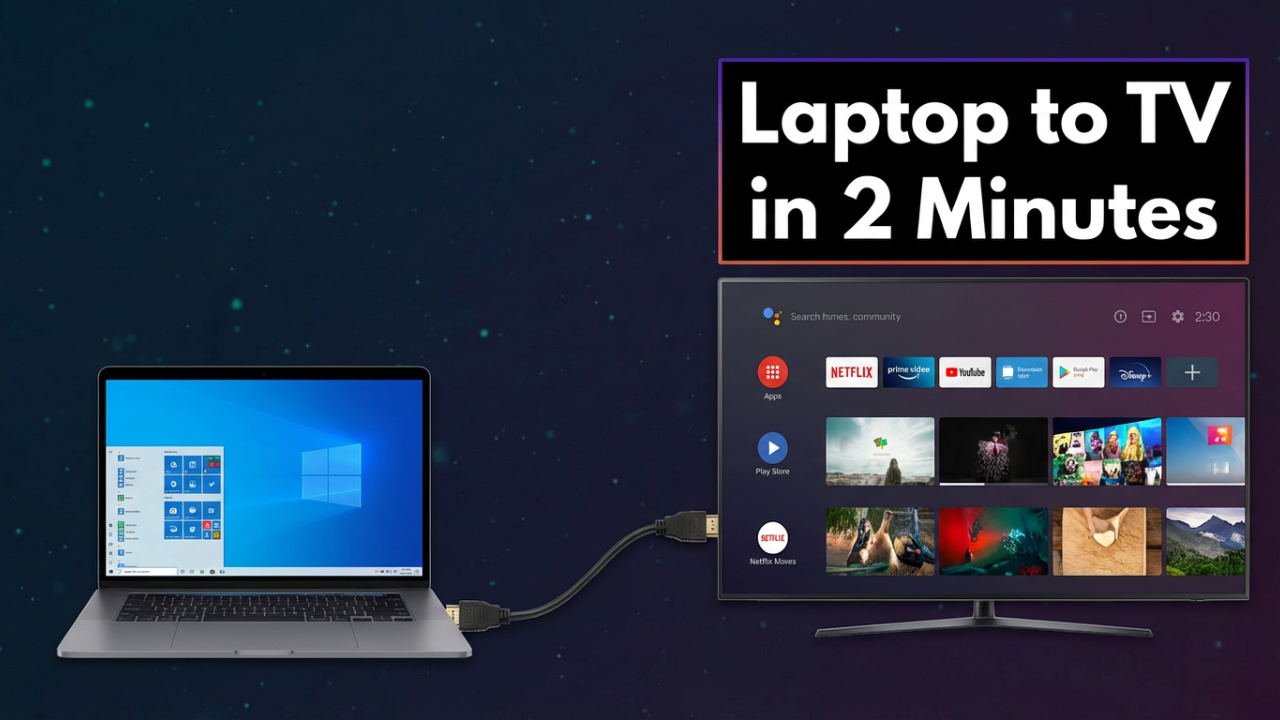
This is the easiest part. Plug one end of your HDMI cable into the HDMI port on your laptop. Plug the other end into an open HDMI port on your TV. Make sure both ends are plugged in firmly—a loose connection is the #1 cause of problems.
**Step 4: Selecting the TV Input**
Your TV doesn’t automatically know which port you just used. You have to tell it where to look. Grab your TV remote and find a button labeled **”Input,” “Source,”** or maybe an icon of a box with an arrow pointing into it.
Press that button. A menu will pop up showing all the inputs: HDMI 1, HDMI 2, AV, etc. Use the arrows on your remote to highlight the HDMI input you just plugged the cable into. If you used “HDMI 2,” select that option and hit OK.
After a moment, your TV should flicker and then show a perfect copy of your laptop’s screen. If it works, awesome! If you see a “No Signal” message, don’t panic. Just double-check that the cable is secure and you’ve selected the right input.
**Step 5: Configuring Your Laptop’s Display**
Now that you have a picture, you need to tell your laptop *how* to use the TV.
**For Windows Users (Windows 10 & 11):**
The magic shortcut is **Windows Key + P**. Holding the Windows key and tapping “P” brings up the “Project” menu. You’ll get four choices:
1. **PC screen only:** The default. Only your laptop screen is used.
2. **Duplicate:** This is “mirror mode.” Your TV shows an exact copy of your laptop screen. Perfect for movies or showing a group of people something.
3. **Extend:** This is the powerhouse mode for productivity. It treats your TV as a second, separate monitor. You can drag windows from your laptop over to the TV. This is amazing for multitasking—imagine having your notes on your laptop while a presentation is on the big screen.
4. **Second screen only:** This turns your laptop’s screen off and only uses the TV. It’s great for watching movies without the distraction of your laptop’s bright screen, and it saves battery.
For more control, right-click your desktop and choose **”Display settings.”** Here, you can change the resolution, adjust text size, and even turn on HDR for more vibrant colors if your laptop and TV both support it.
**For macOS Users:**
On a Mac, it’s just as simple. Click the **Apple menu**, go to **System Settings**, and then click **”Displays.”**
You’ll see both your laptop screen and your TV. To switch modes, click on your TV in the settings, and use the “Use as” drop-down menu to choose:
* **Main display:** Makes the TV your primary screen.
* **Extended display:** The same as “Extend” on Windows.
* **Mirror for [Built-in Display]:** The same as “Duplicate” mode.
In the “Arrangement” tab, you can drag the screen icons to match their real-world positions, so your mouse moves naturally between them.
**Step 6: Audio Configuration**
One of the best things about HDMI is that it carries audio. Most of the time, your laptop will automatically send the sound to your TV’s speakers.
If the sound is still coming from your laptop, the fix is easy.
* **On Windows:** Right-click the speaker icon on your taskbar, select **”Sound settings,”** and in the “Output” section, just choose your TV from the list.
* **On macOS:** Go to **System Settings > Sound**, and under the “Output” tab, select your TV.
And that’s it—you’ve mastered the HDMI connection. But what if your laptop doesn’t have that port?
#### **Part 2B: What if You Don’t Have an HDMI Port? Adapters and Alternatives**
As laptops get thinner, many have ditched bulky ports like HDMI for smaller, more versatile ones. Don’t worry, you just need a simple adapter.
**USB-C and Thunderbolt: The Modern Standard**
If you have a modern laptop, you probably have one or more small, oval-shaped USB-C ports. But here’s the critical part: **not all USB-C ports can output video.**
For a USB-C port to work with a TV, it needs to support **DisplayPort Alt Mode** or be a **Thunderbolt** port (which uses the same USB-C shape). You can often tell by looking for a small lightning bolt symbol (for Thunderbolt) or a “DP” logo next to the port. If you’re not sure, a quick search for your laptop’s specs will tell you.
Once you know your port works, you have two options:
1. **A USB-C to HDMI Cable:** A single, clean cable with USB-C on one end and HDMI on the other.
2. **A USB-C to HDMI Adapter or Hub:** A small dongle that plugs into your USB-C port and gives you a full-size HDMI port, often along with other useful ports.
After that, the process is exactly the same. Plug the adapter into your laptop, connect an HDMI cable from the adapter to your TV, and follow the steps we just covered.
**DisplayPort and Mini DisplayPort: The Pro’s Choice**
DisplayPort is another high-performance port common on gaming and business laptops. It looks like HDMI but has one flat edge. Some laptops use a smaller version called Mini DisplayPort.
Just like with USB-C, the solution is a simple adapter. You can get a **DisplayPort to HDMI adapter** or a **Mini DisplayPort to HDMI adapter**. They’re very common and reliable. DisplayPort also carries both video and audio, so you won’t need a separate audio cable.
**The Analog Throwbacks: VGA and DVI – For Older Hardware**
If you’re connecting a much older laptop, you might see some ancient ports.
* **VGA (Video Graphics Array):** That’s the blue, 15-pin connector. VGA is an **analog, video-only** signal. This means two things: the picture won’t be as sharp, and more importantly, **VGA does not carry audio.** You’ll need a separate **3.5mm audio cable** (a standard headphone cable) to run from your laptop’s headphone jack to the “Audio In” port next to the VGA input on your TV.
* **DVI (Digital Visual Interface):** This is a large, white connector. It’s usually **video-only** too, so just like with VGA, you’ll probably need that separate audio cable.
If your old laptop has VGA or DVI and your TV only has HDMI, you need an **active converter**. This is a small box that actively converts the signal. These converters often need their own power, usually from a USB cable you can plug into your TV or laptop.
While these older connections work in a pinch, they’re a last resort. If you have any digital options—HDMI, USB-C, or DisplayPort—always use those for the best quality.
### Section 3: The Wireless Revolution – Connecting Without Cables
As great as wired connections are, sometimes you just don’t want to deal with cables. This is where wireless display technology comes in.
The main requirement is simple: **your laptop and your Smart TV (or streaming device) must be on the same Wi-Fi network.** This is how they find each other.
#### **Part 3A: Miracast – The “Wireless HDMI” for Windows and Android**
Miracast is basically “HDMI over Wi-Fi.” It’s a standard built right into most modern Windows laptops and a ton of Smart TVs from brands like LG, Sony, and Samsung. It creates a direct link between your devices.
**How to Connect using Miracast:**
Connecting with Miracast on a Windows laptop is incredibly simple.
1. Make sure your TV and laptop are on and connected to the same Wi-Fi.
2. On your TV, you might need to enable screen sharing. Look in the settings or input menu for **”Screen Mirroring,” “Screen Share,”** or **”Miracast.”** On many new TVs, this is always on.
3. On your Windows laptop, use the shortcut: **Windows Key + K**. This opens the “Connect” panel.
4. Your laptop will scan for displays. After a few seconds, you should see your TV’s name in the list.
5. Click on your TV’s name.
6. Your TV might ask you to allow the connection. Hit “Accept” with your remote.
And that’s it! Your laptop screen is now wirelessly on your TV. You can use **Windows Key + P** to switch between “Duplicate” and “Extend” modes, just like with a cable.
Miracast is super convenient, but because it’s wireless, it will always have a bit more **latency** (delay) than an HDMI cable. This slight lag isn’t a big deal for watching a movie, but it makes Miracast a poor choice for fast-paced gaming.
#### **Part 3B: Apple AirPlay – Seamless Streaming for the Apple Ecosystem**
If you’re in the Apple world with a MacBook, AirPlay is your go-to. It’s Apple’s own streaming technology, known for being super easy and stable. You’ll need either an **Apple TV** box connected to your TV or a modern Smart TV with **AirPlay 2 built-in**, which is now common on major TV brands.
**How to Connect using AirPlay:**
1. Make sure your MacBook and your Apple TV or AirPlay-compatible TV are on the same Wi-Fi.
2. On your MacBook, click the **Control Center** icon in the menu bar (the two little switches).
3. Click the **”Screen Mirroring”** button.
4. A list of AirPlay devices will pop up. Select your TV from the list.
Instantly, your Mac’s screen will appear on your TV. You can go into **System Settings > Displays** to choose between mirroring or using the TV as a separate, extended display.
One of AirPlay’s best features is app integration. In apps like Safari or QuickTime, you’ll see an AirPlay icon. Clicking it lets you send *just the video* to the TV, while your Mac’s screen remains free for other tasks. The only real downside to AirPlay is that it’s designed only for Apple devices.
#### **Part 3C: Casting – The Smart and Simple Method (Chromecast & Built-in)**
There’s another popular wireless method that’s a bit different: **Casting**. The most well-known version is **Google Cast**, the technology behind the **Chromecast**.
Here’s the key difference:
* **Mirroring** (Miracast, AirPlay) sends a live feed of what’s on your laptop screen. Your laptop does all the work.
* **Casting** is like giving your TV an instruction. When you “cast” a YouTube video, your laptop just tells your TV the video’s internet link. The TV then takes over and streams it directly from the internet itself.
This is brilliant because it frees up your laptop. You can close the tab or even shut the laptop’s lid, and the video will keep playing on the TV.
**How to Connect using Google Cast:**
You’ll need a TV with Chromecast built-in or a separate Chromecast dongle plugged into an HDMI port.
1. Make sure your laptop and Chromecast/TV are on the same Wi-Fi.
2. Open the **Google Chrome** browser on your laptop.
3. Click the **three-dot menu** in the top-right corner.
4. Select **”Cast…”**.
5. A small tab will appear with a list of devices. Click on your Chromecast or TV.
6. Under the “Sources” dropdown, you can choose what to send:
* **Cast tab:** This is the default and best for web videos.
* **Cast desktop:** This mirrors your entire screen, for showing things outside of Chrome.
* **Cast file:** This lets you play a video or audio file from your computer.
Casting is amazing for streaming, but some services like Netflix might block you from using “Cast desktop” to show their content, giving you a black screen. In those cases, it’s always better to use the native app on your Smart TV or Chromecast.
#### **Part 3D: The Pro-Grade Wireless Option – Dedicated Wireless HDMI Extenders**
For situations where normal wireless isn’t reliable enough, there’s a powerful solution: a **Wireless HDMI Extender**.
This is a hardware kit with two boxes: a **transmitter (TX)** and a **receiver (RX)**. You plug the transmitter into your laptop’s HDMI port and the receiver into your TV’s HDMI port. These two boxes create their own private wireless link, completely bypassing your Wi-Fi network.
**Why use one?**
* **Rock-Solid Reliability:** No competing with other devices on a crowded Wi-Fi network.
* **Low Latency:** Engineered for very low delay, making them great for presentations or even some casual gaming.
* **No Network Needed:** Perfect for places with no Wi-Fi or an unreliable guest network.
* **Plug and Play:** You just plug them in, and they work like a physical cable.
These kits are more expensive, but for professionals who need a foolproof wireless tool, they’re an outstanding solution.
### Section 4: The Ultimate Troubleshooting Guide – “It’s Not Working!”
You’ve plugged everything in or tried to connect wirelessly, and… nothing. Just a blank screen or a “No Signal” message. It’s a classic tech frustration, but don’t worry. Nearly every problem can be solved with a few simple checks.
**Problem 1: My TV says “No Signal.”**
This is the most common issue, especially with cables.
* **Solution 1: Check the TV Input.** This is the #1 culprit. Press the **”Input” or “Source”** button on your TV remote and cycle through every single HDMI option until you find the right one.
* **Solution 2: Check Your Physical Connections.** Unplug the HDMI cable from both the TV and the laptop, then plug them back in. Make sure they’re snug.
* **Solution 3: The “Magic” Reboot.** Sometimes devices just need a fresh start. Disconnect the cable, shut down your laptop, and turn off your TV. Then, turn the TV on first, turn your laptop on, and *then* reconnect the cable. It works more often than you’d think.
* **Solution 4: Try a Different Port or Cable.** It’s possible an HDMI port or the cable itself is bad. Try a different HDMI port on the TV. If you have another cable, try swapping it out.
* **Solution 5: Check Your Laptop’s Drivers.** Your laptop might be using a generic driver that doesn’t work right. Go to your laptop maker’s website, find the support page for your model, and install the latest graphics driver.
**Problem 2: The picture is there, but the sound is coming from my laptop.**
This is a classic audio handshake issue. Your laptop just needs to be told where to send the sound.
* **Solution 1: Manually Select the Audio Output.**
* **On Windows:** Right-click the speaker icon, select **”Sound settings,”** and in the “Output” dropdown, choose your TV. The sound should switch immediately.
* **On macOS:** Open **System Settings > Sound.** Under the “Output” tab, click your TV’s name.
* **Solution 2: Remember Your Connection Type!** If you’re using an old VGA cable, it **does not carry audio.** You must have a separate 3.5mm audio cable connected.
**Problem 3: The picture looks blurry, stretched, or doesn’t fit the screen.**
This is a resolution mismatch.
* **Solution 1: Match the Resolution.** Go into your laptop’s display settings. Find the resolution setting for the TV and set it to the “Recommended” value (e.g., 1920×1080 for a 1080p TV, or 3840×2160 for a 4K TV).
* **Solution 2: Check the TV’s “Overscan” Settings.** Many TVs slightly zoom in on the picture, cutting off the edges. On your TV remote, go into the Picture Settings and look for an option called **”Aspect Ratio,” “Picture Size,”** or **”Screen Fit.”** You want to find a setting like **”Just Scan,” “Screen Fit,” “1:1,”** or “PC Mode.” This tells the TV to show the image pixel-for-pixel.
**Problem 4: My wireless connection is laggy or keeps dropping.**
Wireless signals are affected by distance and interference.
* **Solution 1: Check Your Network and Get Closer.** A weak Wi-Fi signal is the most common cause. Move your laptop closer to your Wi-Fi router. Walls and other obstacles can also weaken the signal.
* **Solution 2: Use the 5GHz Wi-Fi Band.** If your router is dual-band, it broadcasts a 2.4GHz network and a 5GHz network. The 5GHz band is faster and less crowded. Connect both your laptop and TV to the 5GHz network if possible.
* **Solution 3: Reduce Network Congestion.** If someone else is downloading a huge file or streaming 4K video, it can hog all the bandwidth. Try pausing other heavy internet activities to see if it improves your connection.
**Problem 5: My USB-C adapter isn’t working.**
You plugged in your new adapter, and nothing happened.
* **Solution 1: Confirm Your Port Supports Video.** As we covered, not all USB-C ports do. Double-check that your laptop’s port supports **DisplayPort Alternate Mode** or **Thunderbolt**. If it’s a basic data-and-charging port, no adapter will make it work for video.
* **Solution 2: Update Drivers and Firmware.** Especially for Thunderbolt, it’s critical that your laptop’s drivers are up to date. Go to your laptop maker’s support site and check for any BIOS, firmware, or Thunderbolt software updates.
By patiently walking through this list, you can solve 99% of all connection issues.
### Section 5: Pro-Tips and Use-Case Recommendations
Now that you know how to connect and troubleshoot, let’s talk about which method is best for what you’re doing.
**Best for Movies and High-Quality Video:**
For the best home theater experience, a **wired HDMI connection is king.** It guarantees a perfect 4K HDR signal with zero lag. A close second is simply to **use the native app on your Smart TV or a streaming stick** like a Chromecast or Apple TV. This avoids any quality or copy-protection issues that can happen when mirroring from a browser.
**Best for Gaming:**
There’s no debate here: **you must use a wired HDMI connection.** Wireless methods introduce lag, which will make any fast-paced game unplayable. If you have a high-end setup, use an **HDMI 2.1** cable to unlock features like 4K at 120Hz and Variable Refresh Rate for incredibly smooth gameplay.
**Best for Presentations and Work:**
If you’re in your own office, a **wireless connection via Miracast (Windows) or AirPlay (Mac) is wonderfully convenient** and looks very professional. But if you’re going to a client’s office or an unfamiliar room, bring a **wired connection kit.** A universal USB-C hub with HDMI is a lifesaver. For the best of both worlds, a **dedicated wireless HDMI extender kit** bypasses any bad Wi-Fi and just works.
**Best for Older Hardware:**
If you’re stuck with VGA or DVI ports, remember the key is an **active converter** to change the signal to HDMI. And don’t forget that **separate 3.5mm audio cable**!
**Bonus Tip 1: The Ultimate Couch Commander Setup.**
Once you’re connected, you don’t want to keep getting up. The solution is a **wireless keyboard and mouse combo.** A small keyboard with a built-in trackpad is the perfect “couch remote” for your laptop media center.
**Bonus Tip 2: Private Listening.**
Want to watch on the big screen without disturbing anyone? Just plug headphones into your laptop’s headphone jack. Then, go into your sound settings and set the output device back to “Headphones.” The video will keep playing on the TV, but the sound will come through your headphones. It’s a simple but super useful trick.
### Conclusion & Call-to-Action
So that’s it—from the rock-solid HDMI cable to the convenience of wireless mirroring, we’ve covered everything. We’ve decoded the different ports and built a troubleshooting guide to fix any issue you might face.
The goal was to help you break free from your tiny laptop screen, and now you can. You can turn your living room into a home theater, a presentation stage, or an awesome gaming setup. No more squinting, no more crowding around a small display. The big-screen experience is all yours.
If this guide helped you out, please give this video a thumbs up—it really helps the channel. And for more tech guides just like this one, make sure you subscribe!
Most importantly, I want to hear from you. Let me know in the comments which method worked for you. Or if you still have a question, drop it there—I try to read and respond to as many as I can. Thanks for watching, and enjoy your new big screen.