

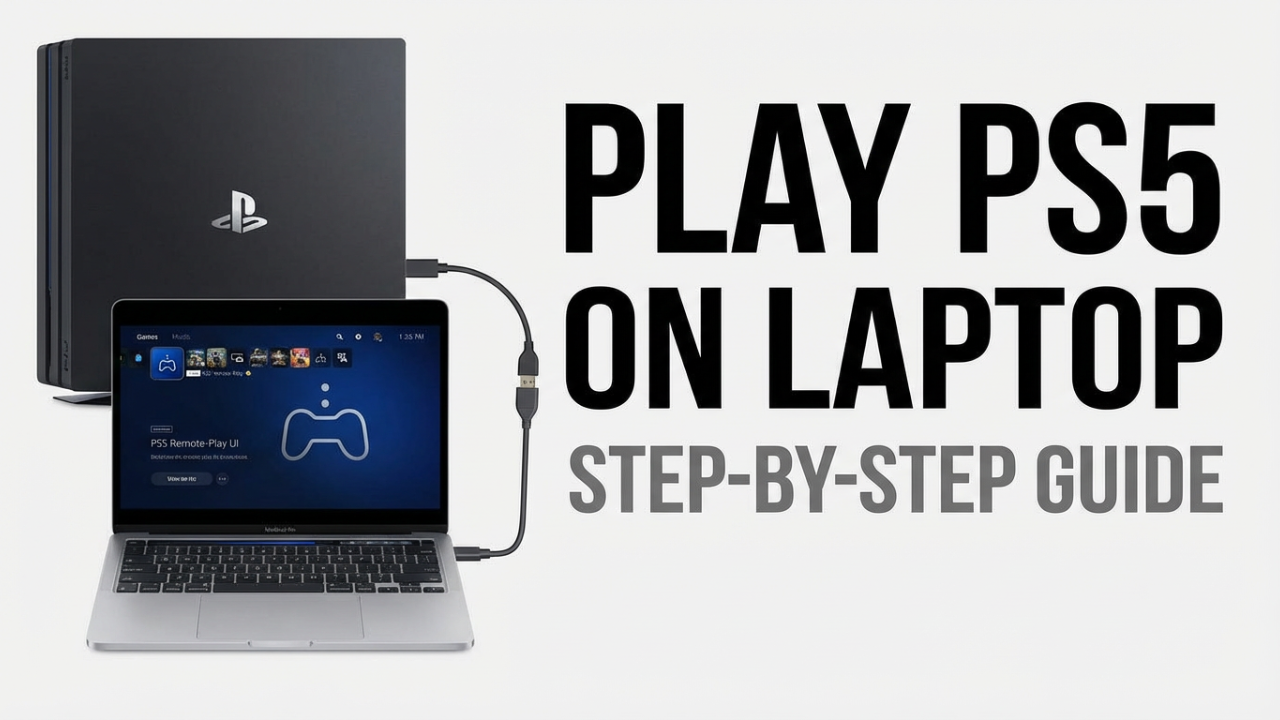
So, you’ve got a problem. You have a brand-new PlayStation 5, a library of amazing games, and the whole evening free. The only catch? The main TV is occupied. Maybe it’s movie night, maybe your roommate’s binging a new show, or maybe you just don’t want to be in the living room. For a second, your gaming plans feel like they’re on hold. Then you look over at your laptop and a question sparks: what if you could just use *that* screen?
It’s a common situation, and the good news is the answer is yes, you absolutely can. That laptop on your desk has the potential to become your personal, portable gaming hub for your PS5.
Now, a lot of people hit an immediate wall here. They grab an HDMI cable, plug it into their PS5 and then into their laptop, and… nothing. That’s because pretty much all laptops have an HDMI *output*, not an *input*. They’re built to send a signal *out* to a monitor, not take one *in*.
But don’t give up. The real solution isn’t a single cable, but it’s just as effective. In this guide, I’m going to show you two solid methods to get your PS5 gameplay onto your laptop screen. We’ll cover the hardware method, using a special device that gives you fantastic performance with very low lag. And we’ll also walk through the free software method from Sony itself that you can set up in just a few minutes. By the end of this, you’ll know exactly how to do both and can pick the one that fits your budget and gaming style. Let’s get started.
Section 1: Method 1 – Using a Video Capture Card
Welcome to the first solution: using a video capture card. If you’ve ever watched a streamer on Twitch or a high-quality gameplay video on YouTube, you’ve seen this tech in action. This method is for anyone who puts performance first. We’re talking low latency, great image quality, and a super stable connection. If you want your laptop to feel less like a temporary fix and more like a proper gaming display for your PS5, this is the way to go.
So, what is a capture card? Think of it as a translator. Your laptop’s HDMI port is a one-way street out. A capture card is a small external device that takes the HDMI signal from your PS5 and converts it into a format your laptop can understand and display through a USB port. It basically gives your laptop the HDMI input it was born without.
The result is a direct, hardwired connection. This is a huge plus because it avoids issues like Wi-Fi slowdowns or network interference. While it does introduce a tiny amount of processing lag, it’s often so minimal that it feels just like playing on a regular monitor. It’s a great choice for fast-paced games where every millisecond counts. One of the best features of these cards is “zero-latency passthrough,” which lets you play on your main TV with no lag at all, while the signal *also* goes to your laptop for recording or as a second screen.

Part 1A: What You’ll Need
Before we get into the setup, let’s talk about the gear. Getting this right from the start will save you a ton of trouble. You’ll need three physical items and one piece of software.
First, obviously, is a **Video Capture Card**. We’re focusing on **external capture cards** that connect via USB. When you start looking, you’ll see everything from cheap, thumb-drive-sized sticks to more professional boxes from brands like Elgato, AVerMedia, and Razer. What’s the difference? Performance and price. For a PS5, you’ll want a card that can at least handle 1080p resolution at 60 frames per second (fps) for a smooth experience. Higher-end cards like the Elgato HD60 X offer better performance and that handy HDMI passthrough feature.
Second, you’ll need at least **two HDMI cables**. You already have the one that came with your PS5. You’ll use that to go from the PS5’s HDMI Out to the capture card’s HDMI In. The second, optional-but-recommended cable runs from the capture card’s HDMI Out (the ‘Passthrough’) to your main TV. This lets you play on the big screen anytime without unplugging anything.
Third, you need a **USB cable** to connect the capture card to your laptop, which is almost always included with the card. The critical detail here is the **USB port** on your laptop. You absolutely must plug the capture card into a **USB 3.0 port or higher**. These are usually blue or have a small “SS” (SuperSpeed) logo. Plugging a modern HD capture card into an older USB 2.0 port is a recipe for disaster; the connection isn’t fast enough and will likely cause stuttering, freezing, or just a black screen. Always check the card’s requirements and make sure your laptop has the right port.
Finally, the software: **OBS Studio**. OBS stands for Open Broadcaster Software, and it’s a powerful, free program used by streamers everywhere. This is what we’ll use to view the video from the capture card on our laptop. You can download it for free from obsproject.com. It looks professional, but for what we’re doing, the setup is surprisingly simple.
Part 1B: PS5 Prep – The HDCP Setting
Before you plug anything in, we have to change one crucial setting on your PS5. If you skip this, it will fail, 100% of the time. You’ll get everything connected, open OBS, and see nothing but a black screen. The culprit is a feature called **HDCP**.
HDCP stands for High-bandwidth Digital Content Protection. It’s copy protection that stops people from recording things like movies from Netflix or Blu-ray discs. Your TV knows how to handle this, but a capture card is seen as a recording device, so HDCP blocks the signal.
Luckily, Sony lets you turn it off for games. Just remember, this will stop your media apps like Netflix from working until you turn it back on.
Here’s how to do it. Have your PS5 connected to a TV for this part.
1. From your PS5 home screen, go to the **Settings** gear icon in the top-right.
2. Scroll down and select **System**.
3. In the System menu, select **HDMI**.
4. You’ll see an option for **”Enable HDCP”**. It’s on by default. Select the toggle to **turn it off**.
Your screen will flash for a second, and when it comes back, HDCP is disabled. Your PS5 is now ready.
Part 1C: Physical Connection – Hooking It All Up
With HDCP off, it’s time to connect the hardware. It’s best to have everything turned off before you start plugging things in.
1. **PS5 to Capture Card:** Plug one end of your first HDMI cable into the **HDMI Out** port on your PS5. Plug the other end into the **HDMI In** port on your capture card.
2. **Capture Card to Laptop:** Take the USB cable that came with the card. Plug it into the capture card and then into a **USB 3.0 port** on your laptop. A light on the card should turn on, showing it has power.
3. **(Optional) Passthrough to TV:** Plug your second HDMI cable into the **HDMI Out** port on your capture card. Plug the other end into an HDMI port on your main TV. Now your setup works for both your laptop and your TV without swapping cables.
At this point, the hardware is connected. The last step is setting up the software to see and hear the signal.
Part 1D: Software Setup in OBS
With everything wired up, let’s get the picture on your laptop screen. If you haven’t already, go to **obsproject.com**, download OBS, and install it.
When you first open OBS, it might show a configuration wizard; you can just cancel it. We only need to focus on the “Sources” box at the bottom. A **Source** is anything you want to show on screen—in this case, our PS5.
Let’s add it.
1. Turn on your PS5 and launch OBS on your laptop.
2. In the **”Sources”** box, click the **plus (+)** icon and select **”Video Capture Device”**.
3. Name it something like “PS5 Capture” and click **OK**.
4. A properties window will pop up. This is key. Click the **”Device”** dropdown menu.
5. Select your capture card from the list (it might say “Elgato HD60 X,” “USB Video,” etc.). After a moment, your PS5 screen should appear in the preview! If it’s black, double-check that the PS5 is on and that you turned off HDCP.
Now for audio. We need to tell OBS to play the game’s sound through your laptop’s speakers or headphones.
1. Look for the **”Audio Mixer”** panel, usually next to “Sources.” You should see a channel for your “PS5 Capture” source.
2. Click the **three dots icon** on that channel and select **”Advanced Audio Properties”**.
3. Find your capture card in the list. In the **”Audio Monitoring”** column, change the dropdown from “Monitor Off” to **”Monitor and Output”**.
You should now hear the PS5 audio through your laptop. The final step is to make the game full-screen.
1. Right-click on the preview image of your game in the main OBS window.
2. Hover over **”Fullscreen Projector (Source)”**.
3. Select your laptop’s display from the list (e.g., “Display 1: 1920×1080”).
That’s it. Your laptop is now a high-performance screen for your PS5. Connect your controller to the PS5 and you’re ready to play.
Section 2: Method 2 – The Free & Easy Method (Using PS Remote Play)
Now for our second method, which is incredibly popular because it’s convenient and completely free: the official **PS Remote Play** app. If buying extra hardware isn’t for you and you just want a quick and easy way to play, this is your solution.
So what is Remote Play? Instead of physical cables, Remote Play streams your PS5’s gameplay to your laptop over your home network. Your PS5 still does all the hard work of running the game, but instead of sending the video to a TV, it sends it over Wi-Fi or Ethernet to the Remote Play app on your laptop. The app displays the game and sends your controller inputs back to the console.
The advantages are obvious: it costs nothing and it’s simple. You just need your PS5, laptop, controller, and a decent internet connection. This makes it perfect for more casual, story-driven games. The main trade-off is that performance depends entirely on your network. Unlike the capture card, you might notice a bit more input lag and some video compression. But with a good network setup, the experience is surprisingly smooth.
Part 2A: Network is Everything
Before we start, you have to understand that your home network is the single most important factor for a good Remote Play experience.
Sony officially says you need a connection with at least **5 megabits per second (Mbps)** for both upload and download. However, for a better, more stable 1080p stream, you should really aim for at least **15 Mbps**. You can easily check your speed by searching “speed test” on Google.
But even more important is your *local* network—the connection between your PS5, your router, and your laptop. While Remote Play works over Wi-tFi, a **wired Ethernet connection is always better**. Wi-Fi can be affected by walls, other devices, or even your microwave, which causes stutters and lag spikes. An Ethernet cable gives you a stable, physical link.
For the best possible experience, connect your PS5 directly to your router with an Ethernet cable. If you can, do the same for your laptop. If you have to use Wi-Fi, make sure both devices are close to your router and try to use the 5GHz band if you have it, as it’s usually faster and less crowded.
Part 2B: PS5 Prep – Enabling Remote Access
Just like before, we need to tweak a few settings on the PS5 first.
1. On your PS5, go to **Settings > System**.
2. Find and select **Remote Play**, and make sure the **”Enable Remote Play”** toggle is switched **on**.
Next, let’s set it up so you can wake your PS5 from anywhere without touching the console.
1. Go back to the main **System** menu and select **Power Saving**.
2. Choose **”Features Available in Rest Mode”**.
3. Make sure **”Stay Connected to the Internet”** is enabled.
4. Most importantly, enable **”Enable Turning On PS5 From Network”**. This lets the Remote Play app wake the console up for you.
With these settings, you can leave your PS5 in Rest Mode, and it will be ready whenever you want to play remotely.
Part 2C: Laptop Setup – The Remote Play App
Now let’s get the app on your laptop.
1. Open a web browser and search for **”PS Remote Play”** to find the official PlayStation download page.
2. Download the installer for your operating system (Windows or macOS) and run it.
3. Once installed, launch the **PS Remote Play** app.
4. You’ll be asked to **Sign In to PSN**. It is critical that you use the **exact same PlayStation Network account** that’s on your PS5.
Before connecting, click the settings gear in the app. Here you can adjust the **Resolution** and **Frame Rate**. You’ll see options up to 1080p for resolution and a “High” frame rate option for 60fps. Keep in mind that while your PS5 can output 4K, Remote Play on a laptop currently tops out at 1080p, which still looks great on most laptop screens. If you experience lag, the first thing to try is lowering the resolution to 720p.
Part 2D: Connecting and Playing
Everything is set. Let’s make the connection.
1. Make sure your PS5 is on or in Rest Mode.
2. Launch the PS Remote Play app on your laptop.
3. Now, connect your **DualSense controller directly to your laptop**, not the PS5. You can either use a USB-C cable or pair it via Bluetooth. To pair, hold the **Create button** and the **PS button** together until the light bar flashes blue, then find it in your laptop’s Bluetooth settings.
4. Back in the app, click the button for **PS5**.
5. The app will search your network, find your console, and connect automatically.
Your laptop screen will then mirror your PS5. You can now use the controller connected to your laptop to navigate the menu and play your games. The audio will come through your laptop, and your inputs are sent back over the network. It’s a fantastic and convenient way to play your PS5 anywhere in your house.
Section 3: Which Method is Right for You?
So we’ve covered two great methods: the high-performance **Capture Card Method** and the free and convenient **PS Remote Play Method**. Which one should you choose? It really comes down to what you value most: performance, cost, or convenience.
Let’s do a quick comparison.
**Performance and Latency:** The **Capture Card Method has the edge**. The direct wired connection keeps input lag very low, making it feel responsive. The image quality is also perfect since it isn’t compressed. **Remote Play** will always have some inherent latency because it’s streaming, which can be a factor in competitive online games like shooters or fighting games.
**Cost:** This one’s easy. **PS Remote Play is the clear winner because it’s free**. The **Capture Card Method** requires buying hardware, which can range from a small investment to a more significant purchase for a top-tier card.
**Convenience:** This is a closer race. **Remote Play** is incredibly convenient since it requires no extra hardware. You just need your laptop and controller. The **Capture Card Method** requires you to have the card and cables with you, but it’s more reliable since it doesn’t depend on Wi-Fi quality.
So, here’s the breakdown:
You should choose the Capture Card Method if:
* You play fast-paced, competitive games where minimal latency is important.
* You want the absolute best, uncompressed image quality on your laptop screen.
* You also want to stream or record high-quality gameplay footage.
* You have the budget for a piece of hardware that guarantees a consistent experience.
**You should choose the PS Remote Play Method if:**
* You’re on a budget and want a zero-cost solution.
* You mostly play single-player or slower-paced games where a little lag isn’t a deal-breaker.
* Your main goal is to easily play your PS5 in another room without a complicated setup.
* You have a strong home network, especially if you can connect your PS5 with an Ethernet cable.
There’s no single “best” way—only the best way for you. Both solve the problem of a taken TV and let you play your PS5 on your own terms.
Conclusion
If this guide helped you out, check ILIPUTER YouTube Channel.




