**Title: How To Download CapCut On Laptop The Official Free Way**
—
**Title: How To Download CapCut On Laptop The Official Free Way**
**(Intro)**
Are you tired of squinting at your phone, trying to trim a video clip with your thumb for the tenth time? Do you have video ideas that are just too big for a tiny screen? That frustration is exactly why you need to level up your editing game. You see all these professional-looking videos online and assume you need expensive, complicated software to create them. But what if I told you that the app you already love on your phone has a powerful, free desktop version that can completely transform your edits?
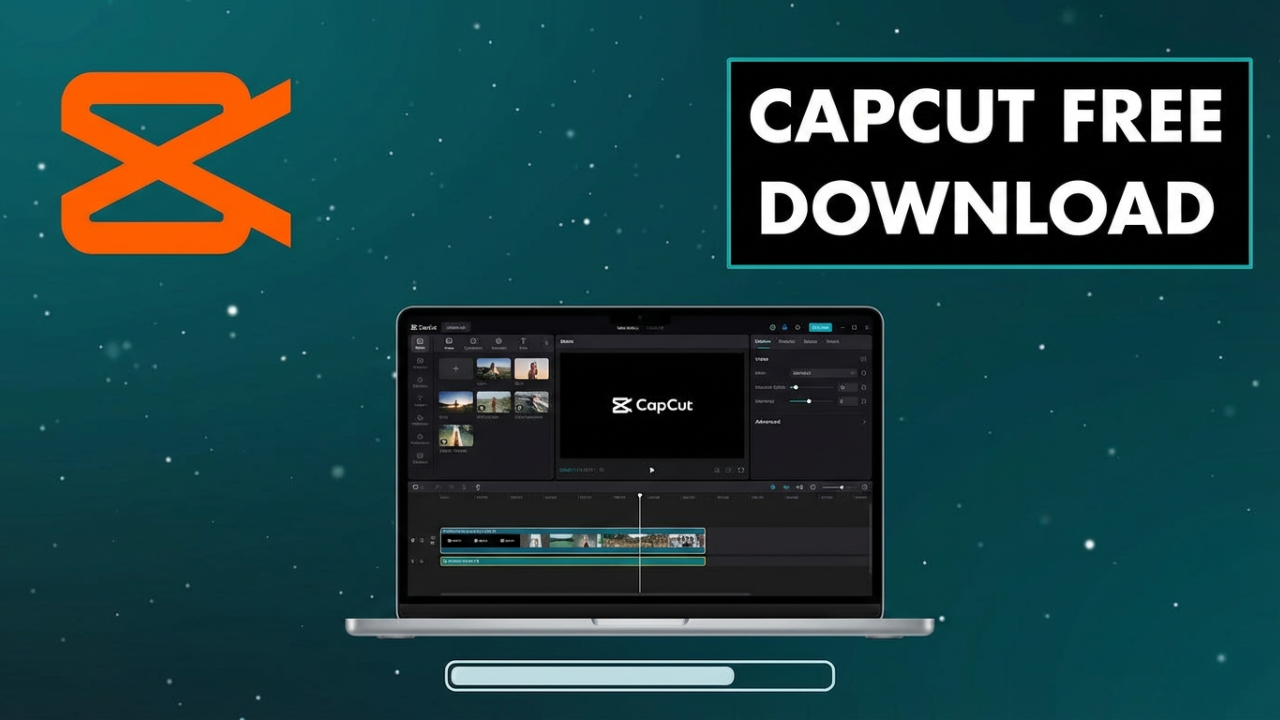
In this video, I’ll show you the official, safe, and 100% free way to download and install CapCut on your Windows or Mac laptop. No weird workarounds, no sketchy third-party sites, and definitely no need for emulators like Bluestacks. We’ll get it all done in just a few minutes, and I’ll even show you the single most important thing to do right after installation to remove the watermark on all your videos, for free. This is the guide I wish I had when I started, and it’s going to make your editing life so much easier. Let’s get into it.
**(Hook)**
Moving from mobile to desktop editing is the single biggest step you can take to make your videos look more professional. It’s the difference between being a hobbyist and taking your content creation seriously. On a phone, you’re just limited. Your fingers cover the timeline, getting precise cuts is a struggle, and juggling files is a nightmare. Your phone’s processor groans under the weight of 4K clips, and you’re always one notification away from losing your creative flow. The desktop version of CapCut smashes all those limitations.
Imagine having a huge widescreen canvas to see your whole project at once. Imagine using a mouse for pixel-perfect adjustments and keyboard shortcuts to fly through edits at double the speed. Think about having all your video files, music, and sound effects organized in folders, ready to drag and drop. This isn’t some distant dream for Hollywood editors; this is what CapCut for desktop offers, and the best part? It’s completely free. The official desktop app from ByteDance, the creators of CapCut and TikTok, gives you all this power without costing a dime. It’s the perfect bridge for creators looking to level up. You get more features, more control, and a stable editing environment that won’t make you want to pull your hair out. So, if you’re ready to leave the frustration of mobile editing behind, you’re in exactly the right place.
**(Section 1: Before You Download – Let’s Check Your Laptop’s Power)**
Okay, before we rush to the download page, we need to do one quick thing that will save you a world of headaches: a little detective work on your laptop’s specs. It sounds technical, I know, but it’s super easy and ensures CapCut runs smoothly. Trying to run powerful video software on a computer that isn’t ready is like trying to drive a race car with a lawnmower engine—you’re just going to lag, freeze, and crash. Let’s avoid that. Taking two minutes now to check your specs means CapCut will work perfectly the moment you open it.
CapCut is surprisingly efficient, but it still needs some juice to handle video files, especially high-quality 4K footage. So, let’s break down what you need. There are minimum requirements to get it running, and recommended requirements for a much smoother ride.
First up, your Operating System (OS). For Windows, you need a 64-bit version of Windows 10 or above. If you’re on a Mac, you’ll need macOS 10.15 (Catalina) or anything newer. To check on Windows, just go to your Start Menu, type “System Information,” and hit Enter. You’ll see your OS Name and System Type right there—make sure it says “x64-based PC.” On a Mac, click the Apple icon in the top-left and choose “About This Mac.”
Next is the brain of your computer: the Processor (CPU). The absolute minimum is an Intel Core i3 or an equivalent AMD processor. But for a truly smooth experience, you’ll really want at least a 6th-gen Intel Core i5 or an AMD Ryzen 5 1000 series, or newer. A better CPU means CapCut handles effects and rendering way faster. You’ll find this info in the same “System Information” or “About This Mac” window.
Now for a critical piece: RAM, or Random Access Memory. Think of it as your computer’s workspace. The more RAM, the more tasks it can juggle. The minimum is 4 gigabytes (GB), but honestly, that’s going to be a struggle. The strong recommendation is at least 8GB of RAM. If you plan on editing 4K video or complex projects, 16GB is the real sweet spot.
Let’s talk Graphics Card (GPU). This handles all the visuals and helps render your video. A better GPU can dramatically speed up your workflow. The minimum is an integrated card like Intel HD Graphics 4000. But for a much better time, you’ll want a dedicated card, like an NVIDIA GeForce GTX 1050 or an AMD Radeon RX 560, or newer. On Windows, find your GPU in the System Information window by clicking “Components” then “Display.” On a Mac, it’s usually in the “About This Mac” overview.
Finally, storage. The app itself only needs about 2GB of free space to install, but video files are huge. The real key here is the *type* of storage you have. A Solid State Drive (SSD) is way faster than an old-school Hard Disk Drive (HDD). If you have an SSD, your computer and CapCut will launch faster, and your clips will load instantly.
So, pause the video if you need to and check your specs. If you meet the recommended specs, you’re golden. If you only meet the minimum, don’t worry! CapCut has features like Proxy Editing to help it run on lower-end machines, which I’ll cover later. Now that you know your laptop is ready, let’s get to the fun part.
**(Section 2: The Official Free Way to Download CapCut on Windows)**
Alright, Windows users, let’s get CapCut installed. I’ll show you the two official, totally safe methods. I personally recommend using the website since it’s the most direct source.
Let’s start with Method One: The Official CapCut Website.
Pop open your favorite web browser—Chrome, Firefox, Edge, whatever—and go to the official site: capcut.com. Double-check that URL. You’ll see a clean homepage with a big, obvious button that says “Download for Windows.” You can’t miss it.
Go ahead and click it. This will start downloading the installer file, which looks something like `CapCut_Setup.exe`. It’s usually a couple hundred megabytes, so it should only take a minute or two.
Once it’s finished, head to your “Downloads” folder and find that setup file. Just double-click on it to get things started.
Windows might ask if you want to let this app make changes. This is a standard security check. Since we got it from the official source, click “Yes.”
The CapCut installer will pop up. It’s super simple. You’ll need to check the box to agree to the User License Agreement and Privacy Policy. By default, it will install in your Program Files folder, which is fine. You can click “Install,” or if you’re a power user, click “More options” to change the location. I’d recommend keeping the “Create a desktop shortcut” box checked for easy access.
Now, click “Install.” It’ll copy the files over, which usually takes less than a minute. When it’s done, just click “Start Now” to launch CapCut for the first time.
Quickly, let’s cover Method Two: The Microsoft Store.
This way is just as official and safe, and some people like it because the store can handle updates for you.
Just go to your Start Menu, type “Microsoft Store,” and open it. In the search bar at the top, type in “CapCut” and press Enter. You should see the official app from ByteDance pop up.
Click on the app, and you’ll see a blue “Install” or “Get” button. Click it. The Microsoft Store handles the rest automatically. When it’s done, you’ll get a notification, and you can launch it right from the store page or your Start Menu.
Whichever method you used, when you first launch CapCut, you might see a little window that says “Environment Testing.” Don’t be alarmed! This is a good thing. CapCut is just scanning your hardware to make sure it can run smoothly. Let it finish—it only takes a few seconds.
And that’s it! You’re now looking at the main project screen. You’ve successfully and safely installed CapCut on your Windows laptop.
**(Section 3: The Official Free Way to Download CapCut on Mac)**
Mac users, don’t worry, the process is just as simple for you. Like with Windows, you’ve got two official, safe ways to get CapCut on your MacBook or iMac: directly from the website or through the Mac App Store.
Let’s start with Method One, my preferred route: The Official CapCut Website.
Open Safari and navigate to capcut.com. The site is smart and will see you’re on a Mac, so you should see a big button that says “Download for Mac.”
Click that button. It’ll start downloading a DMG file, which is a common installer format for Macs. The file will be named something like `CapCut_Installer_V[version_number].dmg`.
Once it’s downloaded, open your Downloads folder and double-click the DMG file. Your Mac will “mount” it, opening a new Finder window that looks like a temporary flash drive. Inside, you’ll see two icons: the CapCut app and a shortcut to your Applications folder.
The instruction here is beautifully simple. Just click and drag the CapCut icon and drop it right onto the Applications folder shortcut in that same window. This copies the app to where it belongs. It’s the standard way to install most Mac software.
After it’s done copying, you can close that window. Then, find the CapCut disk icon on your desktop or in your Finder sidebar, right-click it, and select “Eject.” You can now delete the original DMG file to save space.
To open the app, just go to your Applications folder and double-click CapCut. The very first time, your Mac might ask, “CapCut is an app downloaded from the Internet. Are you sure you want to open it?” Since we got it from the official site, it’s safe. Click “Open.”
Now for the quick and easy Method Two: The Mac App Store.
Lots of Mac users prefer this since it’s so streamlined and handles updates automatically.
Open the App Store from your Dock or Applications folder. Use the search bar in the top-left to type in “CapCut” and hit Return. The official app from Bytedance Pte. Ltd. will show up. Click “Get” or the little cloud icon. You might need to enter your Apple ID password or use Touch ID.
The App Store will download and install it for you. When it’s done, the button will change to “Open.” You can launch it from there or from your Launchpad.
And there you have it! You’re now looking at the CapCut home screen on your Mac, ready to edit. Clean, simple, and totally free.
**(Section 4: The Most Important Step: How to Remove the Watermark for Free)**
Okay, pause. Before you do anything else, this next step is absolutely crucial. This is the secret that unlocks the *truly* free power of CapCut and ensures you don’t have a watermark on your final videos.
One of the best things about CapCut for desktop is that you can export high-quality videos without an ugly watermark. But here’s the catch: you have to be signed in. The good news? It’s completely free and takes about 30 seconds.
Look in the top left-hand corner of the CapCut window. You should see a “Sign in” button. Click it.
A window will pop up with a few sign-in options: TikTok, Google, or Facebook. Pick whichever is easiest for you. There’s no long registration form—you just authorize it with an existing account, and you’re done.
Once you’re signed in, you’ll see your profile icon and name in that top-left corner. That’s it. That’s the whole trick.
By signing in, CapCut now knows you’re a registered user, and as a reward, it removes the watermark. By default, CapCut sometimes adds a little “ending” clip to your videos that acts as branding. But now that you’re signed in, you can either just delete that clip from your timeline or go into the settings and turn off the default ending for all future projects.
So, to recap: Launch CapCut, click “Sign in” in the top left, use your Google, TikTok, or Facebook account, and you’ll never have to worry about a watermark again. It’s a tiny step for huge value. Do not skip this!
**(Section 5: The No-Install Alternative: Using CapCut Web)**
So, what if you’re on a school computer, a locked-down work laptop, or a Chromebook where you can’t install software? Or maybe your laptop is a little older and you’re worried about the specs. Are you out of luck? Nope. CapCut has another great solution: CapCut Web.
CapCut Web is a browser-based version of the editor that lets you edit videos without downloading a single file. It’s an amazing tool for quick edits or for anyone who needs flexibility.
To get there, just go to the same official website, capcut.com. Instead of clicking download, look for an option that says “Get started for free” or “Open CapCut in your browser.”
This launches the full editor right in your browser tab. You’ll be prompted to sign in, which, as we just covered, you should do anyway to get the watermark-free experience and save your projects to the cloud.
Now, you should know there are a few differences. The biggest pro of the web version is accessibility. You can use it on almost any modern computer with a browser—Windows, Mac, Linux, and ChromeOS. Your projects save to CapCut’s cloud, so you can start on one computer and pick it up on another.
The trade-offs? Performance depends heavily on your internet speed, since you’re uploading your media. The desktop app uses local files, which is much faster. Also, the web editor might not have every single cutting-edge feature that the latest desktop version has, since the desktop app can better use your computer’s dedicated hardware for smoother playback and faster exports.
Here’s my recommendation: If you *can* install the desktop app, you should. It’s the most powerful and stable experience. But think of CapCut Web as an amazing backup. It’s perfect for when you’re away from your main computer, for quick edits, or if you simply can’t install software. It’s just another fantastic, free tool in the CapCut ecosystem.
**(Section 6: How to Fix Common Problems (Troubleshooting Guide))**
You followed the steps, but something went wrong. Don’t panic. Tech can be finicky, but most CapCut issues are common and easy to fix. Let’s run through the most frequent problems you might hit.
Problem Number One: The installation fails or gives you an error.
If the install just doesn’t work, the first thing to do is double-check those system requirements. Is your OS too old? Not enough storage space? That’s the cause 90% of the time. If your specs are fine, try re-downloading the installer; the first one might have been corrupted. Also, aggressive antivirus software can sometimes block installers. You can try briefly disabling your antivirus right before you run the installer, and just remember to turn it back on immediately after.
Problem Number Two, the big one: CapCut is installed, but it’s super laggy, freezes, or crashes.
This is almost always a performance issue. First, the simple fix: close every other application. Your web browser with 50 tabs open, Spotify, Discord—shut them all down. Give CapCut all your computer’s resources.
If that doesn’t work, update your graphics card drivers. This is huge for Windows users. Go to the NVIDIA, AMD, or Intel website and download the latest drivers for your GPU. This alone solves a ton of performance problems.
Still lagging? Time to dive into CapCut’s own settings. In the top right, click the Settings cog, then go to the “Performance” tab. Look for options like “Hardware Encoding” and “Hardware Decoding” and make sure they’re checked. This lets CapCut use your graphics card to speed things up.
But the most powerful tool here is “Proxy Editing.” If you see an option for “Proxy,” turn it on. What this does is genius: CapCut creates temporary, low-resolution copies of your video files. You edit with these small, snappy proxy files, making your timeline smooth even on a slower computer. Then, when you export, CapCut automatically switches back to the original, high-quality files for the final render. You get a smooth editing experience and a high-quality final video. It’s a game-changer. I also recommend checking “Auto Clear Cache” to keep things tidy.
Problem Three: CapCut won’t launch at all, or it just shows a black or white screen.
This is often a corrupted cache or install issue. Try a clean reinstallation: uninstall CapCut completely, restart your computer, then install it again. If that fails, it might be a cache issue you have to clear manually. Also, make sure you have enough free space on your main drive, as a lack of temp space can prevent apps from starting.
Finally, always make sure you’re using the latest version of CapCut. Check the website or the app store for an update. The developers are constantly fixing bugs, and your issue might already be solved.
**(CTA)**
So, you’ve got CapCut installed, running smoothly, and you know the secret to a watermark-free life. You’re probably excited to jump in. To get started, just open CapCut and click “New Project.” On the left, hit “Import” to bring in your video clips and music. Then, just drag them down into the big area at the bottom called the timeline. To make a cut, move the playhead where you want to slice and click the “split” icon. It’s that easy. You are officially editing on your laptop.
In my very next video, I’m dropping a full “CapCut for Desktop – Beginner’s Tutorial.” We’ll edit a complete video from start to finish—adding text, finding trending music, creating smooth slow-motion, adding cool effects, and exporting in high quality for YouTube and TikTok. It’s the perfect next step.
So, if this video was helpful, do me a huge favor and hit that thumbs-up button. It tells YouTube this was a good guide and helps other people find it.
And to make sure you don’t miss that beginner’s tutorial, click subscribe and ring that notification bell. It’s the only way to guarantee you’ll see it first.
Finally, drop a comment below and let me know what kind of videos you’re planning to make now that you have CapCut on your laptop. Starting a gaming channel? Making vlogs? I read every comment and would love to know what you’re working on.
**(Conclusion)**
Let’s just recap the massive upgrade you just gave yourself. You are no longer held back by a tiny phone screen. You now have the full, official, and free version of CapCut on your laptop. You know how to check for compatibility, how to install it safely, and most importantly, how to sign in to remove the watermark. The barrier to creating high-quality content is officially gone. The only thing left to do is start creating. Thank you so much for watching, and I can’t wait to see what you make.