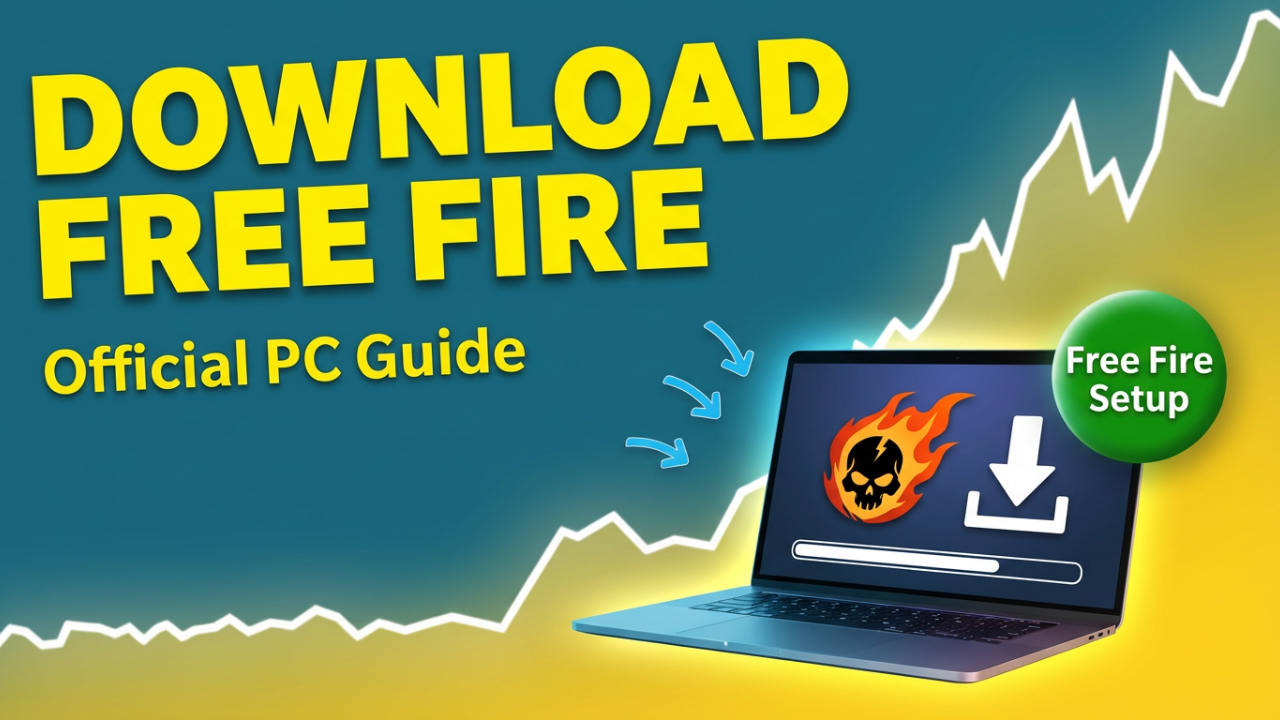
How to Download Free Fire On Laptop The Official Way
—
### Intro & Hook
Are you tired of laggy emulators that can sometimes put your Free Fire account at risk? Let’s talk about a better way. I’m going to show you how to install and play Free Fire on your Windows PC using Google Play Games. We’re not talking about complicated workarounds; this is Google’s own platform for playing mobile games on PC, designed to keep your account safe and perfectly synced. By the end of this guide, you’ll have Free Fire running smoothly on your PC and know how to tweak it for the best possible gameplay. We’ll cover everything from the basic installation to keymapping and performance tuning. This is your masterclass for becoming a PC Free Fire champion.
### Section 1: The “Why” – Understanding the Power of an Official Method
Before we get into the installation, it’s important to understand *why* this method is such a great choice. For years, the main way to play mobile games like Free Fire on a PC was through third-party Android emulators. Programs like BlueStacks, LDPlayer, or GameLoop are still popular options for many gamers. However, they aren’t directly supported by Google, and some players worry about performance and security.
While many people use these emulators without any issues, there’s always a slight concern in the community about account safety. Using third-party software can sometimes be a gray area, and there have been reports of players getting suspended, especially when using older or modified versions of emulators. You’re placing your trust, and your valuable Free Fire account, in the hands of another developer.
This is where Google Play Games for PC makes a difference. It’s an official application developed by Google to run select Android games on Windows. Think of it as an official bridge between the Android ecosystem and your PC. Because it’s made by Google, it integrates directly with the Google Play Store, ensuring every game you download is the legitimate version, just like on your phone.
Here are the core advantages of this official method:
1. **Enhanced Security and Safety:** When you use Google Play Games, you are downloading Free Fire from the same secure source as your phone: the Google Play Store. While no system can claim to be 100% risk-free, using an officially supported platform significantly reduces the risk of your account being flagged for unauthorized software. Your login is handled by Google’s secure systems, giving you greater peace of mind.
2. **Seamless Account Synchronization:** One of the biggest headaches with older methods can be syncing progress. With Google Play Games, it’s designed to be seamless. When you sign in with the same Google account you use for Free Fire, all your progress should be instantly available. Your level, rank, skins, and friends list are all synced. You can play a match on your phone and then pick up right where you left off on your PC.
3. **Optimized Performance and Stability:** Since Google develops both Android and the Google Play Games PC client, the synergy is strong. Games available on the platform, like Free Fire MAX, are optimized to run on PC hardware. This can lead to better performance, higher frame rates, and more stability compared to some other methods. You’re playing a game that is officially supported for your PC, with native-like support for keyboard and mouse.
In short, while other emulators are still a valid way to play, Google Play Games for PC offers a secure, stable, and highly integrated experience that makes playing Free Fire on your laptop or desktop better than ever.
### Section 2: Will Your PC Run It? Demystifying System Requirements
Now that you know why the official method is a great way to go, the next question is: “Can my computer handle it?” Being honest about your PC’s capabilities will save you time. Fortunately, the requirements for Google Play Games are quite reasonable. Let’s break them down.
**Minimum System Requirements:**
These are the absolute bare minimum specs your PC needs to install and run the Google Play Games application. The game will run, but it might not be the smoothest experience.
* **Operating System:** Windows 10 (version 2004) or newer. If you’re on an older version of Windows, you’ll need to upgrade. Windows 11 is fully supported.
* **Storage:** A Solid State Drive (SSD) with at least 10 GB of available free space. Google lists an SSD as a requirement for the fast speeds needed to run games smoothly.
* **Memory (RAM):** 8 GB of RAM.
* **Processor (CPU):** A CPU with at least 4 physical cores.
* **Graphics (GPU):** An Intel UHD Graphics 630 or a comparable integrated GPU.
* **Other Requirements:** You must have a Windows administrator account, and Hardware Virtualization must be enabled. We’ll cover this in detail next.
**Recommended System Requirements for a Great Free Fire Experience:**
If you want to enjoy the game with smooth frame rates and crisp graphics, you’ll want to aim for these recommended specs.
* **Processor (CPU):** A processor with 8 logical cores is recommended for better performance.
* **Graphics (GPU):** A dedicated gaming-class GPU, such as an Nvidia GeForce GTX series or an AMD Radeon RX series card, will make a huge difference in visual quality and frame rates.
* **Storage:** An SSD with 20 GB or more of free space to accommodate the game, updates, and other titles.
**How to Check Your PC’s Specifications:**
Don’t know your hardware specs? It’s easy to check.
1. **For OS, CPU, and RAM:**
* Press the **Windows Key + I** to open Settings.
* Go to **System** and click on **About**.
* Here you’ll see your “Processor” (CPU), “Installed RAM,” and “Windows specifications.”
2. **For Storage (To check for an SSD):**
* Press **Ctrl + Shift + Esc** to open Task Manager.
* Click the **Performance** tab.
* Click your **Disk 0 (C:)** drive. On the right, it will list the type: SSD or HDD.
3. **For Graphics (GPU):**
* In the same **Task Manager** > **Performance** window, scroll down the left menu to **GPU 0**.
* Clicking on it will show your graphics card’s name in the top-right corner.
Compare your system’s info with the requirements. If you meet the minimums, you’re ready to move on.
### Section 3: The Pre-Installation Gauntlet – Preparing Your PC for Victory
This section is one of the most important. Simply downloading and clicking “next” can lead to errors. To ensure a smooth installation, you need to prep your PC. Don’t skip these steps!
**Checklist Item 1: Enabling Hardware Virtualization (The Master Key)**
This is the number one reason why installations fail or games run poorly. Hardware Virtualization (also known as Intel VT-x or AMD-V) is a CPU feature that Google Play Games needs to be turned **ON** to work right. It’s often off by default.
* **How to Check if Virtualization is Enabled:**
1. Open **Task Manager** (Ctrl + Shift + Esc).
2. Go to the **Performance** tab and click **CPU**.
3. On the right, look for “Virtualization.” It will say “Enabled” or “Disabled.”
* **How to Enable Virtualization if it’s Disabled:**
This involves entering your PC’s BIOS or UEFI. Don’t worry, we’ll walk through it.
1. **Save Your Work and Shut Down:** Save everything and completely shut down your computer.
2. **Find Your BIOS Key:** When you turn your PC back on, you need to press a specific key (usually **F2**, **Delete**, **F10**, or **F12**) during startup. The correct key is often shown on the screen. If not, a quick web search for your “PC/Motherboard model + BIOS key” will tell you.
3. **Enter the BIOS/UEFI:** Turn on your PC and press the key until you enter the BIOS menu.
4. **Navigate to Advanced Settings:** Use your arrow keys to find a tab named “Advanced,” “CPU Configuration,” or something similar.
5. **Find the Virtualization Setting:** Look for an option named “Intel(R) Virtualization Technology,” “VT-x,” “AMD-V,” “SVM Mode,” or “Virtualization.”
6. **Enable It:** Change the setting from “Disabled” to “Enabled.”
7. **Save and Exit:** Find the “Exit” tab and choose **”Save Changes and Exit”** (often F10). Confirm your choice, and your computer will restart.
Once you’re back in Windows, check Task Manager again to confirm Virtualization is now “Enabled.”
**Checklist Item 2: Updating Your Windows Operating System**
An outdated version of Windows can cause compatibility issues.
1. Press **Windows Key + I** to open Settings.
2. Click on **Update & Security** (Windows 10) or **Windows Update** (Windows 11).
3. Click **”Check for updates”** and install everything it finds.
**Checklist Item 3: Updating Your Graphics Drivers**
Outdated graphics drivers are a major cause of lag and crashes.
1. **Identify Your GPU:** Go to Task Manager > Performance > GPU to see the manufacturer (NVIDIA, AMD, or Intel).
2. **Download the Correct Software:**
* **For NVIDIA GPUs:** Use “NVIDIA GeForce Experience.”
* **For AMD GPUs:** Use “AMD Software: Adrenalin Edition.”
* **For Intel Integrated Graphics:** Use the “Intel Driver & Support Assistant” from Intel’s website.
3. **Install the Latest Driver:** Run the software and follow the instructions. An “Express Installation” is usually the best option. Your screen might flicker, which is normal.
With your PC prepped and ready, it’s time to install the game.
### Section 4: The Core Tutorial – Installation and First Launch
The prep work is done. Now, let’s get the game installed.
**Step 1: Download the Official Google Play Games Installer**
1. Open your web browser.
2. Go to the official Google Play Games for PC website (play.google.com/googleplaygames).
3. **CRITICAL:** Only download the installer from this official Google page to avoid unwanted software.
4. Click the **”Download Beta”** button.
**Step 2: Run the Installer and Sign In**
1. Find the downloaded file (usually in your “Downloads” folder) and double-click it. Click **”Yes”** if a permission prompt appears.
2. The installer will download the necessary files.
3. Once finished, the Google Play Games app will launch.
4. Click **”Sign in with Google.”**
5. **EXTREMELY IMPORTANT:** You MUST sign in with the exact same Google Account linked to your Free Fire profile on your phone. This is how you sync your progress, skins, and purchases.
6. Accept the terms of service to finish the setup.
**Step 3: Find and Install Free Fire**
1. You’re now in the Google Play Games library. Use the search bar at the top and type **”Free Fire MAX.”**
2. The version officially supported for PC on this platform is Free Fire MAX. It offers better graphics and is optimized for PC. Don’t worry, it shares the same account and progress as the standard Free Fire thanks to Firelink technology.
3. Click on the Free Fire MAX icon and then click the large green **”Install”** button.
4. The game will now download and install. Note that game availability can vary by region.
5. Once done, the button will change to **”Play.”**
**Step 4: The Moment of Truth – First Launch**
1. Click **”Play.”**
2. The game window will launch. Free Fire MAX will start up.
3. Since you’re logged into the Google Play Games client, the game should automatically log you in. You should see your character and progress, just as they are on your phone.
Congratulations! You’ve officially installed Free Fire on your PC. Now let’s optimize it.
### Section 5: The Optimization Deep Dive – From Lag to Liquid Smooth
Getting the game installed is half the battle. Now we need to tune it for maximum performance and the most stable Frames Per Second (FPS).
**Angle 1: Mastering Free Fire’s In-Game Graphics Settings**
Launch the game and go to the Settings (gear icon) > “Display” tab.
* **Graphics:** This is the most important setting.
* **Low-End PC (Integrated Graphics):** Start with **Smooth** to prioritize FPS.
* **Mid-Range PC (Older Dedicated GPU):** Try **Standard** for a balance of quality and performance.
* **High-End PC (Modern Dedicated GPU):** Set this to **Ultra** or **Max** for the best visuals.
* **High FPS:** Always set this to **High**. This unlocks the frame rate to 60 FPS or higher, which is crucial for competitive play.
* **Shadows:** Turn this **Off** on a low-end PC for a significant FPS boost.
* **High Res.:** Set this to **Normal** on a low-end PC. On more powerful systems, you can set it to **High** for a sharper image.
**Starting Point:** Set Graphics to “Smooth” and High FPS to “High.” Play a match. If it’s smooth, try raising the Graphics to “Standard.” Tweak one setting at a time to find your PC’s sweet spot.
**Angle 2: Fine-Tuning the Google Play Games Client**
The Google Play Games client has its own settings you can check.
1. While in-game, you can often bring up an overlay by pressing **Shift + Tab**.
2. Look for a settings menu, which may be labeled “Visual settings” or something similar.
3. Some versions of the client may allow you to adjust performance settings like resolution or FPS caps here. Check to see what options are available in your version.
**Angle 3: Advanced Windows Optimizations for Maximum Power**
Let’s tell Windows to prioritize Free Fire.
* **Enable Game Mode:**
1. Press **Windows Key + I** to open Settings.
2. Go to **Gaming** > **Game Mode**.
3. Make sure Game Mode is **On**.
* **Set Graphics Performance Preference:**
1. In Settings, go to **System > Display > Graphics**.
2. Under “Add an app,” choose **Desktop app** and click **Browse**.
3. Navigate to the Google Play Games installation folder. You’re looking for an executable file, which may be named `emulator.exe` or something similar inside a folder like `C:\Program Files\Google\Play Games\`.
4. Add the executable, click **Options**, and choose **High performance**. Click **Save**.
* **Adjust Your Power Plan:**
1. Press the **Windows Key**, type “Power Plan,” and select **”Choose a power plan.”**
2. If you see an option for **”High performance”** or **”Ultimate Performance,”** select it.
* **Tame Background Processes:**
1. Before playing, open Task Manager (**Ctrl + Shift + Esc**).
2. Look for non-essential apps using a lot of CPU or Memory (like web browsers with many tabs) and click **”End task”** to free up resources.
Now your game should be running much smoother. Let’s get the controls right.
### Section 6: Master Your Domain – The Ultimate Keymapping and Sensitivity Guide
Playing on PC gives you the advantage of a keyboard and mouse. Customizing your controls is the final step to unlocking your potential.
**Accessing the Keymapping Interface**
While in the game, press **Shift + Tab** to bring up the Google Play Games overlay. From there, look for an option for **”Controls”** or “Remap controls.” This will show the current key bindings and allow you to edit them.
**The Philosophy of a Good Keymapping Layout**
The goal is to have every important action within easy reach of your left hand on WASD and your right hand on the mouse.
Here’s a pro-inspired layout to use as a starting point:
* **Movement:**
* **Movement:** W, A, S, D
* **Sprint:** **Left Shift**
* **Jump:** **Space Bar**
* **Crouch:** **C** or **Left Ctrl**
* **Prone:** **Z** or **X**
* **Combat and Actions:**
* **Fire:** **Left Mouse Button**
* **Aim (Scope):** **Right Mouse Button**
* **Reload:** **R**
* **Use / Interact:** **F** or **E**
* **Use Medkit:** **Q** (great for quick healing behind cover).
* **Primary Weapon:** **1**
* **Secondary Weapon:** **2**
* **Melee Weapon:** **3**
* **Grenade:** **4** or **G**
* **Gloo Wall:** This is a crucial one. Many players use a **side mouse button** (Mouse 4 or 5). If you don’t have one, **E** or another key close to WASD is a great alternative.
* **Utility and Menus:**
* **Map:** **M** or **Tab**
* **Inventory:** **I** or holding **Tab**
* **Free Look:** **Left Alt**
* **Lock/Unlock Mouse Cursor:** This is vital for menus. The default key might vary, but it’s often a key like the backtick (**`~**).
**How to Edit and Save Your Key Binds**
In the keymapping interface, click the action you want to change, then press the new key. When you’re done, look for a “Save” or “Done” button.
**Finding Your Perfect Sensitivity**
Sensitivity is personal. The goal is to find a balance where you can turn quickly but also make precise micro-adjustments.
1. **Understand Your Mouse DPI:** Many gaming mice have adjustable DPI (Dots Per Inch). Common settings are 400, 800, or 1600. Many pros use 800 DPI as a starting point.
2. **Go to the Training Ground:** This is your lab for testing.
3. **Adjust In-Game Sensitivity:** In Free Fire’s settings, go to the “Sensitivity” tab.
* **General:** This affects your regular hip-fire view. Get this right first.
* **Red Dot, 2x Scope, etc.:** These adjust sensitivity when you’re scoped in.
4. **The “Jitter Aim” Test:** Aim at a target’s head. Strafe left and right (A and D).
* If your aim is shaky and overshooting, your sensitivity is **too high**.
* If your aim feels sluggish and you struggle to keep up, it’s **too low**.
5. **The “Flick” Test:** Place your crosshair beside a target. Quickly “flick” your mouse to land on the target’s head.
* If you consistently flick past the target, your sensitivity is **too high**.
* If you consistently stop short, it’s **too low**.
Repeat this process, adjusting by 5-10 points at a time. Once you find a good setting, stick with it for a few days to build muscle memory.
### CTA & Conclusion
And there you have it—the complete guide to playing Free Fire on your PC the official and optimized way. We’ve covered everything from checking your specs and prepping your PC to installing the game through Google Play Games. We’ve tuned the settings for performance and built a professional control scheme.
You now have a secure, synced, and optimized PC setup that gives you a real competitive edge. The precision and power of your PC are ready for the battlefield.
If this guide helped you, hit that like button to help other players find it. Be sure to subscribe and ring the notification bell for more pro tips and updates to keep you at the top of your game.
Finally, drop a comment below. Let me know what FPS you’re getting now, or share your favorite key bind. Let’s build a community of elite PC players right here. Thanks for watching, good luck on the battlefield, and I’ll see you in the next one.