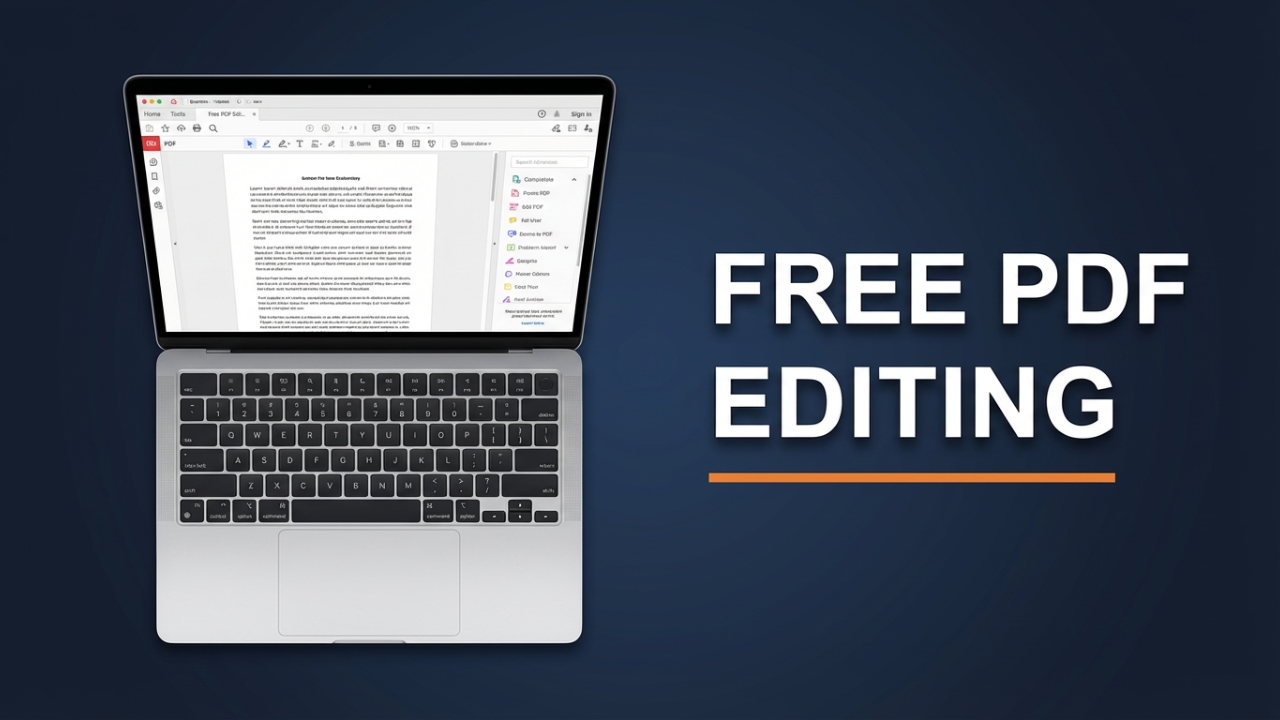
Stop what you’re doing. If you’re about to pay for software just to edit a single PDF, you might be making a huge mistake. Everyone seems to think you need to buy expensive programs, get a monthly subscription to Adobe Acrobat Pro, or use some shady online website just to fix a typo, sign a document, or rearrange a few pages.
But the truth is, you almost certainly don’t. The secret is that you already have 100% free and official tools built right into your Windows or Mac laptop that can edit almost any PDF in seconds. They’re hidden in plain sight, and today, I’m going to show you exactly where they are, how to use them, and which free tools are the absolute best for your specific task. We’re covering everything from simple text edits to pulling text from a scan, all without paying a dime.
You’ve got a PDF. Maybe it’s a resume with a typo you only noticed after you saved it. Maybe it’s a contract you need to sign and send back, like, *right now*. Or maybe it’s a 100-page report, and you just need to nuke one single page. You double-click the file, try to select the text, and… nothing. It’s locked down, static, unchangeable.
So you do what we all do. You Google “how to edit a PDF for free.” You’re flooded with websites promising the world. They let you upload your file, make the change, and then, just as you click “download,” you smack into a paywall. Or worse, they plaster a giant, ugly watermark all over your important document. The frustration is real. You feel stuck, thinking the only “real” way to get this done is to pull out your credit card for a professional software suite that costs hundreds a year. That’s what they want you to believe. But that whole story is wrong.

ILIPUTER- International Computer Manufacturing Co.
Section 1: Understanding What You’re Actually Trying To Do
Before we get to the “how,” let’s spend a quick minute on the “what.” Figuring out the type of edit you need to make will instantly show you which free tool is the right one for the job. Not all edits are the same.
First up is **Annotation and Markup**. This is the most common and easiest edit. It includes things like highlighting text, adding comments, drawing arrows or circles, and underlining stuff. You aren’t changing the original PDF content; you’re just adding a layer on top, kind of like writing on a printed document with a pen. Nearly every free tool we’ll talk about handles this flawlessly.
Second, there’s **Form Filling and Signing**. This is exactly what it sounds like: typing your info into preset fields and adding your digital signature. This is another super common task that, thankfully, is fully supported by the free, official tools already on your computer.
Third is **Content Editing**. This is the big one. This is where you have to go in and actually change the existing text or images inside the PDF. You need to fix a spelling mistake, update a date, rewrite a paragraph, or swap out an old logo. This is where most free tools fall apart, but I’ll show you the hidden methods on both Windows and Mac to do this, plus a powerhouse free software that handles it like a paid pro.
Fourth is **Page Management**. This covers tasks like deleting a page, rotating a page that’s upside down, reordering pages, or merging two separate PDFs into one. It might sound complicated, but some fantastic, completely free desktop tools make this as easy as dragging and dropping.
Finally, you have the advanced stuff: **Optical Character Recognition (OCR)** and **Redaction**. OCR is the magic that turns a “flat” PDF, like a scan, into searchable and editable text. Redaction is when you permanently black out sensitive info so it can never be recovered. For true, secure redaction, you often need pro tools, but for everything else, including OCR, the free options are surprisingly strong.
Knowing these categories is the first step. Now, let’s get to the solutions, starting with the millions of you using a Windows machine.
Section 2: The Hidden PDF Editor in Windows – Microsoft Word
If you have a Windows laptop, you almost certainly have Microsoft Word. And for years, Microsoft has included a powerful, hidden feature most people have no idea exists: Word can open and fully edit PDF files. Yep, you heard that right.
This isn’t some gimmick or hack; it’s an official, built-in function. Let me show you how it works.
First, **do not** double-click the PDF file. That will just open it in a basic viewer like Edge or Adobe Reader. Instead, open Microsoft Word first. Go to your Start Menu, type “Word,” and fire it up.
Now, instead of creating a new document, go to the “File” menu and click “Open.” Browse to wherever your PDF is saved—your Downloads, Desktop, or Documents folder.
Select the PDF and click “Open.” Now, this next part is key. Word will show you a small pop-up that says something like, “Word will now convert your PDF to an editable Word document… The resulting document will be optimized to allow you to edit the text, so it might not look exactly like the original PDF, especially if it contained a lot of graphics.”
That message is your golden ticket. It’s telling you it’s about to work some magic. Just click “OK.”
Word will take a few seconds, maybe a minute for a big file, and then… poof. Your PDF is now a fully editable Word document. You can click anywhere. You can delete text, type new sentences, change fonts, change colors, delete images, insert new ones. You have total control.
Let’s say this is a resume. I spot a typo in my job title. I just click, backspace, and type the correct word. What if I want to rewrite a whole paragraph? No problem. I can select the text block and just start typing. The text will reflow and wrap just like a normal Word doc.
So what about that warning? Word was right to give you a heads-up. For documents that are mostly text—resumes, letters, reports—the conversion is often almost perfect. The layout and spacing are kept with amazing accuracy. But, if your PDF is a super-fancy brochure with complex layers and artistic fonts, the conversion might get a little messy. Things might shift around. It’s not a dealbreaker, but just something to be aware of. For 90% of everyday docs, it works like a charm.
Once you’ve made your changes, you have to save it back as a PDF. This is critical. Go back to the “File” menu. Don’t just click “Save.” Click “Save As.” Choose your location.
Now, look for the “Save as type” dropdown menu right below the file name. Click it and select “PDF.” Give your file a new name so you don’t overwrite the original, and hit “Save.”
That’s it. You just used a tool you already own to do a “premium” task for free. No watermarks, no paywalls, no weird websites.
So, when should you use this? The Word method is, hands down, the best free option for deep **content editing** on Windows. If you need to change existing text, this is your go-to. Just remember to double-check the formatting on really complex, design-heavy files.
Section 3: The Other Windows Tool – Annotating with Microsoft Edge
But what if you don’t need to change the actual content? What if you just need to make some quick markups, highlight a few things, or sign a document? Microsoft has another free, built-in tool for that: the Microsoft Edge browser.
Every modern Windows laptop comes with Edge, and it’s a surprisingly good PDF viewer and annotator.
Just find your PDF and double-click it. It will probably open in Edge by default. If not, just right-click the PDF, go to “Open with,” and choose “Microsoft Edge.”
When the PDF opens, look at the toolbar at the top. You’ll see a bunch of simple but powerful tools.
Let’s run through them. The first one looks like a pen and is labeled “Draw.” Click this, and you can draw right on the PDF with your mouse or a stylus. You can change the color and thickness, which is perfect for circling a number or drawing an arrow.
Next to that is the “Highlight” tool. It works exactly how you think. Select it, pick a color, and then drag over any text to highlight it. It’s a great way to mark up study notes or point out important clauses in a contract.
If you need to add new text, Edge can do that too. Further down the toolbar is the “Add text” button. Click it, then click anywhere on the PDF, and a text box will appear where you can type. You can change the text color and size to make it stand out. This is great for filling out forms that aren’t interactive.
For many people, the most important feature is signing. Edge doesn’t have a big “Sign” button, but the “Draw” tool works perfectly for this. Just select the Draw tool, pick a black or blue color, and use your mouse to sign your name. It might take a try or two to get it neat, but it’s a quick and easy way to sign a document.
Once you’re done, you need to save your work. In the top-right corner, you’ll see a save icon that looks like a floppy disk. You’ll actually see two: “Save” and “Save as.” To be safe and make sure your annotations are saved into a new file, I always recommend using “Save as.” This lets you give the file a new name, which keeps your original, clean PDF untouched.
The Edge method is perfect for **annotation, simple form filling, and signing**. It’s super fast and already there. But remember its big limitation: you can’t use Edge to change the original text of the PDF. For that, you need the Word method we just covered.

ILIPUTER- International Computer Manufacturing Co.
Section 4: The Mac User’s Secret Weapon – The Preview App
Alright, Mac users, your turn. And honestly, when it comes to built-in PDF tools, you have it even better. Every single Mac—MacBook, iMac, whatever—comes with one of the most underrated and powerful apps Apple has ever made: Preview.
Preview is way more than an image viewer; it’s a powerful PDF editing suite hiding in plain sight. For most PDF tasks, you will never need to download or buy anything else.
Just find any PDF on your Mac and double-click it. It’ll open in Preview automatically.
At first, it just looks like a viewer. The magic starts when you click the “Markup Toolbar” button. It’s the icon that looks like a pen tip in a circle, near the top right. Clicking this uncovers a whole toolbar of editing tools.
Let’s start with **Annotation**. Just like Edge, you have tools for drawing and sketching. There’s also a “Shapes” tool that lets you add clean arrows, circles, and boxes. One really cool feature is the “Smart Lasso,” which can turn your wobbly hand-drawn circle into a perfect one.
Highlighting is just as easy. Click the highlighter icon, and you can highlight, underline, or strikethrough text.
What about **adding text and signing**? Preview is amazing at this. Click the “T” in a box icon to add a text box anywhere. This is perfect for filling out forms. For signatures, Preview has a killer feature. Click the signature icon. You can sign your name on your Mac’s trackpad. Or, even cooler, you can sign your name on a white piece of paper and hold it up to your Mac’s camera. Preview scans it and creates a perfect, reusable digital signature that you can just drop onto any document.
So that’s great for annotation. But what about **content editing and page management**? While Preview can’t change the *existing* text in a PDF, it has a smart workaround. You can use the “Rectangular Selection” tool to draw a box over text, hit delete (which covers it with a white box), and then use the “Add Text” tool to type new text on top. It’s not as smooth as the Word method for big paragraphs, but for fixing a typo or a date? It works perfectly.
Where Preview really destroys other free tools is **page management**. To see your pages, go to the “View” menu and select “Thumbnails.” A sidebar pops up with a small preview of every page.
From here, you can do anything.
Want to delete a page? Click its thumbnail and hit the “Delete” key. Gone.
Want to reorder pages? Just drag the thumbnails into the new order. It’s that easy.
Need to rotate a page? Click the thumbnail and hit the rotate button in the toolbar.
Want to combine two PDFs? This is my favorite trick. Open both PDFs in separate windows. Make sure thumbnails are visible in both. Now, just drag a page from one PDF’s sidebar and drop it into the other’s. You just merged the documents. You can even drag an entire PDF file into the thumbnail sidebar to combine them instantly.
After you’re done, just go to “File” and “Save” to apply the changes, or choose “Export as PDF” to save a new version.
For Mac users, Preview should be your first stop for almost everything. It’s the ultimate tool for **annotating, signing, filling forms, and all kinds of page management**. Its only real weakness is that it can’t reflow existing text like Word can. But for everything else, it’s a powerhouse that’s already on your Mac.
Section 5: The Ultimate Free Solution for EVERYONE – PDFgear & PDF24
The built-in tools are great for common tasks. But what if you need more power? What if you’re on Windows and need to manage pages? What if you’re on a Mac and you *really* need to edit the original text? Or what if you need that magic trick we talked about—OCR, to turn a scanned image into editable text?
For this, we move beyond the built-in tools to free, third-party software. But we’re not using those limited online editors. We’re using fully-featured, 100% free desktop apps with no watermarks or paywalls. The two champions here are PDFgear and PDF24 Creator.
Let’s talk about **PDFgear** first, since it’s available for both Windows and Mac and is shockingly powerful for a free tool. PDFgear’s creators say it’s completely free as a way to stand out from competitors like Adobe. While they might add paid advanced features someday, the core tool is free without ads or selling your data.
You can download it right from their website. The installation is clean—no bundled adware to worry about.
When you open PDFgear, it looks and feels like a premium program. You can open any PDF and immediately access tools that go way beyond the basics.
First, **True Content Editing**. Unlike Preview or Edge, PDFgear has a dedicated “Edit” mode. You click the “Edit” tab, and you can click directly on any text in the PDF. A box appears, and you can start typing, deleting, and reformatting, almost like a real text editor. This is a game-changer for a free tool. You can also edit images—move them, resize them, or replace them.
Second, **Full Page Management**. Like Preview, PDFgear has a great page management view. You can see all your thumbnails, drag and drop to reorder, rotate, delete, or even pull specific pages into a new PDF. Merging and splitting files is also super simple.
Third, the superpower: **OCR (Optical Character Recognition)**. Ever get a PDF that’s just a picture of text, like a scan? You can’t select or search the text. PDFgear has a built-in OCR tool that fixes this. You just open the scanned PDF and click the OCR button. It analyzes the image and converts all that flat text into real, selectable, and editable text. This is a feature many companies charge a lot for, and PDFgear gives it to you for free.
Finally, it has all the other stuff you’d expect: full annotation tools, form-filling, digital signatures, and even the ability to convert your PDF to Word, Excel, and other formats. It even has an AI “Copilot” that can help you summarize the document or find info quickly.
If you’re on a Mac, PDFgear is the perfect partner for Preview. Use Preview for quick, daily tasks, and fire up PDFgear when you need to do heavy-duty text editing or OCR.
If you’re on Windows, you have another amazing, totally free option called **PDF24 Creator**. This is a Windows-only program that’s loved for being lightweight and powerful with no catches. Like PDFgear, it’s free of ads and malware. It’s a German-developed tool that gives you a massive box of PDF utilities that all work offline.
PDF24’s strength is its toolbox approach. When you open it, you see a launcher with icons for everything: Merge PDF, Split PDF, Compress PDF, Edit PDF, OCR PDF, and on and on. It’s great at handling lots of files at once. Its page management is also top-notch, with a simple drag-and-drop interface.
So, for Windows users, you have choices. The Word method is best for pure text editing. PDF24 is a fantastic all-in-one toolbox for page management and conversions. And PDFgear is arguably the most complete free package of all, with direct text editing, OCR, and a modern interface.
Section 6: Online Editors – The Last Resort (And Their Dangers)
Now, we need to talk about the tools you see everywhere on Google: online PDF editors. Websites like Smallpdf, Sejda, Canva, and even Adobe’s free online tool promise quick edits in your browser. And sometimes, they can be useful.
Let’s say you’re on a computer that isn’t yours and you can’t install software. You just need to add a quick signature or delete one page. In that situation, a web editor can be a lifesaver.
**Adobe’s Free Online Editor** is a decent place to start for simple things. You can upload a file, add text boxes, highlight, and sign forms. Adobe says your file is handled securely and deleted from their servers.
But—and this is a huge “but”—you have to know the risks and limits.
First, **Limitations**. Almost all of them are very restrictive. Sejda, for example, limits you to three tasks per day and has file size limits. Smallpdf and others have similar hourly or daily caps. If you have a big document or need to do more than a couple of quick edits, you’re going to hit a paywall.
Second, and way more important, is **Privacy and Security**. When you use an online PDF editor, you are uploading your document to some company’s server. If that document is a resume, a financial statement, a secret business contract, or a medical record, you are putting that sensitive information in someone else’s hands. While big companies like Adobe have strong privacy policies, can you say the same for every random website that pops up in a Google search? For any document with sensitive info, using an offline desktop tool like Word, Preview, PDFgear, or PDF24 is always the safer bet.
So, the rule of thumb is this: use online editors for non-sensitive documents when you’re in a pinch and can’t install software. For everything else, stick to the powerful, secure, and private offline methods.
Section 7: The Final Frontier – When You Actually MIGHT Need to Pay
We’ve spent all this time showing you how to *not* pay for PDF software. But to be totally honest, there are a few specific, professional situations where a paid tool like Adobe Acrobat Pro is genuinely the right choice.
The number one reason is **Secure Redaction**. We talked about redaction—the *permanent* removal of information. Many free tools let you draw a black box over text. This is NOT redaction. That’s just a drawing. Anyone can move that black box and see the text underneath. Professional tools like Acrobat Pro have a real Redaction tool that actually scrubs the data from the file. When you redact it, that information is gone forever. If you handle legal or government documents where you must guarantee information is unrecoverable, you have to use a paid, professional tool.
The second reason is working with extremely **Complex, Professionally Designed Files**. If a PDF was made in a pro layout program like Adobe InDesign, with tricky layers and special fonts, free tools can struggle to edit it perfectly. Paid tools are built to handle these files with 100% fidelity.
The third reason is **Advanced Form Creation**. Our free tools are great for *filling* forms, but if you need to *create* complex, interactive forms with automatic calculations or validation rules, you’ll need a pro application.
And finally, for **Big Company Workflows**. If you’re in a large organization that needs to batch process hundreds of files, ensure compliance with archival standards like PDF/A, and connect with other company software, a paid subscription is often necessary.
But for the other 99% of us—the students, freelancers, and everyday users just trying to get stuff done—the free methods we’ve covered today are more than enough.
Conclusion
So let’s recap. The whole idea that you’re stuck and have to pay for expensive software to edit a PDF is a myth.
If you’re on a **Windows PC**, your first move for changing content should be **Microsoft Word**. Just open the PDF with it, edit, and save it as a new PDF. For quick highlights, notes, and signatures, the built-in **Microsoft Edge** browser is perfect.
If you’re on a **Mac**, the **Preview** app is your swiss-army knife. Use it for almost everything: annotating, signing, and especially managing pages—rearranging, deleting, and merging files with a simple drag and drop.
And for everyone, if you need more power, install a truly free desktop app. **PDFgear** is a fantastic choice for both Windows and Mac that offers real text editing and OCR. For Windows users, **PDF24 Creator** is another excellent, feature-packed toolbox.
Just be cautious with online editors for anything sensitive, and remember that for a few rare, highly professional tasks like secure redaction, a paid tool is still the way to go.
You now have the knowledge and the tools to handle almost any PDF that comes your way, using the official, free, and powerful software that was on your laptop the whole time. You are no longer stuck.