

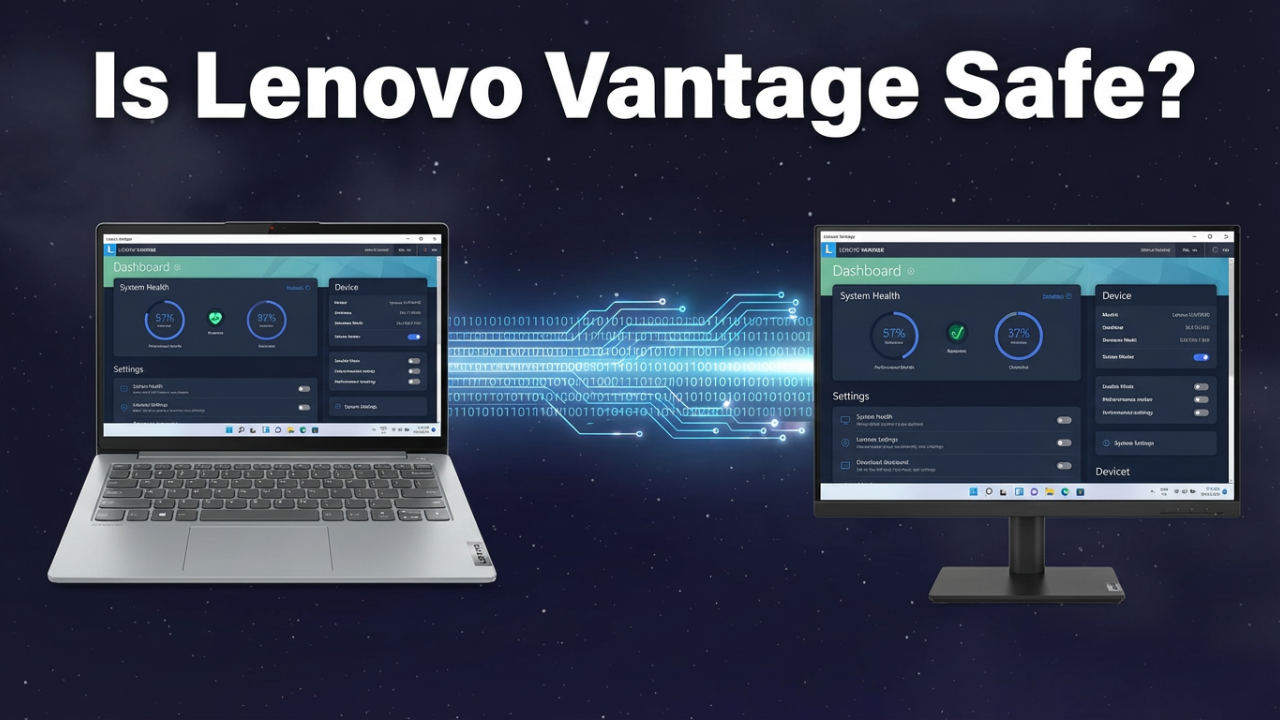
So, you just got a new Lenovo laptop. You’ve peeled off the plastic, marveled at that pristine screen, and gone through the whole Windows setup process. You finally land on the desktop, ready to install your programs and get to work. But then you see it. Tucked away in the Start menu, maybe even pinned to your taskbar, is an app you didn’t install: Lenovo Vantage.
What is this thing? Is it spying on you? Is it one of those junk programs that manufacturers get paid to pre-install, secretly slowing down your brand-new machine from day one? For a lot of people, the first impulse is to find the uninstall button and just get rid of it. But should you? That’s the real question, and today, we’re going to answer it. We’ll take a complete look at what Lenovo Vantage actually is, what it does, weigh the pros and cons, and give you a final verdict to help you decide if it’s essential software or just another piece of bloatware that you should absolutely delete. Let’s figure it out.

ILIPUTER- International Computer Manufacturing Co.
You spent your hard-earned money on a new laptop, and you expect it to be a clean slate—a faster, more responsive machine than your old one. So why does it already feel a little cluttered? You see a bunch of apps you’ve never heard of, and you start to wonder if your new investment is already being weighed down. That feeling of uncertainty, of not knowing whether a program is a critical utility or a performance-draining parasite, is exactly what we’re tackling today. Is Lenovo Vantage like a helpful concierge for your new device, or is it an uninvited guest who’s overstaying their welcome and eating up your system resources? Let’s find out what’s really going on under the hood.

ILIPUTER- International Computer Manufacturing Co.
Section 1: What Exactly IS Lenovo Vantage?
Before we pass judgment, we need to know what we’re dealing with. So, what is Lenovo Vantage? Simply put, it’s a free app from Lenovo that often comes pre-installed on new laptops running Windows 10 or 11, and it’s always available from the Microsoft Store if it’s not. Its official purpose is to be a central hub for managing your specific Lenovo device. Think of it as a custom-built control panel, designed by the people who made your hardware, to give you access to settings and tools you might not easily find in Windows.
Lenovo’s goal is to put a bunch of different functions into one application, so there’s less clutter on your PC and more control in your hands. It’s meant to be your one-stop shop for personalizing your PC, checking your warranty, updating drivers, and running diagnostics. It’s designed for everyone, but it’s especially useful for users who aren’t super technical and just want a simple way to keep their machine in top shape.
But that’s the marketing pitch. To really understand its value, we need to look at its core functions. When you first open the app, you’re usually greeted by a dashboard. On newer versions, this dashboard can feel a bit busy with promotional articles and links, which is an immediate red flag for many. Looking past that, however, the app’s real power is hidden in its main sections, usually under menus like “Device,” “Security,” and “Support.” Let’s break down what you’ll find there.
Section 2: A Look at Vantage’s Core Features
To decide if it’s worth keeping, you need to know exactly what this software offers. We’re going to explore the most important features one by one, explaining what they do and whether they offer something you can’t already get from Windows.
Feature 1: System Update
This is one of the most important and praised features of Lenovo Vantage. While Windows Update does a pretty good job of keeping your operating system up to date, it doesn’t always have the latest, most specific drivers for your particular Lenovo model. This is where Vantage comes in. The System Update tool specifically scans for and installs Lenovo-certified driver and BIOS updates.
Why does this matter? Your laptop has a unique touchpad, special function keys, a specific power management controller, and a BIOS designed by Lenovo. These parts need their own drivers to work right. Sometimes, a generic Windows update can cause conflicts—your touchpad might lose scrolling, or function keys might stop working. Having a tool that provides manufacturer-approved updates is a lifesaver. Vantage’s System Update gives you one place to check for critical updates for your BIOS, firmware, and other hardware, often more reliably than Windows Update can for these specific components.
Feature 2: Hardware Settings and Personalization
This is where Vantage really stands out from standard Windows controls. Under the “Device” section, you’ll find a ton of settings that are unique to your Lenovo hardware—options that simply aren’t available in the Windows Control Panel or Settings app.
Let’s look at the most powerful ones:
**Power Settings: The Battery Deep Dive**
This is maybe the single most valuable part of Vantage for anyone who wants their laptop’s battery to last longer.
* **Battery Protection / Smart Charging:** This is the star of the show. If you mostly use your laptop while it’s plugged in, keeping the battery at 100% all the time causes it to degrade much faster. This feature solves that by stopping the charge at a healthier, lower level, such as 80%. This “sweet spot” dramatically reduces battery wear and can significantly extend its overall lifespan. When this is working, you’ll see the “plugged in, not charging” message, which is a good thing—it means your battery is being protected. For someone who uses their laptop like a desktop, this feature alone can be worth keeping Vantage for.
* **Rapid Charge:** On the flip side, if you’re about to leave and need a full battery fast, you can turn on Rapid Charge. This pushes more power to the battery to charge it up quicker, though it’s best for occasional use since it can generate more heat.
* **Battery Details and Health:** Vantage gives you a detailed report on your battery’s health, showing its original design capacity versus its current full-charge capacity. This tells you exactly how much it has degraded. Some models also have a battery calibration tool to make sure the charge level it reports is accurate. This is great for diagnosing battery problems.
**Intelligent Cooling and Thermal Profiles**
Modern laptops can get hot, and managing that heat is key for performance and comfort. Lenovo Vantage gives you direct control over this.
* **Thermal Modes:** You’ll typically find three modes: Performance, Balanced, and Quiet (or Cool & Quiet).
* **Performance Mode** ramps up the fans and lets the CPU and GPU draw maximum power. It’s ideal for gaming or video editing, but it will be loud.
* **Quiet Mode** does the opposite, lowering fan speeds and performance to make the laptop as quiet as possible. This is perfect for a library or a quiet office.
* **Balanced Mode** is the default, automatically adjusting fans and performance for a good mix of both.
* **Intelligent Cooling:** This “auto” mode takes things a step further, using sensors to switch between thermal modes based on what you’re doing. It might even detect when the laptop is on your lap and adjust performance to keep the base from getting too warm. The hotkeys to switch these modes, like Fn+Q on many Legion models, are dependent on your specific laptop. These fine-tuned controls over your laptop’s thermals are a huge advantage that Windows doesn’t offer natively.
**Other Hardware Controls**
Beyond that, Vantage lets you tweak other hardware settings like:
* **Camera and Microphone:** Adjusting privacy settings or turning on microphone noise cancellation.
* **Input and Keyboard:** Changing what the function keys do, controlling the keyboard backlight, or setting up custom macros and RGB lighting on gaming laptops.
* **Display Settings:** Accessing an eye care mode to reduce blue light or turning on super resolution for video.
Feature 3: Hardware Scan and Diagnostics
If you think something is wrong with your laptop, Vantage has built-in diagnostic tools. The Hardware Scan feature acts like a check-up, letting you run tests on your motherboard, memory (RAM), storage drives, and other key components.
If a part is failing, this scan can help you identify the problem without needing to be a computer expert. It gives you a clear report on your system’s health. For most people, this is a much friendlier way to troubleshoot than digging through Windows’ cryptic Event Viewer. Vantage also has a feature called Smart Performance, which can scan your PC to find and fix issues that could be slowing it down.
Feature 4: Security Features
Lenovo has also been adding more security tools into Vantage. While it’s not a replacement for a dedicated antivirus program, it offers some nice extra protections.
* **Wi-Fi Security:** This feature warns you if you connect to a risky or unsecured Wi-Fi network, like at a coffee shop or airport. It flags networks that could expose you to threats, giving you a heads-up to be more careful or use a VPN.
* **Identity Advisor & Smart Lock:** Some versions of Vantage offer premium, subscription-based services. Identity Advisor monitors the dark web to see if your personal information (checking over 120 data points) has been exposed in a data breach. Lenovo Smart Lock is a cloud-based service, powered by Absolute, that can help you find, lock, and even recover your device if it’s stolen. The availability of these paid services depends on your region and model.
Section 3: The Case FOR Keeping Lenovo Vantage (The Pros)
Now that we’ve seen the features, let’s build the case for keeping this app.
Pro 1: Unmatched Convenience and Centralized Control
The biggest argument for Lenovo Vantage is convenience. For someone who isn’t a tech expert, finding all these settings in Windows can be a nightmare. Imagine trying to tell a family member how to update the BIOS, then go to Device Manager for drivers, then find hidden power settings. It’s overwhelming.
Vantage puts all of that into one, easy-to-use app. Everything from updating critical firmware to turning on the keyboard backlight is in one place. It’s a user-friendly dashboard for your machine, which is incredibly valuable for anyone who just wants their computer to work without becoming a system administrator.
Pro 2: Genuinely Unique and Useful Features
Vantage offers features you simply can’t get from a standard Windows installation. The battery protection mode is the best example. There’s no built-in Windows setting to stop your battery from charging past 80% to protect its long-term health. For anyone who keeps their laptop plugged in, this feature alone can add years to the battery’s usable life.
The same goes for the Intelligent Cooling system. Windows lets you choose basic power modes, but it doesn’t give you hardware-level control over fan curves and thermal limits. The ability to switch to a “Quiet Mode” for a meeting or “Performance Mode” for a demanding task is a practical benefit tied directly to Lenovo’s hardware. These aren’t just redundant tools; they unlock your hardware’s full potential.
Pro 3: Simplified and Safer Updates
Keeping your drivers and BIOS updated is critical, but it can be risky. Grabbing the wrong BIOS or a bad driver from some random website can cause serious problems. While Windows Update is generally reliable, it doesn’t always have the latest manufacturer-specific updates.
Vantage provides a curated, safe pipeline for these updates. The drivers offered through Vantage are certified by Lenovo for your exact model. This takes the guesswork and risk out of the update process. For anyone who doesn’t know the difference between a graphics driver and a chipset driver, having a big, friendly “Check for Updates” button that handles it all safely is a huge win.
Section 4: The Case AGAINST Keeping It (The Cons & Bloatware Argument)
Of course, it’s not all good news. There’s a reason so many people want to uninstall this app. Let’s look at the arguments against Vantage and why it often gets called “bloatware.”
Con 1: Performance Overhead and System Resources
Any app running in the background uses system resources, and Lenovo Vantage is no exception. It has services like the “System Interface Foundation Service” that are always running. While the impact is generally small on modern computers, it’s not zero. These processes use a bit of CPU time and RAM.
For power users or gamers trying to squeeze every bit of performance out of their machine, any unnecessary background process is a problem. On older or less powerful machines, even a small resource drain might be noticeable. There have been reports of Vantage causing high CPU usage or other issues, turning it from a helpful utility into a nuisance.
Con 2: Redundancy with Windows Features
A common criticism is that many of Vantage’s features are just prettier versions of tools that already exist in Windows. An experienced user knows how to use Device Manager to update a driver or how to use Windows’ own power settings. From this perspective, Vantage can feel like an unnecessary layer on top of the operating system, just adding to the software clutter.
Con 3: The “Junk” Factor – Ads and Promotional Content
This is maybe the most annoying part of Lenovo Vantage. Over the years, Lenovo has started stuffing the Vantage dashboard with ads, articles, and upsells for other Lenovo products and services. You might open the app to check your battery and get hit with an ad for a new monitor.
This gives the app a cheap, “nagware” feel. A system utility should be clean and functional. When it starts looking like a storefront, it loses credibility. Other elements, like a redundant toolbar that sometimes appears, can also be irritating, though these interface details can vary by version and model. This is a major turn-off and makes the app feel like it’s there to serve Lenovo’s marketing team as much as it’s there to help you.
Section 5: The Verdict – Should YOU Delete It?
So, after all that, we’re back to the big question: should you delete Lenovo Vantage? The answer isn’t a simple yes or no. It really depends on who you are as a user.
For the Beginner or “Hands-Off” User
If you’re not particularly tech-savvy, or you just want a simple, all-in-one tool to manage your laptop, then my recommendation is to **absolutely keep Lenovo Vantage**.
The benefits—easy and safe updates, the unique battery protection feature, and centralized hardware controls—far outweigh the minor performance cost. It simplifies PC maintenance and helps you protect your investment, especially the battery. You can take steps to reduce the annoyances, but the core functionality is too valuable to give up. For you, it’s essential software.
For the Power User, Tinkerer, or IT Professional
If you’re an experienced user who knows your way around Windows, and you’re comfortable managing your own drivers and settings, then yes, you can definitely consider Lenovo Vantage to be **bloatware, and you can uninstall it.**
You know how to find drivers on Lenovo’s support website. You might even prefer a lightweight, third-party tool like the Lenovo Legion Toolkit (for gaming laptops), which offers many of the same controls without the ads. For you, the redundancy and promotional junk are probably more annoying than the convenience is helpful. By removing it, you’ll free up a small amount of system resources and have one less piece of manufacturer software to deal with.
The Middle Ground: A Compromise
There’s also a third option that offers the best of both worlds. You can use Lenovo Vantage for its most critical functions and then “tame” it so it doesn’t bother you.
Here’s the strategy:
1. Use Vantage to do the initial setup: Run all system updates, get your BIOS to the latest version, and set the hardware settings you want, like turning on battery protection.
2. Once that’s done, you can prevent the app from running on startup and turn off its notifications.
This way, the settings you’ve configured will often remain active, but the app itself won’t be running in the background. You can then just open it manually every few months to check for major updates.
Section 6: The How-To Guide – Taming or Removing Vantage
Whether you’ve decided to keep it, tame it, or delete it, here’s how to do it.
How to Tame Lenovo Vantage
If you’re keeping the app but want to stop the annoyances:
1. **Disable the Toolbar and Pop-ups:** Open Lenovo Vantage. Go into the settings, often in a section called “Device” or “Smart Assist,” and look for toggles to turn off the Lenovo Vantage Toolbar and any marketing pop-ups. Turn them off.
2. **Prevent it From Running at Startup:** Press `Ctrl + Shift + Esc` to open the Task Manager. Go to the “Startup apps” tab. Find any entries for “Lenovo Vantage” and disable them. The app will no longer run in the background, but note that the persistence of some settings (like the battery charge limit) without the app running can depend on your system’s firmware and isn’t guaranteed.
How to Completely Uninstall Lenovo Vantage
If you’ve decided it has to go:
1. **The Standard Uninstall Method:**
* Go to Windows Settings > Apps > Installed apps.
* Search for “Lenovo Vantage” and click the three dots to select “Uninstall.”
* Also look for “Lenovo Vantage Service” and uninstall that as well.
2. **The PowerShell Method (For Stubborn Cases):**
* If the app won’t uninstall cleanly, you can use PowerShell. Right-click the Start button and select “Terminal (Admin).”
* To remove the app, you can use a command like `Get-AppxPackage *lenovo* | Remove-AppxPackage`. Be careful with this command, as the wildcard `*lenovo*` is broad and could remove other Lenovo apps you might want to keep.
3. **Reinstallation:** And remember, this decision isn’t permanent. If you uninstall Vantage and later miss a feature, you can easily reinstall it for free from the Microsoft Store.
Conclusion
So, Lenovo Vantage is a classic double-edged sword. It’s a genuinely powerful tool, especially for beginners, offering unique hardware controls you can’t get elsewhere. At the same time, it’s weighed down by performance overhead and ads that make experienced users rightly call it bloatware.
The verdict isn’t about whether the app is universally “good” or “bad”—it’s about whether it’s good *for you*. If you value convenience and easy maintenance, keep it and tame it. If you’re a power user who demands minimal overhead, you can safely live without it.




